In Casengine, a user’s access to cases, matters, clients, and email alerts is determined by assigned roles and permissions.
Case Permissions
Default Access
By default, a lawyer (user) only has access to the cases where they are explicitly assigned as:
Responsible Lawyer – Full access (only one user can be set).
Supervisor(s) – Data entry access (multiple users can be added).
How to Assign a Responsible Lawyer or Supervisor
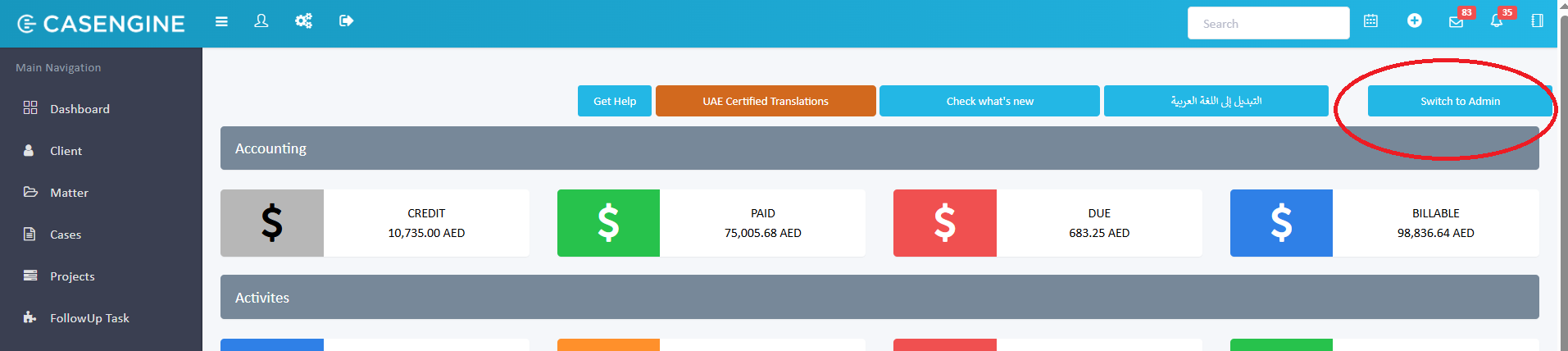
Login as an Admin (or an existing Responsible Lawyer).
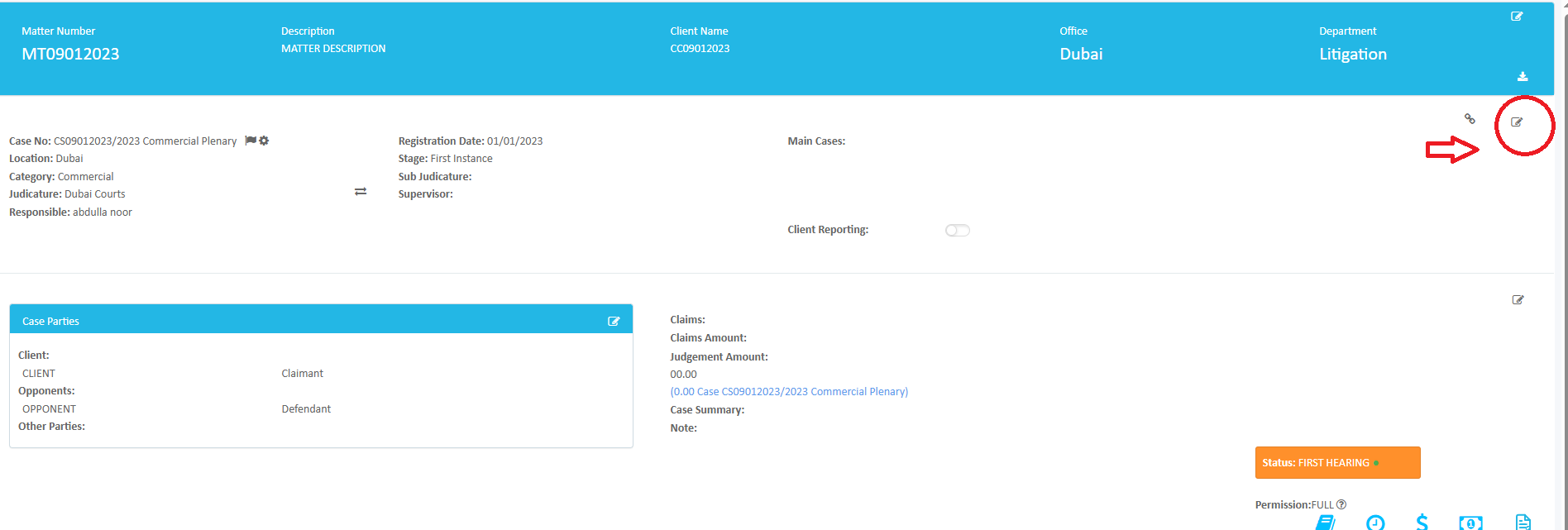
Open the required case.
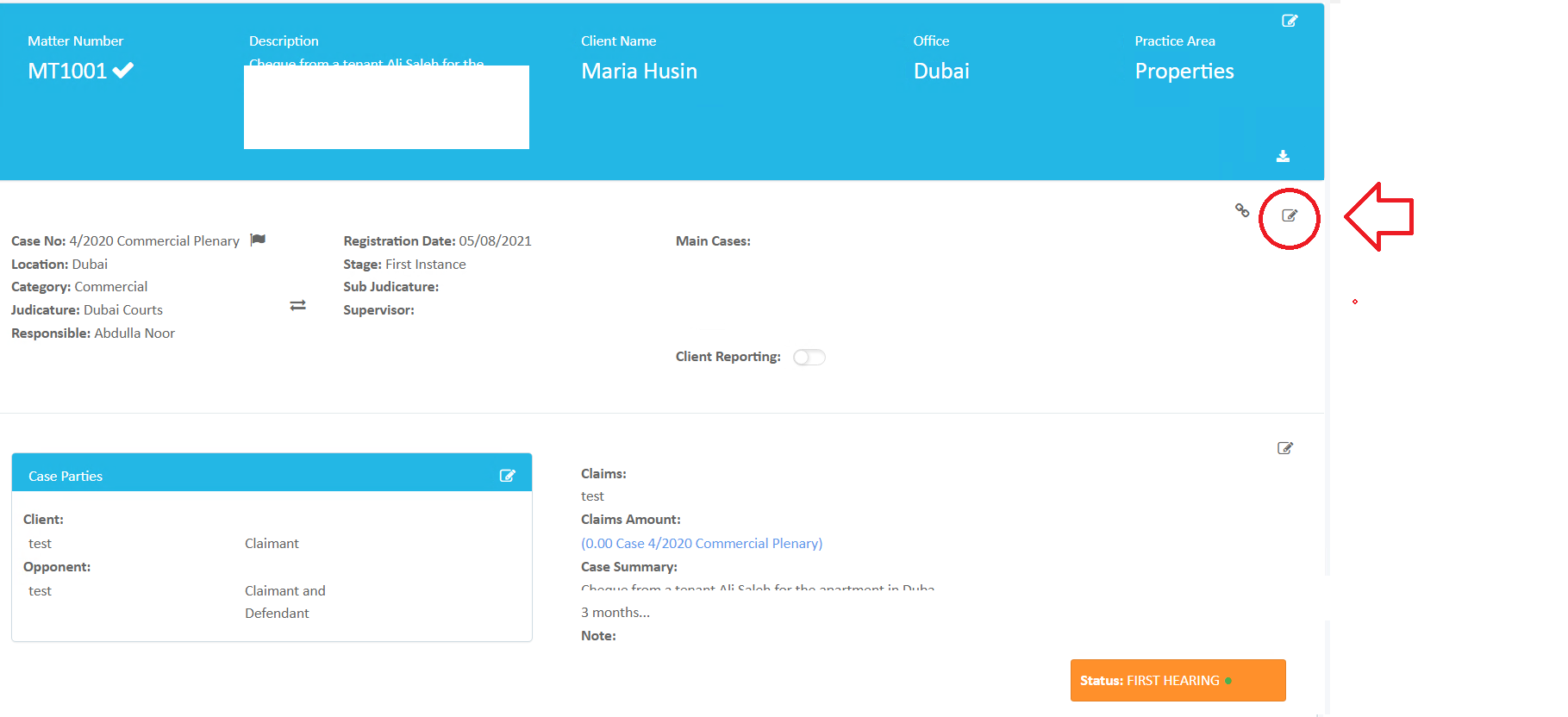
Click Edit (see screenshot).
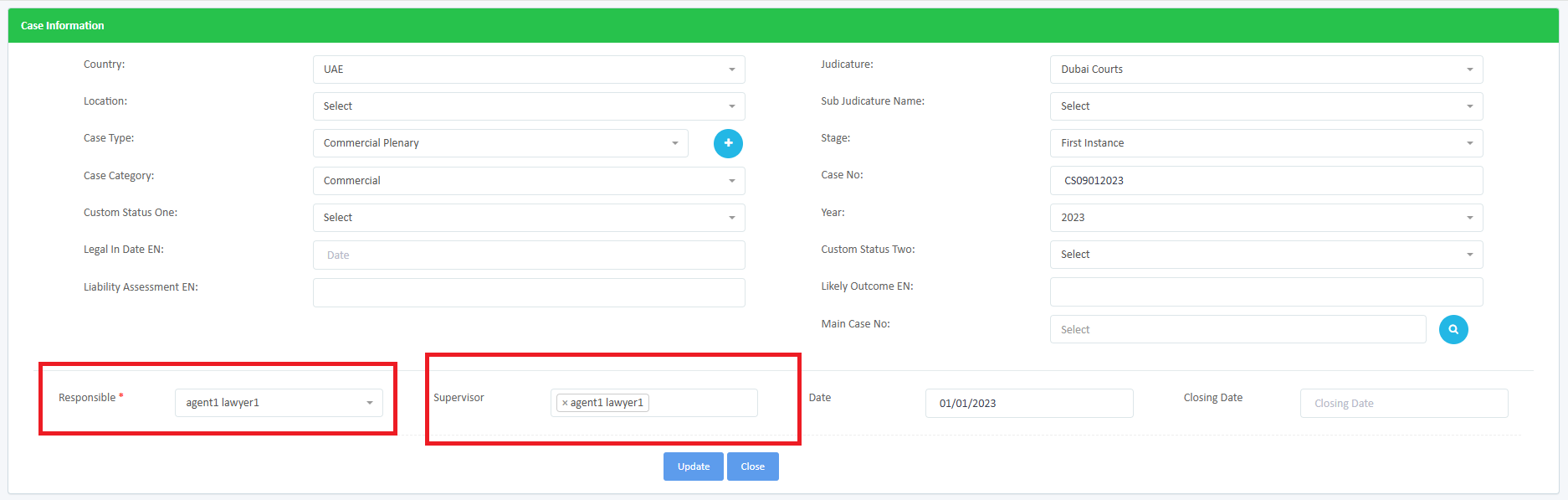
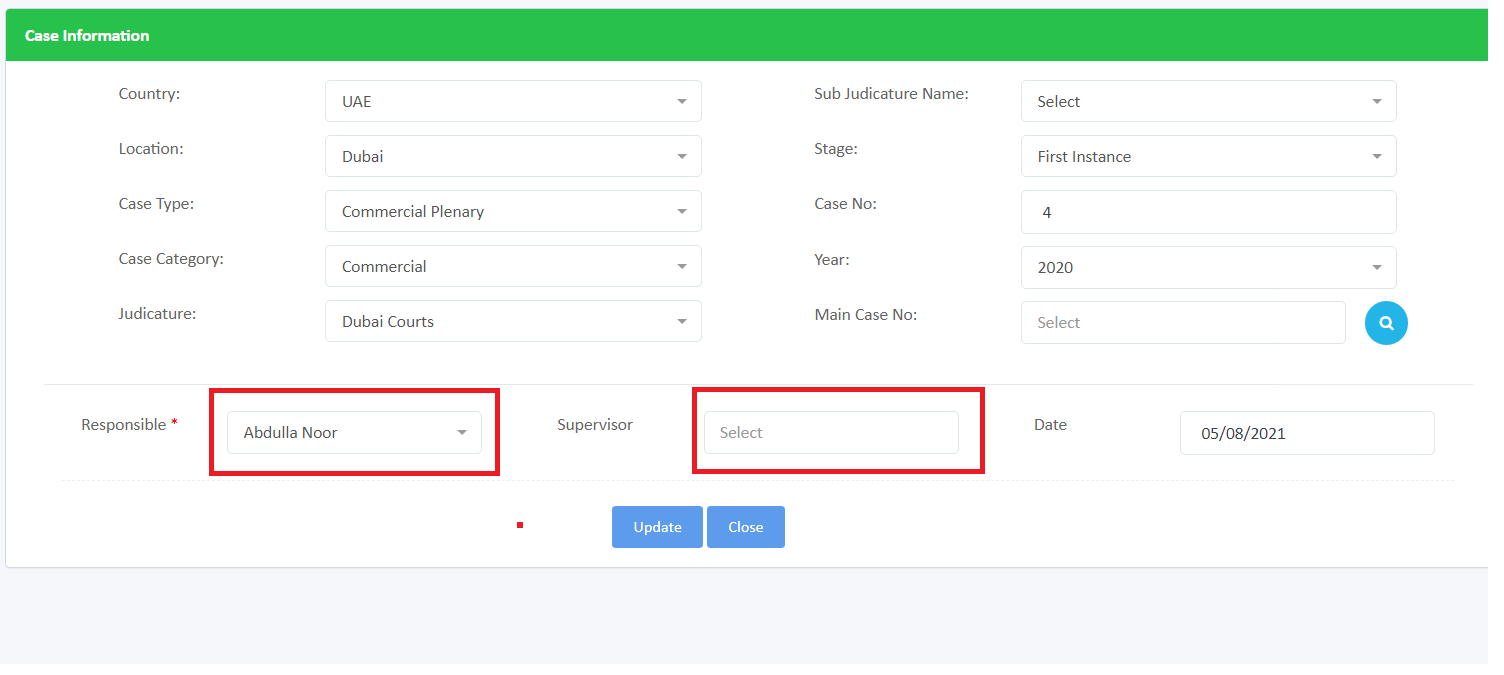
Select the user in the Responsible or Supervisor dropdown list.
✅ Notes:
Only one Responsible Lawyer can be assigned per case.
Multiple Supervisors can be added.
Granting Access to All Cases
If a user needs access to all cases regardless of assignment:
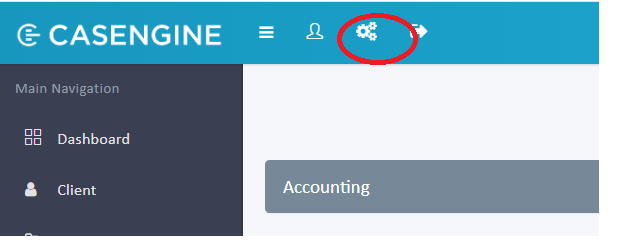
Go to Settings (⚙️ gear icon) > search for User Registration > Edit User.
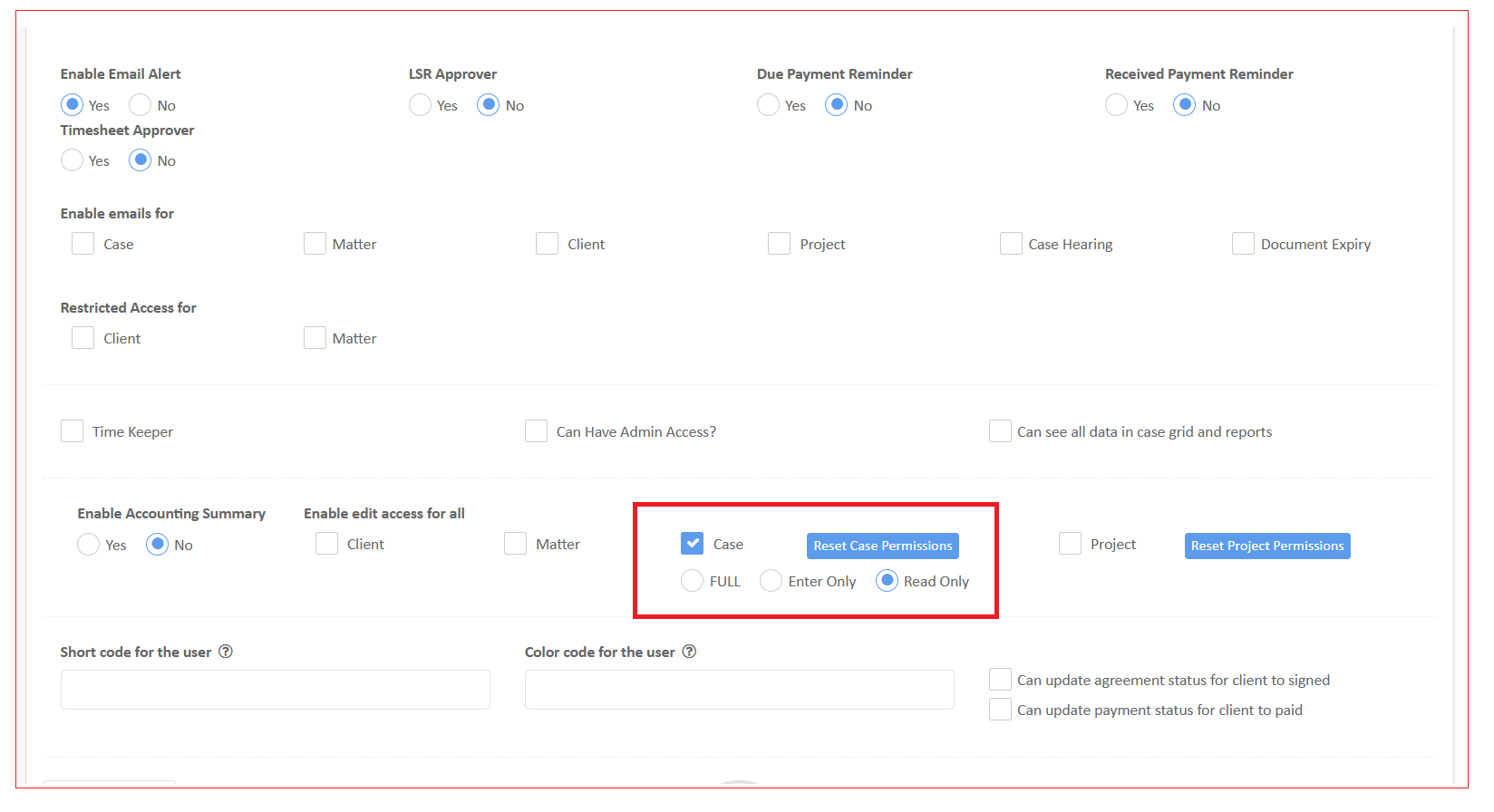
Under Case Permissions, enable the Case checkbox.
Choose the Permission Level:
Full – unrestricted access.
Enter – ability to add data.
Read Only – view only.
Matter and Client Permissions
By default, a user has view access to all clients and matters.
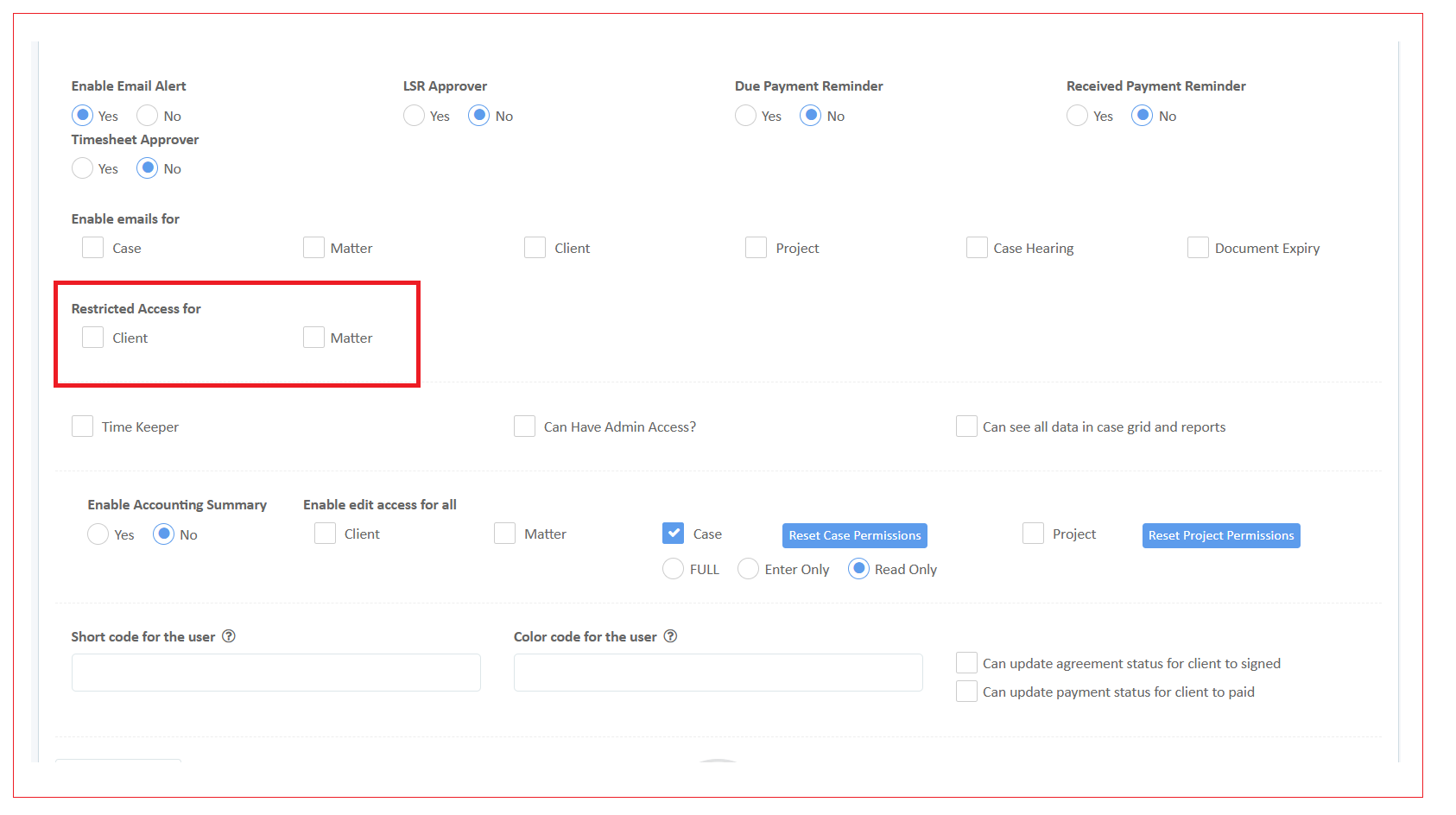
To restrict access, enable the checkboxes:
Restricted access for Clients
Restricted access for Matters
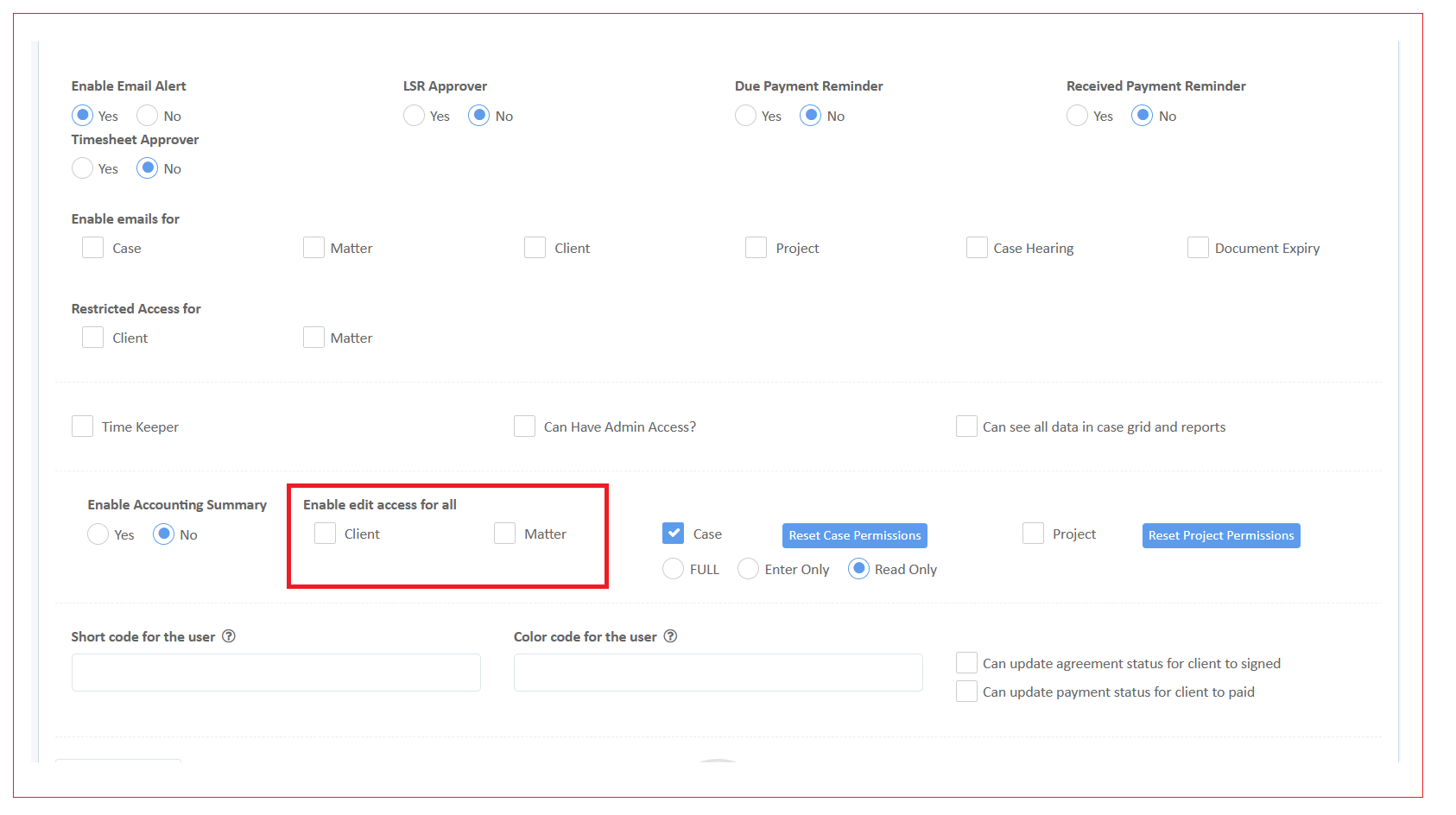
To allow full edit access to all clients and matters:
Enable the checkbox Enable edit access for all Clients and Matters.
Email Alerts
Default Behavior
A user receives email alerts only for cases where they are assigned as Responsible or Supervisor.
How to Enable Email Alerts
In User settings, enable the radio button: Enable Email Alert.
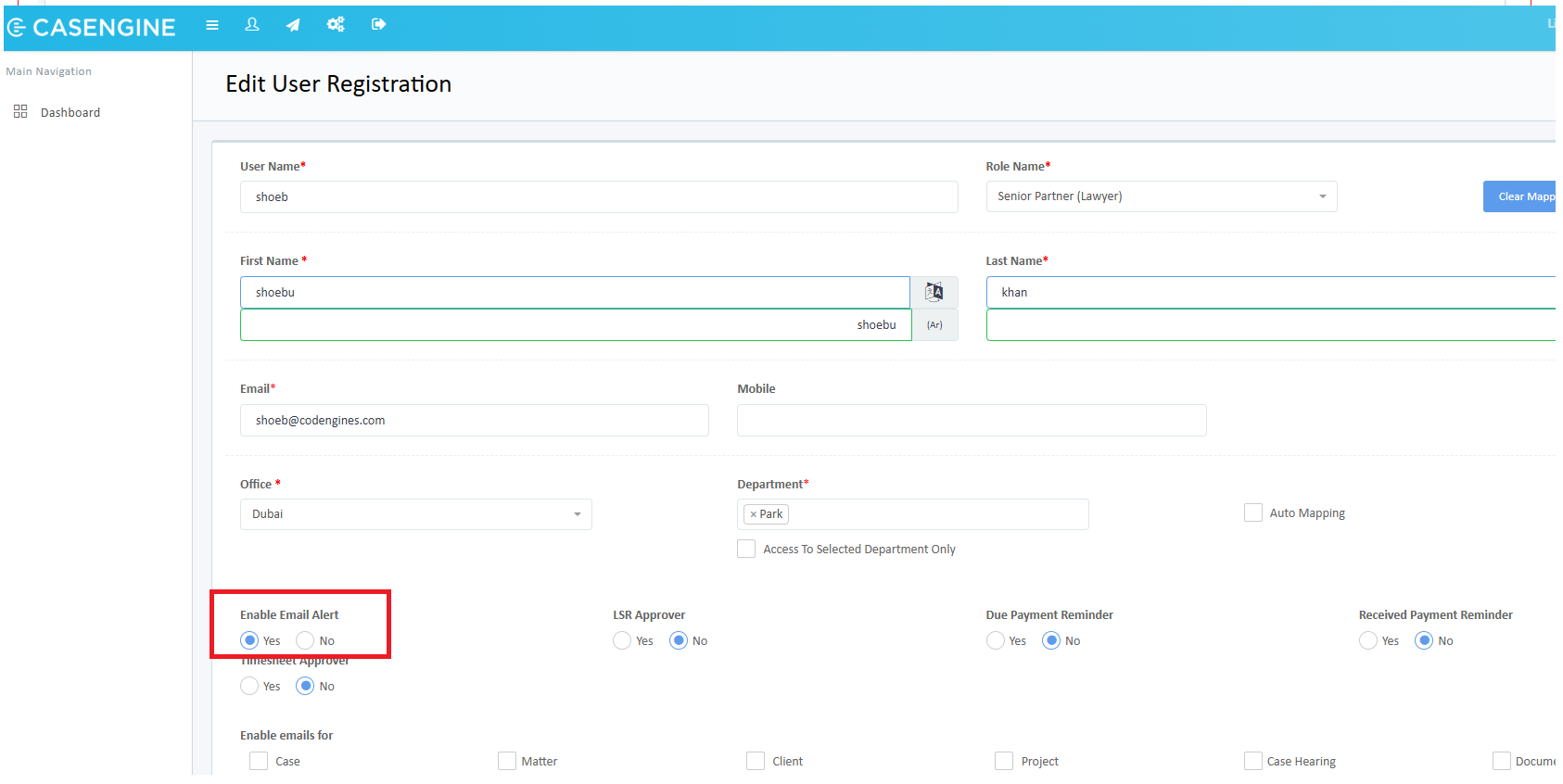
If a user needs alerts for all items (not just assigned ones), enable the checkboxes:
Cases
Matters
Clients
Projects
Case Hearings
Document Expiry
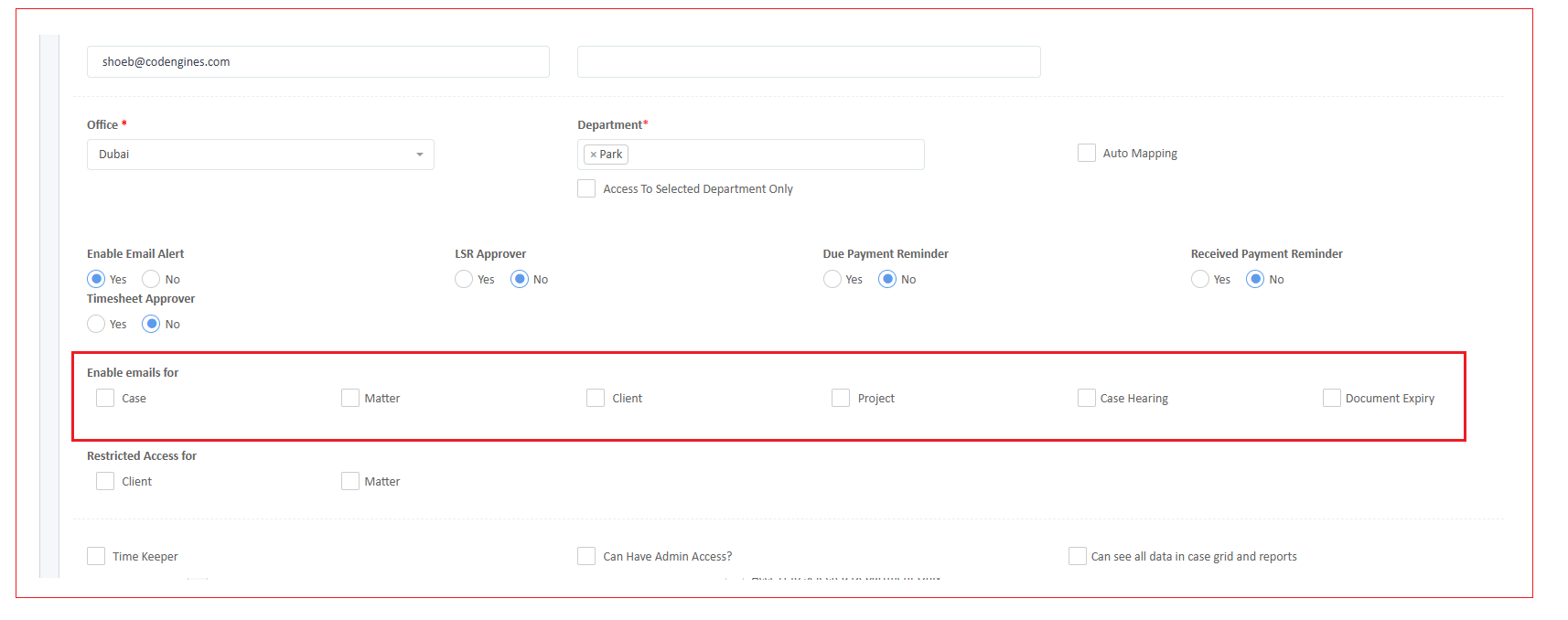
✅ Note: Enabling these options will send alerts regardless of the user’s role in a case.
Head of Department (HOD) Access to all cases
HOD Permissions can be given to selected cases or all cases. if you want to provide a user to have Full access to all case, a user must be assigned as HOD (Head of Department)
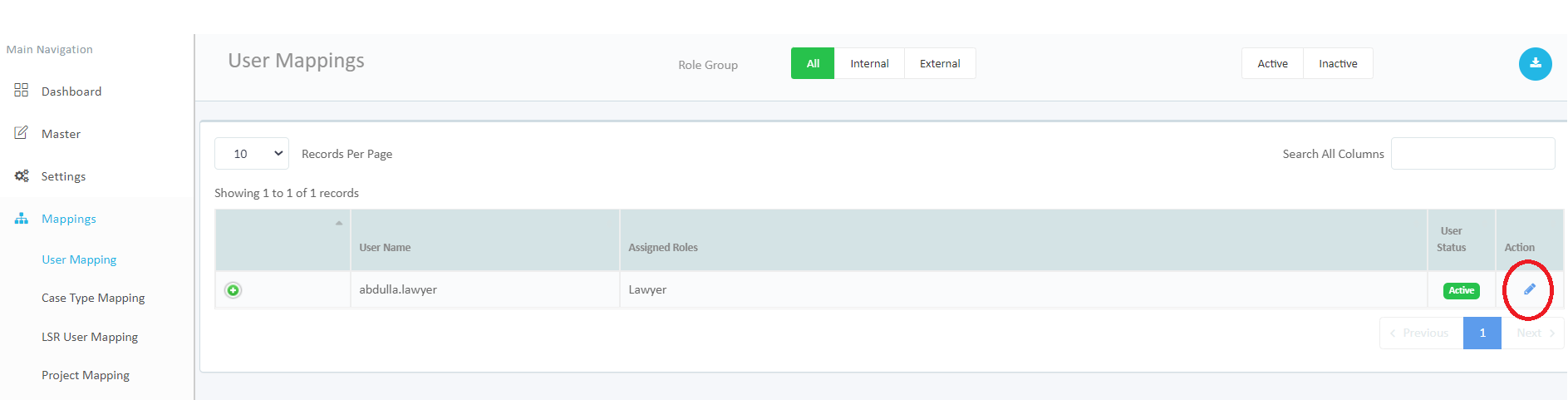
1. Login as an Admin, Navigate to Settings > User mapping > Edit user
2. Select the HOD Tab, select the Offices, Practice Area
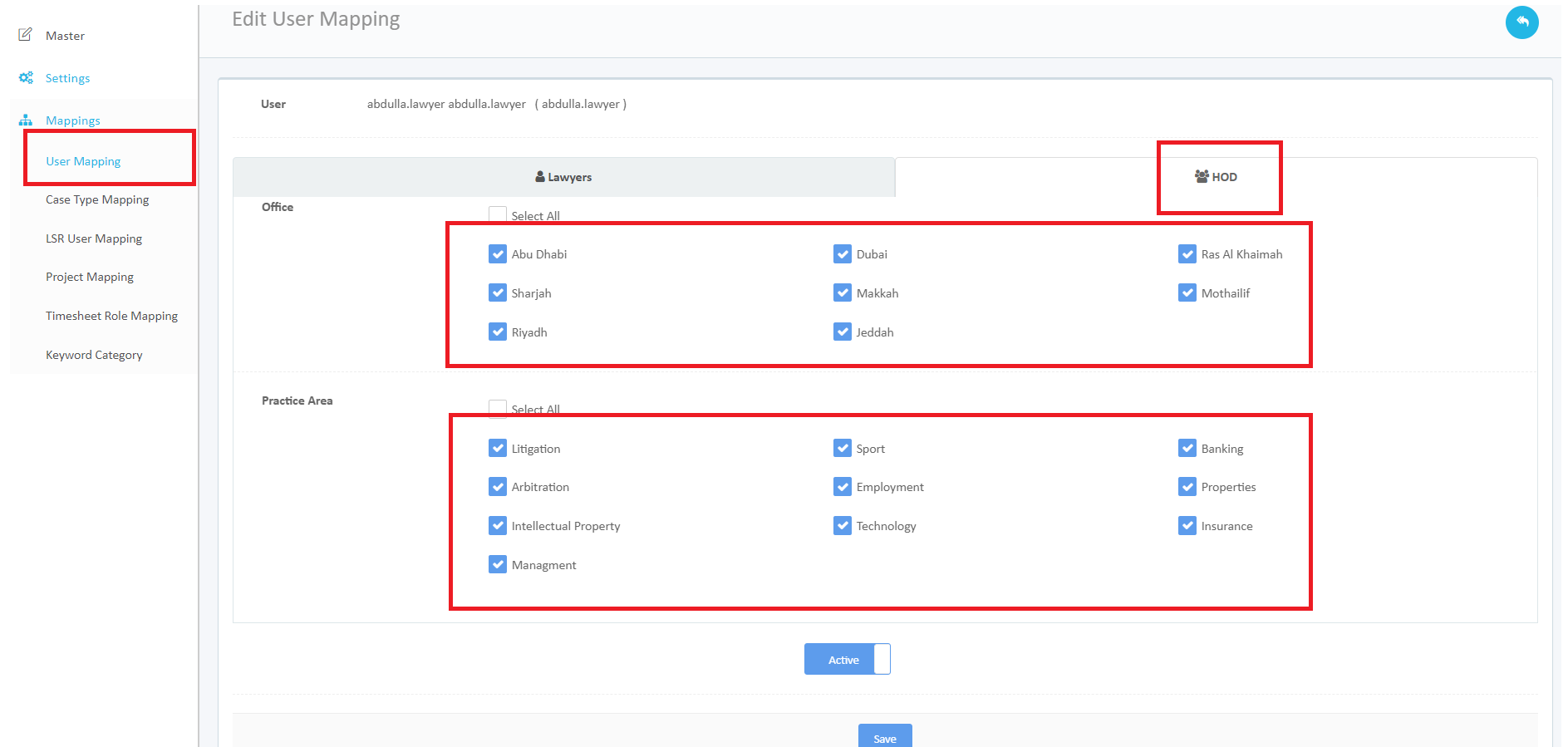
Permissions after HOD :
User receives full permission now to all cases just like a responsible lawyer
Access to all selected cases
How to Assign permission
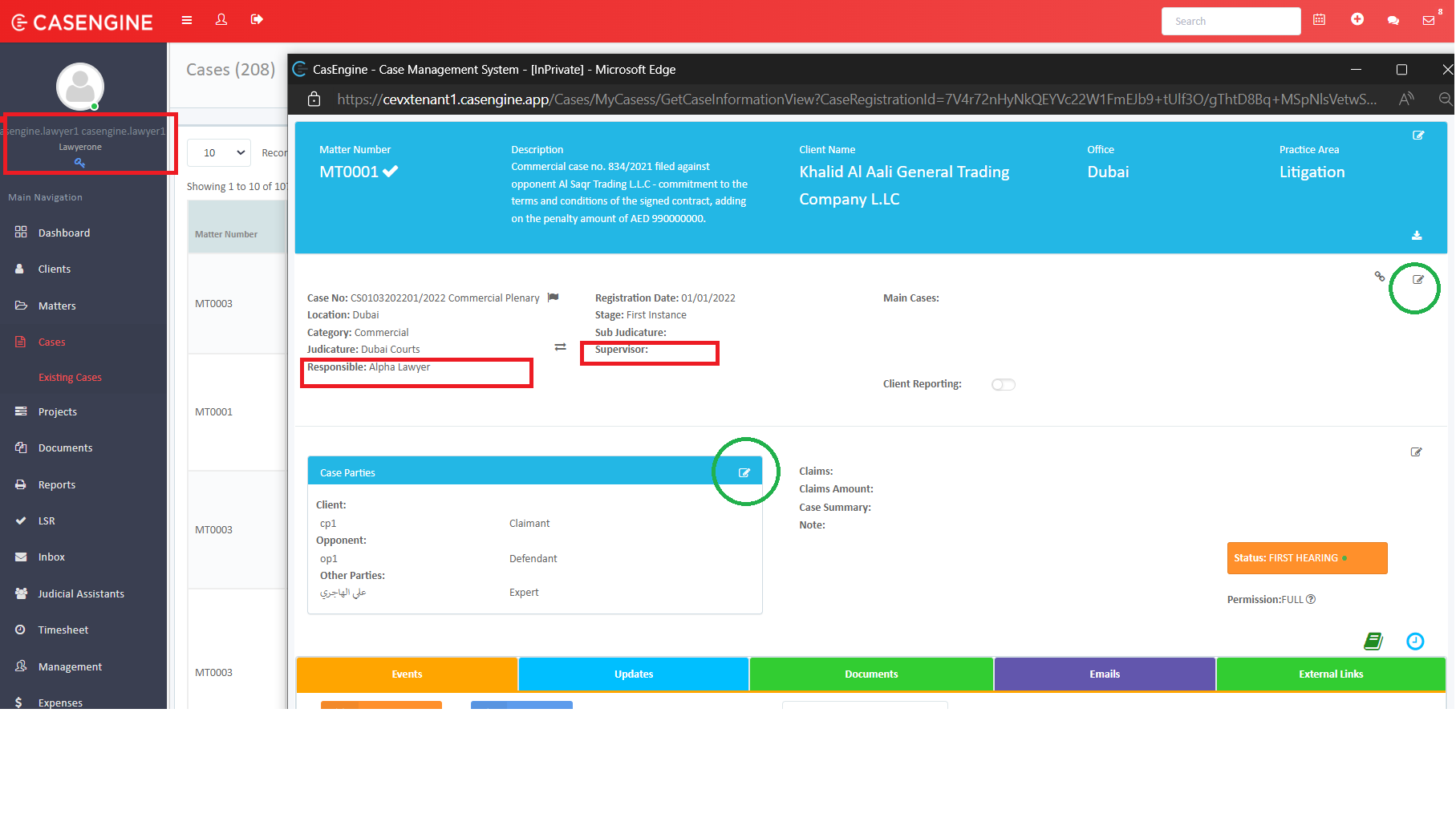
To Add Permission to a case for a Lawyer, Login as an admin, after opening the required case, click on the edit button as show below:
Select the required responsible Lawyer/ Supervisor
Responsible: Full Access
Supervisor: Enter Access
A User has to be a Responsible Lawyer or a supervisor or a Secretary of the Responsible Lawyer to be able to edit cases.
Related Articles:
User Registration | Activate | Send credentials | Set properties : CASENGINE
Permissions in Casengine – FAQ
1. Who can access a case by default?
By default, a lawyer (user) only has access to cases where they are assigned as:
Responsible Lawyer → Full access (only 1 per case).
Supervisor → Data entry access (multiple can be added).
2. How do I assign a Responsible Lawyer or Supervisor to a case?
Login as an Admin (or an existing Responsible Lawyer).
Open the case you want to update.
Click Edit.
Select the user in the Responsible or Supervisor dropdown.
✅ Notes:
Only one Responsible Lawyer is allowed per case.
You can assign multiple Supervisors.
3. How do I give a user access to all cases?
Go to Settings (⚙️ gear icon) → Search for User Registration → Edit User.
Under Case Permissions, enable the Case checkbox.
Choose a permission level:
Full → Unrestricted access.
Enter → Can add/update data.
Read Only → View only.
4. What about access to Matters and Clients?
By default, every user can view all clients and matters.
To restrict access: enable
Restricted access for Clients
Restricted access for Matters
To allow edit access for all Clients/Matters: enable
Enable edit access for all Clients and Matters.
5. How do email alerts work?
Default
A user only receives alerts for cases where they are a Responsible Lawyer or Supervisor.
To enable alerts for all items:
Go to User Settings → Enable the radio button Enable Email Alert.
Select the items for which alerts should be sent (regardless of role):
Cases
Matters
Clients
Projects
Case Hearings
Document Expiry
✅ Summary
Responsible Lawyer → Full case access.
Supervisors → Enter (data entry) access.
Admins can grant global access to cases, matters, and clients.
Email alerts can be limited to assigned cases or expanded to all items.
Was this article helpful?
That’s Great!
Thank you for your feedback
Sorry! We couldn't be helpful
Thank you for your feedback
Feedback sent
We appreciate your effort and will try to fix the article