Single Sign-On (SSO) Configuration Guide
This article explains how to enable Single Sign-On (SSO) for your domain account (for example, Microsoft Entra ID / Azure Active Directory) and configure it with the application.
Step 1: Create App Registration (Identity Provider)
Before configuring SSO in the application, create an app registration in your Identity Provider.
For Microsoft Entra ID (Azure AD)
Sign in to the Azure Portal.
Navigate to Microsoft Entra ID → App registrations.
Click New registration.
Provide the following details:
Name: Any meaningful name (for example, casengine SSO)
Supported account types: As per your organization’s requirement
Click Register.
Step 2: Add Redirect URI (Assertion Consumer Service URL)
Open the created App Registration.
Go to Authentication.
Under Redirect URI, click Add Redirect URI.
Select Web as the platform type.
Add the following Redirect URI (ACS URL):
Click Save.
This URL is required for SAML authentication to successfully return the user to the application after login.
Step 3: Configure SAML-Based Sign-On
Go to Enterprise Applications.
Open the created application (for example, sso2_casengine).
Select Single sign-on.
Choose SAML as the sign-on method.
Basic SAML Configuration
Configure the following values:
Identifier (Entity ID):
sso2_casengineReply URL (ACS URL):
Logout URL (Optional):
Save the configuration.
Step 4: Download SAML Metadata XML
On the SAML-based Sign-on page, scroll to SAML Certificates.
Under Federation Metadata XML, click Download.
Save this file securely.
This file will be uploaded to the application in the next steps.
Step 5: Configure SSO in the Casengine Application
Log in to the application.
Click the ⚙️ Settings icon in the top navigation bar.
Select App Settings.
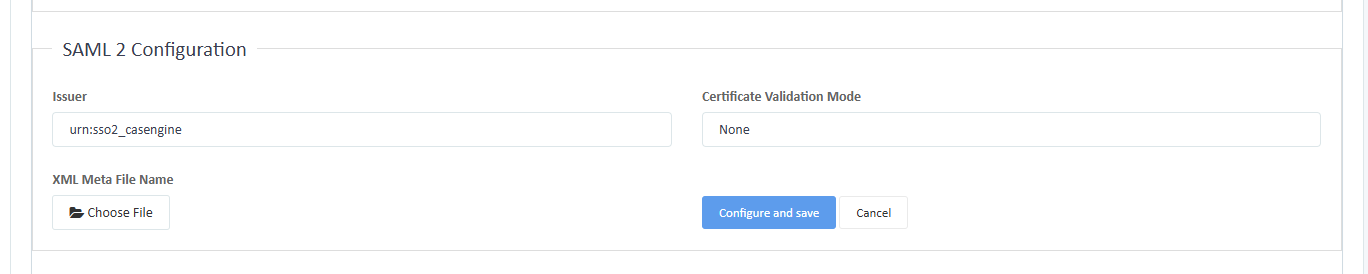
Navigate to Integration → SAML 2 Configuration.
Step 6: Upload Metadata XML
Upload the Federation Metadata XML downloaded from Microsoft Entra ID.
Ensure the issuer, endpoints, and certificate details are populated correctly.
Step 7: Save Configuration
Review all SSO settings.
Click Save to apply the changes.
Result
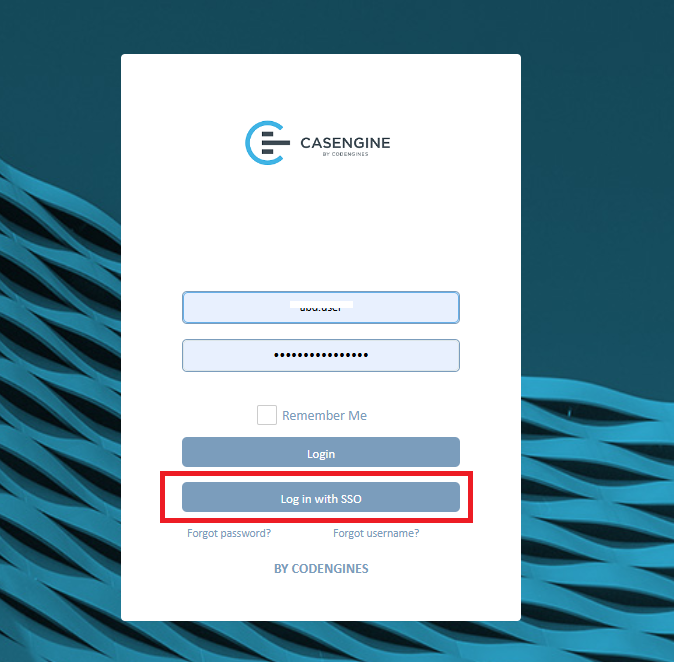
After saving successfully, the “Login with SSO” button will appear on the login page.
Users can now sign in using their organization’s domain credentials.
Was this article helpful?
That’s Great!
Thank you for your feedback
Sorry! We couldn't be helpful
Thank you for your feedback
Feedback sent
We appreciate your effort and will try to fix the article