Purpose
This article provides step-by-step instructions for configuring DocuSign integration with Casengine to enable seamless electronic document signing.
Step 1: Configure DocuSign Portal
Register and Login
- Go to DocuSign Developer Account.
- Log in or create a new account.
Create an App and Key
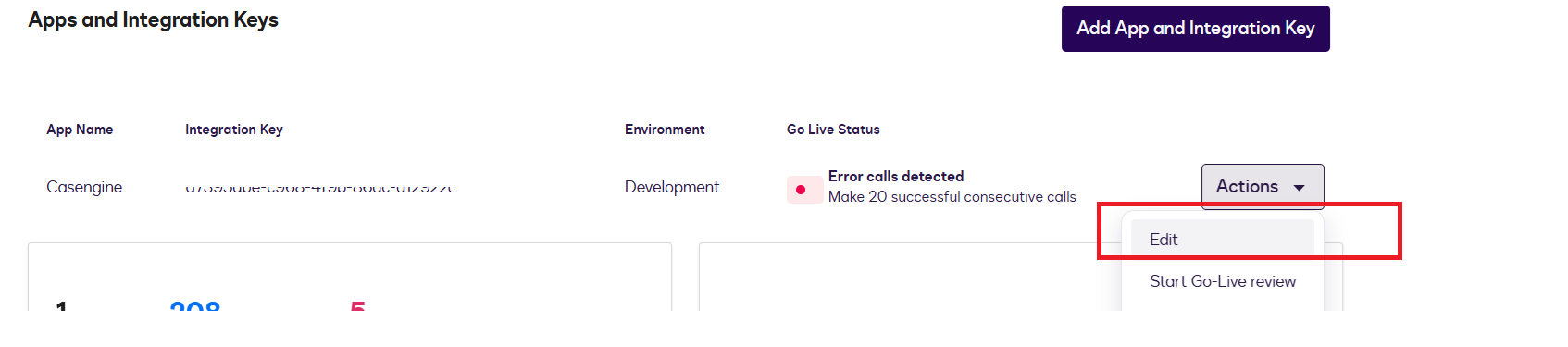
- Navigate to Admin> Integrations > Apps and Keys.
- Click on Create App and Key to start the integration setup.
- After creating the app, copy the User ID and Integration Key for later use.
Edit Service Integration Settings
- Under your newly created app, go to Actions > Edit Service Integration.
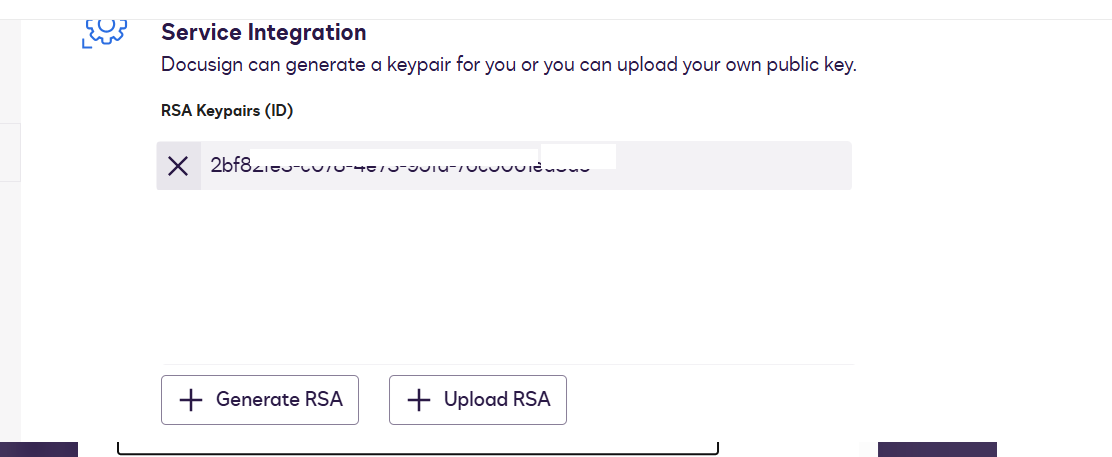
- Generate or Upload Key:
- DocuSign can generate a key pair for you, or you can upload your own public key.
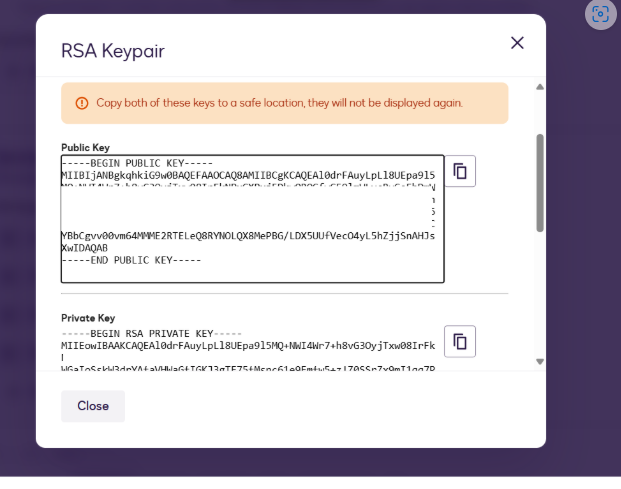
- To generate a new key, click Generate New Key.
- Copy the private key generated and save it as a file named
private.key.
Configure Additional Settings
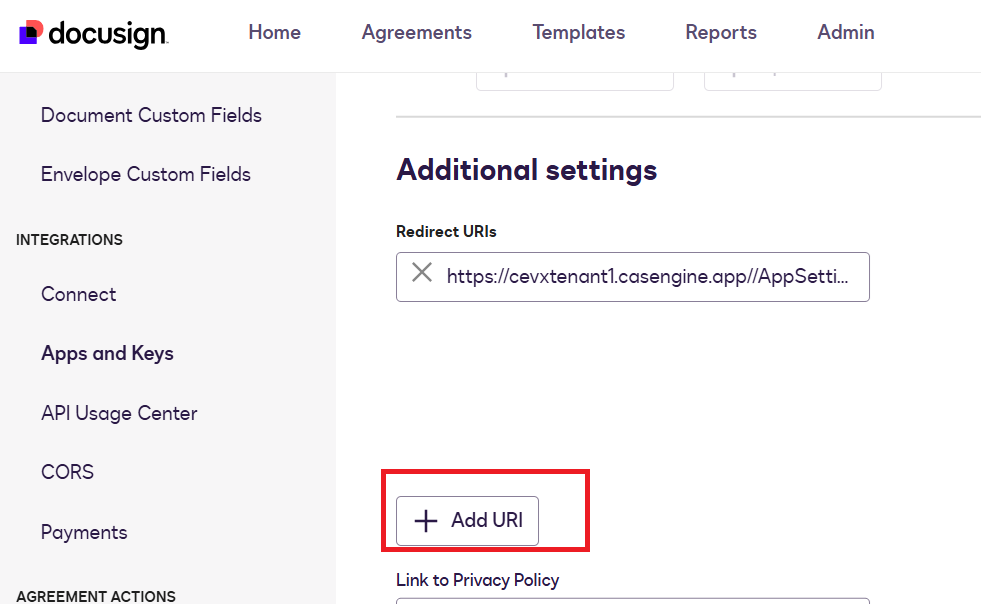
- In the Additional Settings section, locate Redirect URIs.
- Add the URL of your Casengine application, such as
Note: Be sure to include two slashes (//) beforeAppSetting.
Save the Settings
- After completing all steps, click Save.
Step 2: Configure Casengine Portal
Go to Integration Settings
- In Casengine, navigate to Settings > Integration.
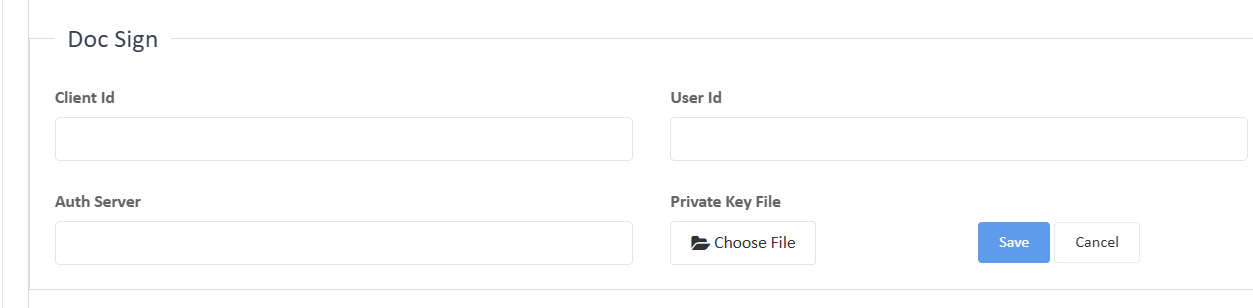
Configure DocuSign Settings
- Find the DocuSignoption and enter the following details:
- Client ID: Enter the Integration Key copied from the DocuSign portal.
- User ID: Enter the User ID from DocuSign.
- Auth Server: Use the following as an example, replacing with your specific DocuSign environment if necessary: account-d.docusign.com Production environment:
https://account.docusign.com - Generate RSA : Generate key and copy the private key starting from -----BEGIN RSA PRIVATE KEY----- to a file named: private.key
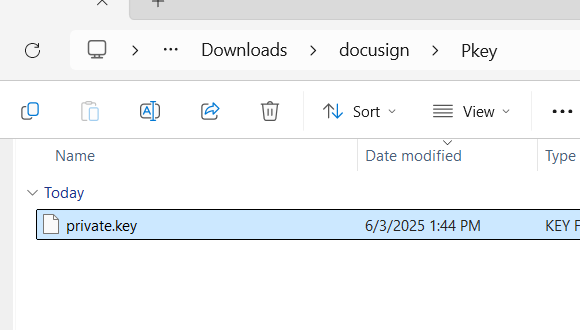
- Attach Private Key: Upload the
private.keyfile generated from DocuSign.
- Add URI : https://cevxtenant1.casengine.app//AppSetting/AppSetting
- Save the Configuration
- Find the DocuSignoption and enter the following details:
- Once all information is entered, click Save.
Note: Ensure that all details match exactly as configured in DocuSign to prevent authentication issues.
Was this article helpful?
That’s Great!
Thank you for your feedback
Sorry! We couldn't be helpful
Thank you for your feedback
Feedback sent
We appreciate your effort and will try to fix the article