Outlook Add-in for CASENGINE
Introduction
CASENGINE for Outlook is an add-in that integrates your email management with the CASENGINE case management system. This tool allows you to sync emails directly to cases, clients, or projects, attach emails as documents, and manage case-related communications seamlessly from within your Outlook interface. The add-in supports workspace connection, authentication, and provides quick access to your CASENGINE data without leaving your email client.
Installing the Add-in
For Individual Users
- Open Microsoft Outlook (Desktop or Web)
- Navigate to Get Add-ins or Add-ins from the ribbon menu
- Search for "Casengine for Outlook" in the Office Store
- Click Add to install the add-in
- The add-in will appear in your Outlook ribbon under the CASENGINE section
For Organization Administrators
- Log in to the Microsoft 365 Admin Center
- Navigate to Settings > Integrated apps
- Click Upload custom apps or Get apps
- Search for "Casengine for Outlook" or upload the manifest file
- Deploy the add-in to specific users, groups, or the entire organization
- Users will see the add-in automatically appear in their Outlook interface
First-Time Setup
Accessing the Add-in
- Open any email in Outlook (compose or read mode)
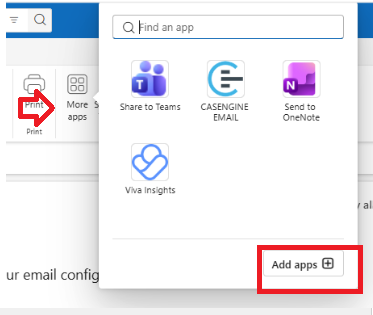
- Click on More apps to add then click on Add apps:
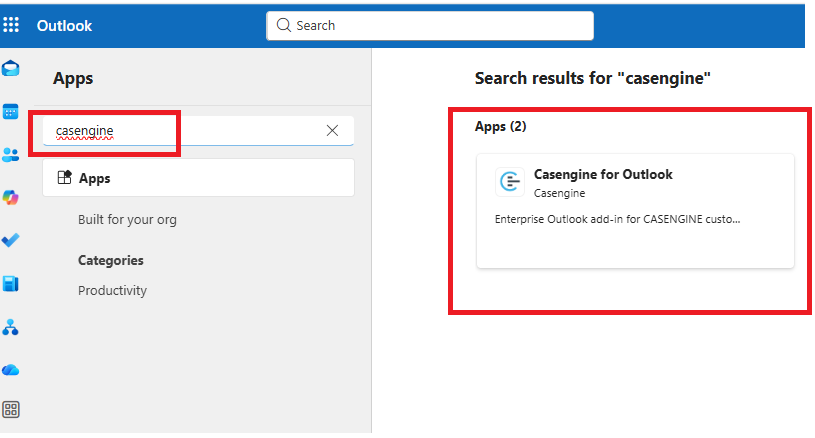
- Search for "Casengine for Outlook"
- Look for the CASENGINE group in the ribbon
- Click the Casengine Email button to open the add-in panel
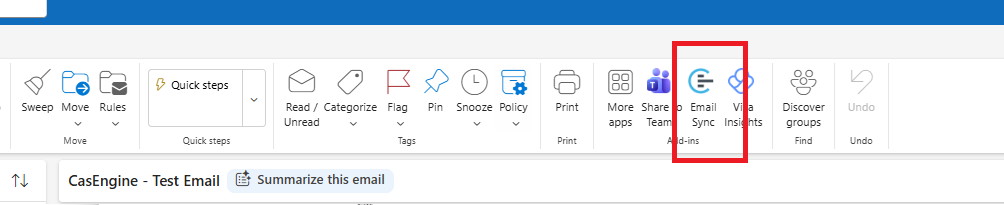
Casengine Email Icon
Connecting to Your Workspace
When you first open the add-in, you'll see the Welcome screen with two connection options:
Option 1: QR Code Connection
- On the Welcome screen, you'll see a Upload QR Code button
- In your CASENGINE web application:
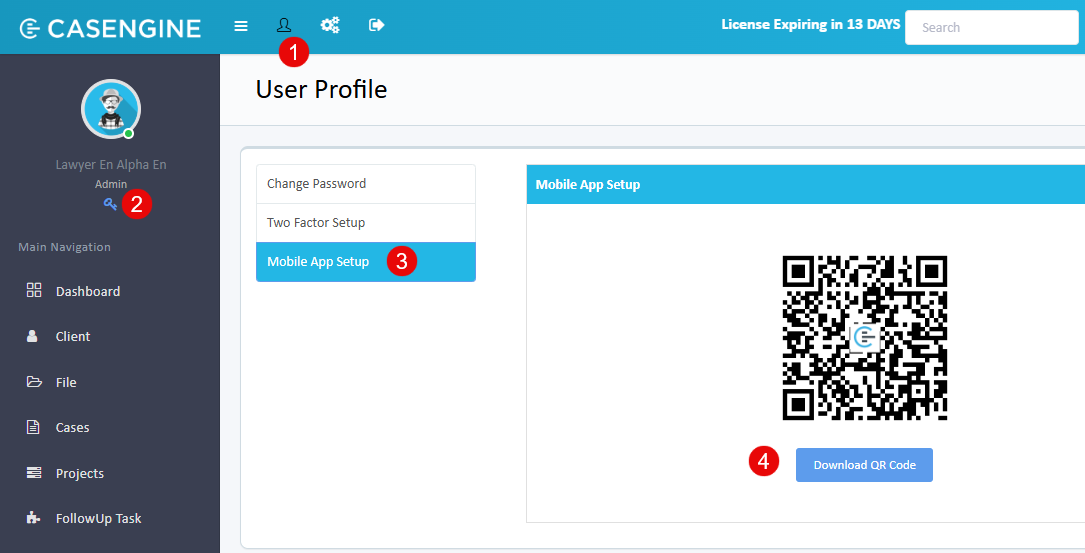
- Navigate to your profile settings, click the Key Icon
- Look for Mobile App Setup
- Click download QR Code button
- This will download the QR Code image into your system.
- Back in Outlook, click Upload QR Code
- Select the QR code image file from your computer
- The add-in will automatically extract and validate the workspace URL
- Click Connect to proceed to login
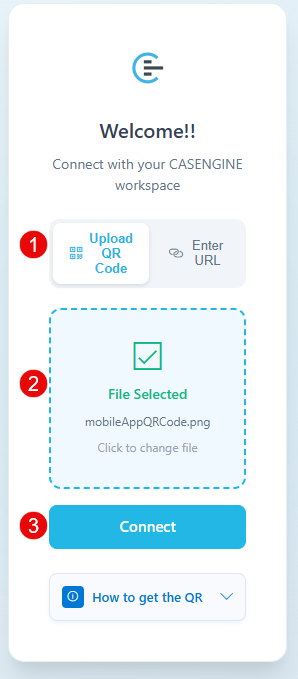
URL QR Code
Option 2: Manual URL Entry
- On the Welcome screen, click Enter URL Manually or toggle to manual mode
- In the text field, enter your CASENGINE workspace URL:
- Format:
https://your-workspace.casengine.com - Contact admin to get the workspace url.
- Format:
- Click Connect or Next to proceed to login
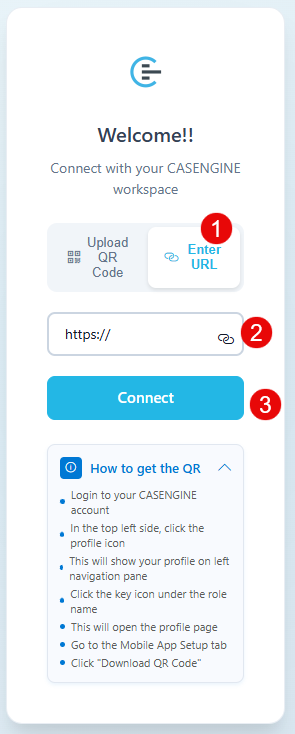
Manual URL
Logging In
Standard Login
After connecting to your workspace, you'll see the Login screen:
- Enter your username associated with your CASENGINE account
- Enter your Password
- Click Sign In
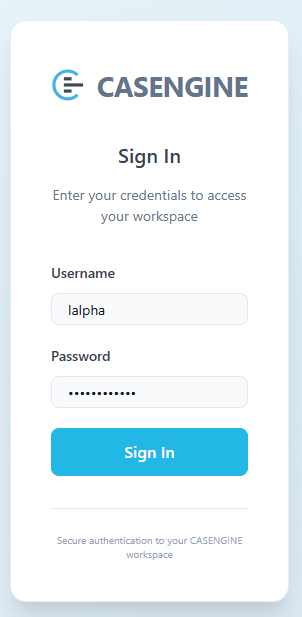
Login Screen
Two-Factor Authentication (if enabled)
If your account has two-factor authentication enabled:
- After entering your credentials, you'll see the Two-Factor Authentication screen
- Open your authenticator app (Google Authenticator, Microsoft Authenticator, etc.)
- Enter the 6-digit code displayed in your authenticator app
- Click Verify
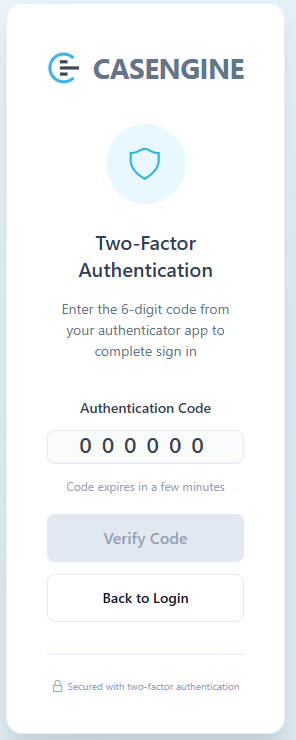
Two Factor
One-Time Password Verification (if required)
Some accounts may require OTP verification:
- After login, you'll receive a verification code via email or SMS
- Enter the verification code in the OTP field
- Click Verify
- You'll be redirected to the main dashboard
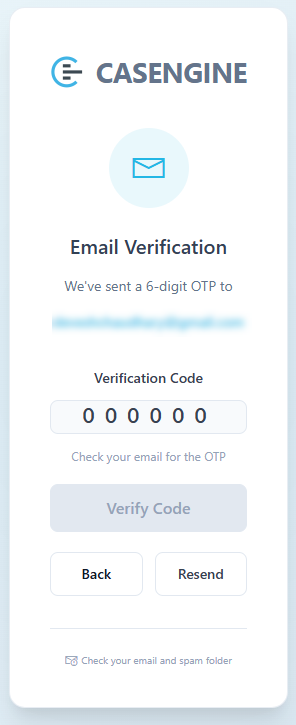 OTP Screen
Using the Add-in
Home Dashboard
Once logged in, you'll see the Home screen with quick access to:
- Search Bar: Search for cases, clients, or projects
- Recent Items: Quick access to recently viewed cases
- Email Details: Current email subject and sender information
- Action Buttons: Save email, attach to case, create new case
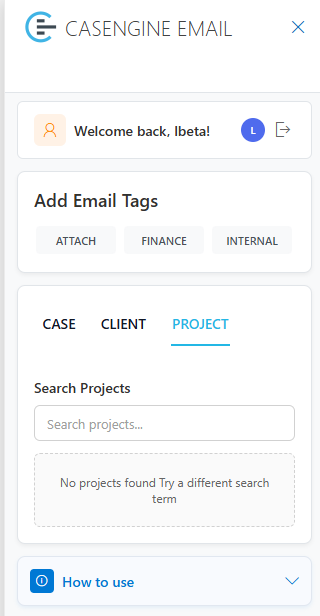
Home Page
Searching for Cases, Clients, or Projects
Search Type Selector
- At the top of the panel, select the search type:
- Case Search: Find specific cases
- Client Search: Find clients
- Project Search: Find projects
- The search interface will adjust based on your selection
Case Search
- Select Case Search from the search type selector
- Enter search criteria:
- Case Number: Enter the case reference number
- Click Search
- Results will display with:
- Case number and type
- Insert Id button to insert the case id in the subject
Client Search
- Select Client Search from the search type selector
- Enter search criteria:
- Client Name: Enter the client's name
- Click Search
- Results will display with:
- Client name
- Insert Id button to insert the client id in the subject
Project Search
- Select Project Search from the search type selector
- Enter search criteria:
- Project Code: Enter the project reference code
- Click Search
- Results will display with:
- Project name and project title
- Insert Id button to insert the project id in the subject
Managing Email Attachments
Attaching an Email to a Case
- Search for and select the desired case, client, or project
- In the search results, click INSERT ID next to the item
- This will insert the id of the selected item in the subject and also the email in the to field
- Send the email and it will automatically sync with the CASENGINE System
Add Email Tags
You can also tag the email if needed:
- You can use the tag to group the emails in the CASENGINE portal.
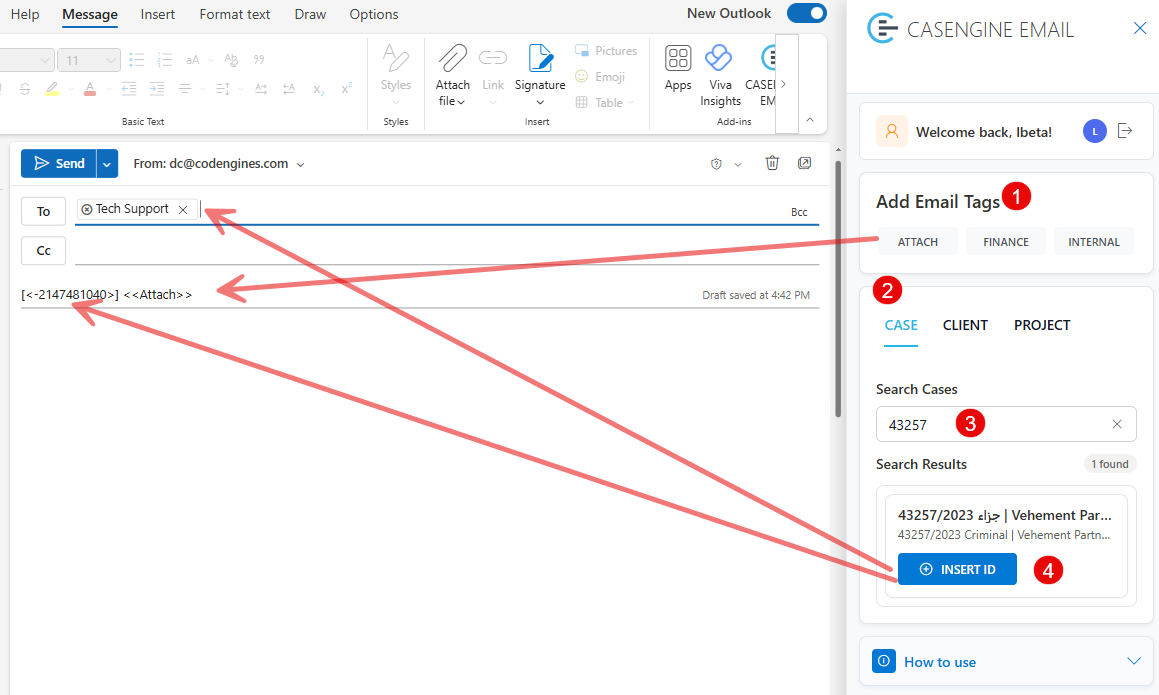
Email tags display
Additional Features
Logging Out
- Click the logout icon in the top right corner
- You'll be returned to the Welcome screen
Troubleshooting
Connection Issues
Problem: Cannot connect to workspace URL
Solutions:
- Verify the URL is correct and includes
https:// - Check your internet connection
- Ensure the CASENGINE server is accessible
- Try the QR code connection method instead
Problem: QR code not recognized
Solutions:
- Ensure the QR code image is clear and not blurry
- Try downloading a fresh QR code from CASENGINE web app
- Use the manual URL entry method as an alternative
Login Issues
Problem: Invalid credentials error
Solutions:
- Double-check your email and password
- Use the "Forgot Password" option in CASENGINE web app
- Contact your administrator to verify your account status
Problem: Two-factor authentication code not working
Solutions:
- Ensure the time on your device is synchronized
- Generate a new code from your authenticator app
- Contact your administrator to reset 2FA if needed
Search and Attachment Issues
Problem: Search returns no results
Solutions:
- Broaden your search criteria
- Verify you have permission to view the cases/clients/projects
- Try searching with different keywords
- Refresh your session
Privacy and Security
- All communications between the add-in and CASENGINE servers are encrypted
- Authentication tokens expire after inactivity
- You can revoke add-in access from your CASENGINE account settings
- Email content is only sent to CASENGINE servers when you explicitly attach it
Support and Feedback
For additional assistance:
- Email Support: support@casengine.com
- Knowledge Base: https://documentation.casengine.app/support/home
- System Administrator: Contact your organization's CASENGINE administrator
Version Information
Current Version: 1.0.0.1
Compatibility:
- Outlook Desktop (Windows/Mac)
- Outlook Web App
- Minimum Outlook version: Office 365, Outlook 2016 or later
Was this article helpful?
That’s Great!
Thank you for your feedback
Sorry! We couldn't be helpful
Thank you for your feedback
Feedback sent
We appreciate your effort and will try to fix the article