Overview
This guide explains how to track and manage judgment amounts for both cases with hearings and cases without hearings in the CASENGINE payment tracking module.
For Cases With Hearings
Step 1: Enter Judgment Amount in Hearing Minutes
When a final judgment is passed during a hearing, you can record the judgment amount directly in the hearing minutes entry.
Process:
- Navigate to the Case View page
- In the Hearing Minutes section, when entering minutes for a hearing
- Check the "Final Judgement" checkbox (marked as ① in Image 1)
- A new field "Judgement Amount" will appear (marked as ② in Image 1)
- Enter the judgment amount awarded by the court
- Complete the rest of the hearing report and decision
- Click Submit to save
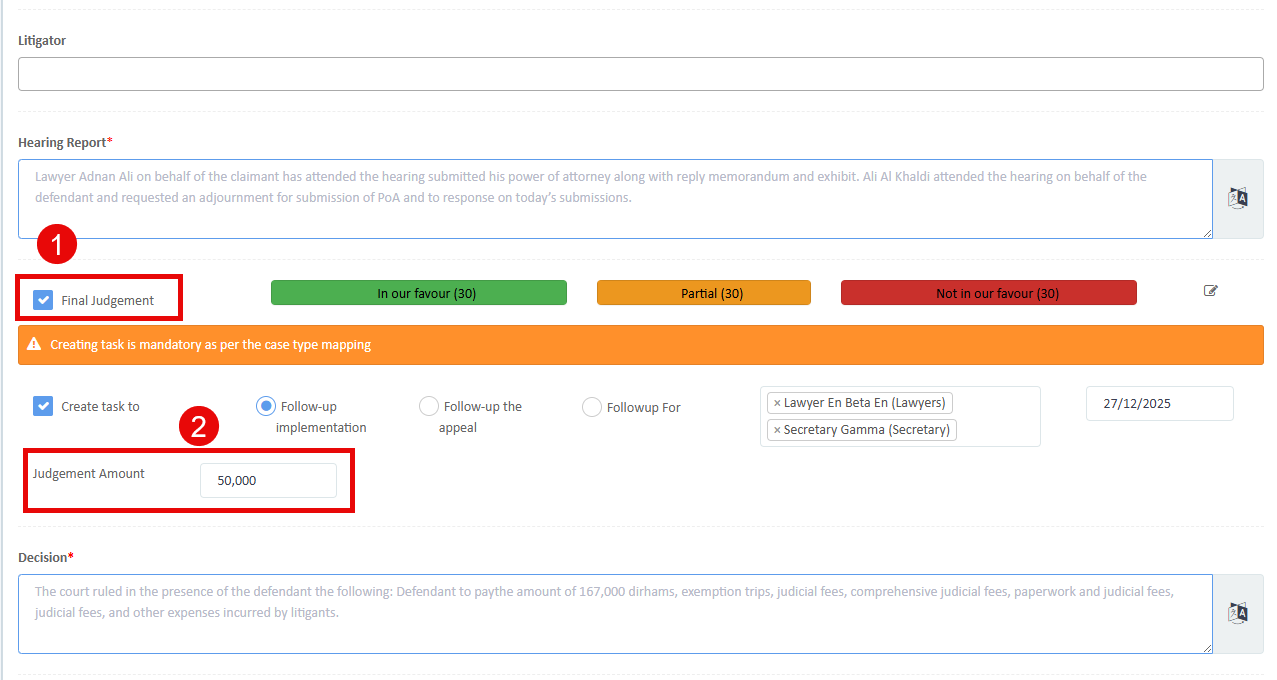 Image 1
Key Features:
- The judgment amount field only appears when "Final Judgement" is checked
- This amount is automatically stored with the case record
- The system uses this amount for payment tracking calculations
Step 2: Add Case to Payment Tracking
After entering the judgment amount in the hearing minutes, you can track repayments in the Payment Tracking module.
Process:
- Navigate to Matter → Payment Tracking from the left menu (marked as ② in Image 2)
- Click the Add New (+) button in the top right corner (marked as ③ in Image 2)
- The "Add Payment Tracking" popup will appear (marked as ④ in Image 2)
Auto-Population:
- When you select the case from the dropdown (marked as ④ in Image 2)
- The system automatically fetches:
- Claims Amount: The original claim amount from the case
- Judgement Amount: The judgment amount entered in hearing minutes (50,000 in Image 2)
Initial Payment Entry:
- Paid to Date: Enter any amount already received (optional)
- Last Payment Date: Enter the date of last payment if applicable (optional)
- Leave these fields empty if no payment has been received yet
- Click Submit (marked as ⑤ in Image 2) to add the case to payment tracking
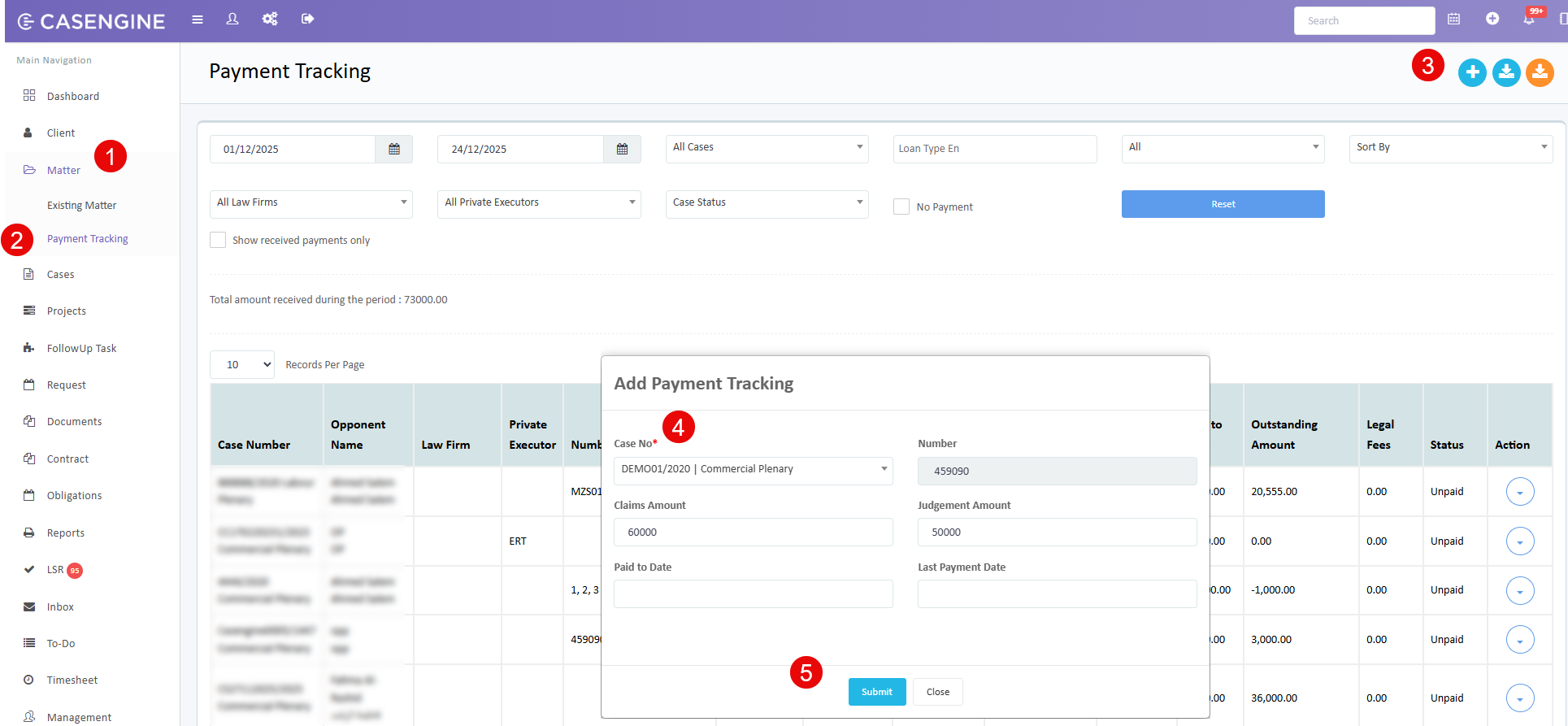 Image 2
Step 3: Record Payments
Once the case is added to payment tracking, you can record each payment received from the opponent.
Process:
- In the Payment Tracking grid, locate your case row
- Click the Action dropdown (marked as ① in Image 3)
- Select "Record Payment" (marked as ② in Image 3)
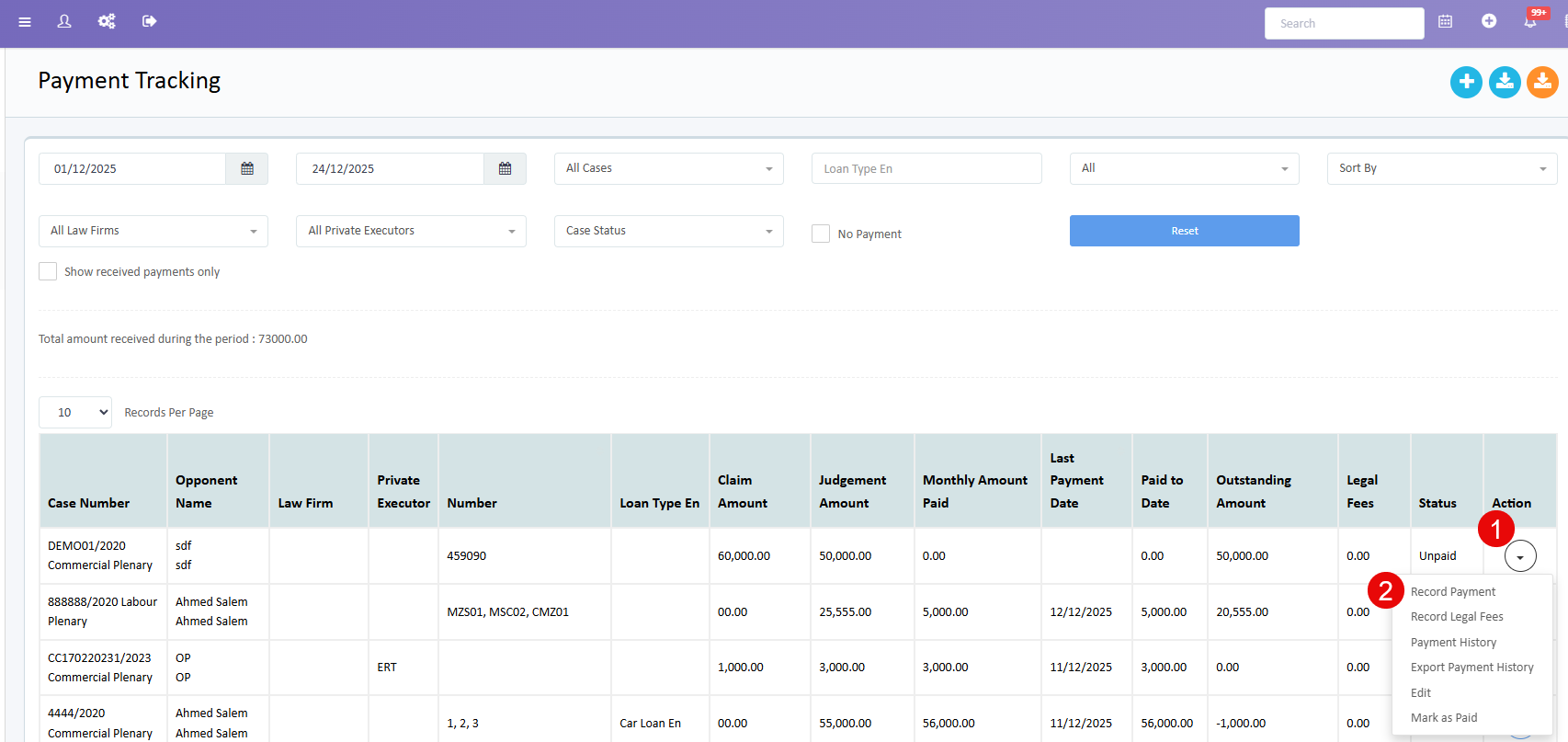 Image 3
Step 4: Enter Payment Details
Process:
- The "Log a new payment" popup will appear (Image 4)
- Review the read-only fields:
- Case Number: Shows the case reference
- Number: Shows the internal tracking number
- Paid to Date: Shows the cumulative amount received so far
- Enter the new payment information:
- Receipt Date: Select the date payment was received (required)
- Amount Paid: Enter the amount received in this payment (marked as ① in Image 4)
- Select payment method:
- Online: For bank transfers, online payments
- Cheque: For cheque payments (enter transaction number)
- Others: For cash or other payment methods
- Add optional details:
- Transaction Number: For online/cheque payments
- Remarks: Any additional notes about the payment
- Attachment: Upload payment receipt or proof
- Click Submit (marked as ② in Image 4) to record the payment
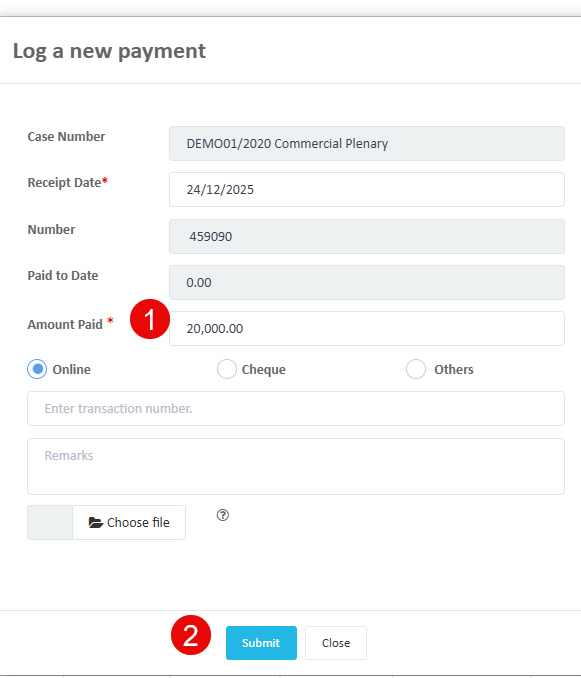 Image 4:
Step 5: View Outstanding Balance
After recording payments, the system automatically calculates and displays the outstanding balance.
In Payment Tracking Grid:
The Payment Tracking grid (Image 3) displays comprehensive payment information:
Key Columns:
- Claim Amount: Original amount claimed in the case (60,000.00 in example)
- Judgement Amount: Court-awarded amount
- Monthly Amount Paid: Regular payment amount if installments
- Last Payment Date: Date of most recent payment
- Paid to Date: Total amount received so far
- Outstanding Amount: Remaining balance to be collected
- Calculated as: Judgement Amount - Paid to Date
- Legal Fees: Any additional legal fees
- Status: Current payment status (Unpaid/Paid)
In Case View:
The outstanding amount is also displayed in the Case View page:
- Navigate to the Case View page
- Locate the Claims section on the right side panel
- View the following information:
- Claims Amount: Original claim (60,000)
- Judgement Amount: Court-awarded amount (50,000.00) - marked in Image 5
- Outstanding Amount: Remaining balance (30,000/50,000) - marked in Image 5
- The format shows: Amount Paid / Total Judgment Amount
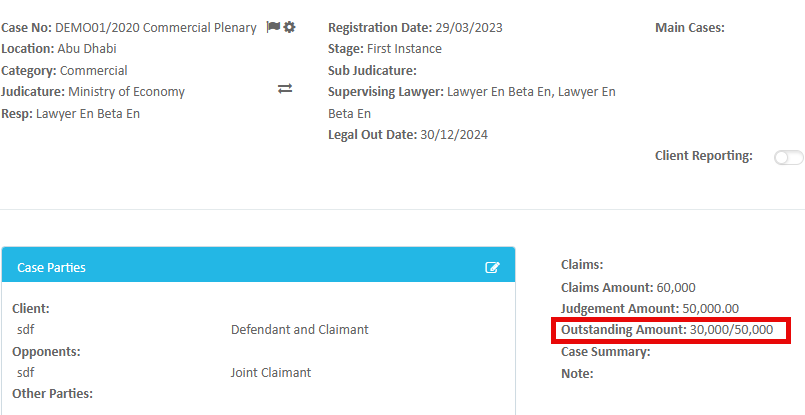 Image 5
For Cases Without Hearings
For cases that don't have formal hearings, you can manage the judgment amount directly in the Payment Tracking module.
Step 1: Add Case to Payment Tracking
Process:
- Navigate to Matter → Payment Tracking
- Click the Add New (+) button
- In the "Add Payment Tracking"popup:
- Select your case from the dropdown
- The system will fetch the Claims Amount from the case
- Manually enter the Judgement Amount in the Judgement Amount field
- This is the final settlement or agreed amount
- Enter Paid to Date if any amount has been received
- Enter Last Payment Date if applicable
- Click Submit
Key Difference:
- For cases without hearings, you manually enter the judgment amount in the Payment Tracking popup
- For cases with hearings, the judgment amount is auto-populated from hearing minutes
Step 2: Record Payments
The payment recording process is identical to cases with hearings:
- Use the "Record Payment" action from the grid
- Enter payment details (amount, date, method)
- Add transaction number, remarks, and attachments as needed
- Submit to update the payment record
Step 3: View Outstanding Balance
The outstanding amount calculation and display works the same way:
In Payment Tracking Grid:
- Shows Judgment Amount, Paid to Date, and Outstanding Amount
- Outstanding Amount = Judgement Amount - Paid to Date
In Case View:
- Displays the judgment amount entered in Payment Tracking
- Shows outstanding balance as: Amount Outstanding / Total Judgment Amount
Key Features Summary
Automatic Calculations
- Outstanding Amount is automatically calculated as: Judgement Amount - Paid to Date
- Updates in real-time when new payments are recorded
- Displayed in both Payment Tracking grid and Case View
Payment History
- Each payment is logged with date, amount, and method
- Complete payment history available through "Payment History" action
- Supports multiple payments until full judgment amount is collected
Status Tracking
- Unpaid: No payments received (Paid to Date = 0)
- Paid: Full amount received (Paid to Date = Judgement Amount)
Was this article helpful?
That’s Great!
Thank you for your feedback
Sorry! We couldn't be helpful
Thank you for your feedback
Feedback sent
We appreciate your effort and will try to fix the article