Payment Defaulter Module - Master Data & Settings Documentation
Table of Contents
- Departments Master
- Customer Master
- Dropdown Configuration
- Email Notification Settings
- External Counsel
- Permissions
- Project Names
- Units Master
- Workflow Configuration
1. Departments Master
Overview
Departments are used to manage practice area data throughout the system for organizing legal services and request categorization. These departments help standardize and classify different areas of legal practice systematically across the platform. One department can be set as the default which will be auto-selected during request creation, streamlining the workflow for users.
Accessing Departments
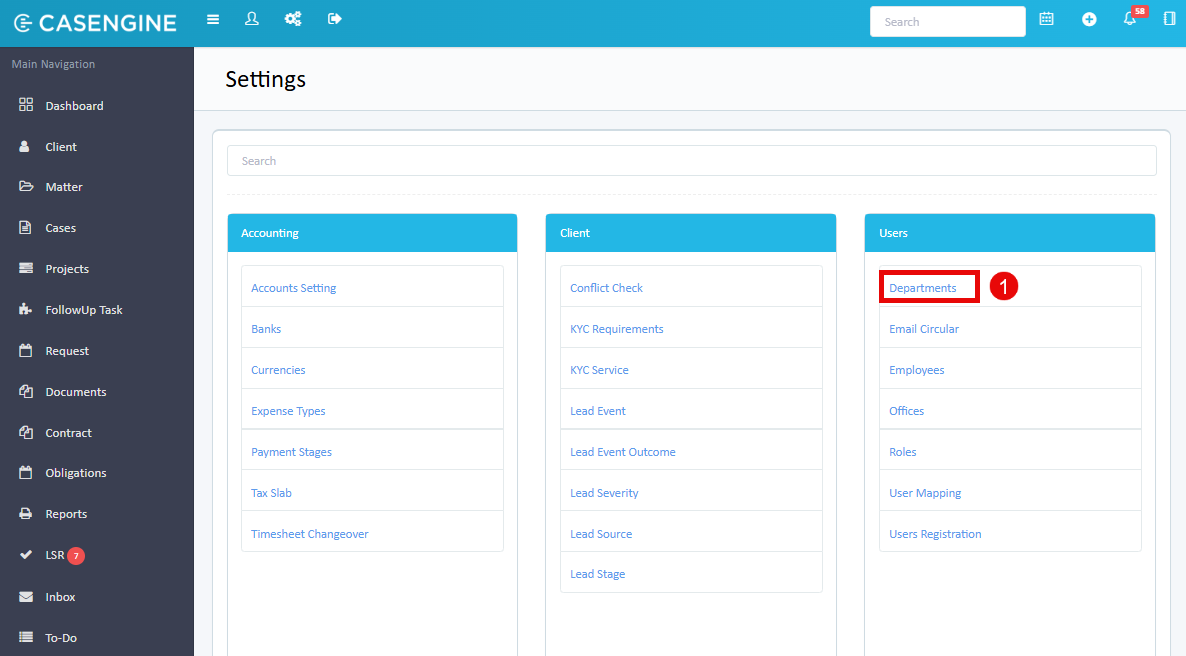
- Navigate to the Settings section by clicking the settings icon in the header bar
- Under the Users section, click on Departments
Managing Existing Departments
The Departments page displays all departments in a table with:
- Practice area name (English and Arabic)
- Status (Active/Inactive)
- Edit action button
Available Actions:
- Add new departments by clicking the Add Departments button in the top right corner
Adding a New Department
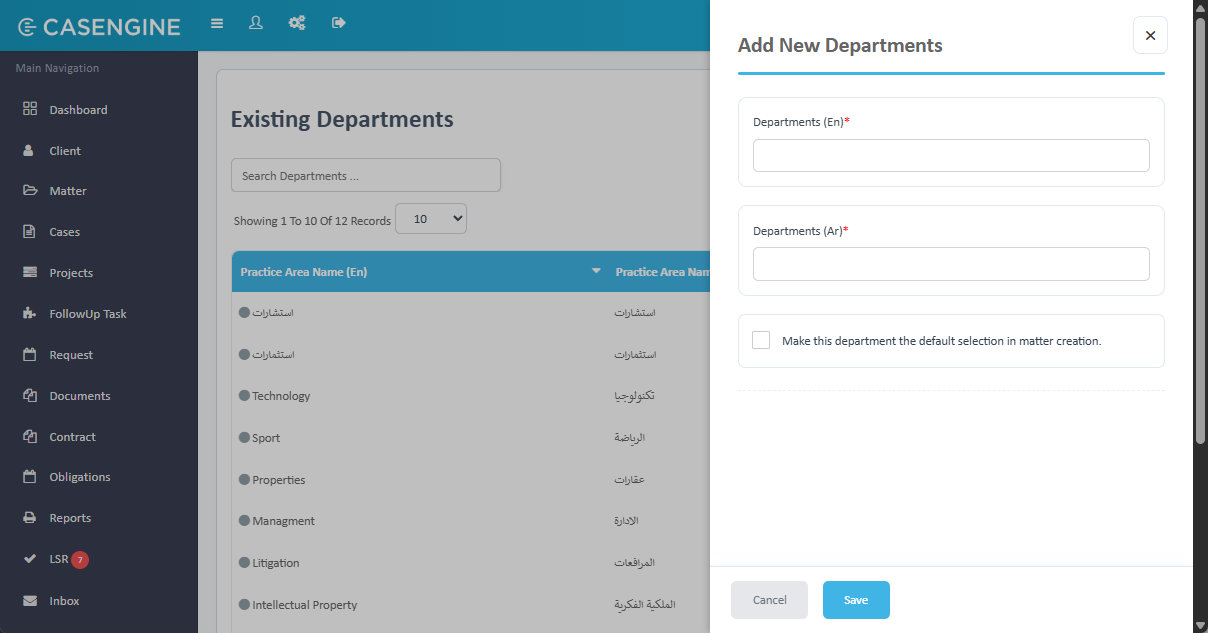
- On the Departments page, click the Add Departments button in the top right corner
- A side panel will open with the following fields:
Required Fields:
- Department Name (En): Enter the department name in English (max 50 characters)
- Department Name (Ar): Enter the department name in Arabic (max 50 characters)
Optional Settings:
- Status: Select "Active" (default) or "Inactive" from the dropdown
- Set Default Department: Check this checkbox to make this department the default selection in the department dropdown during matter creation
- Click Save to create the new department
2. Customer Master
Overview
Customers are used to manage customer data throughout the system for payment defaulter requests. Users can add customers manually from this page, and the system will automatically identify new customers when an Excel file for bulk requests is uploaded and add them to the customer master.
Accessing Customer Master
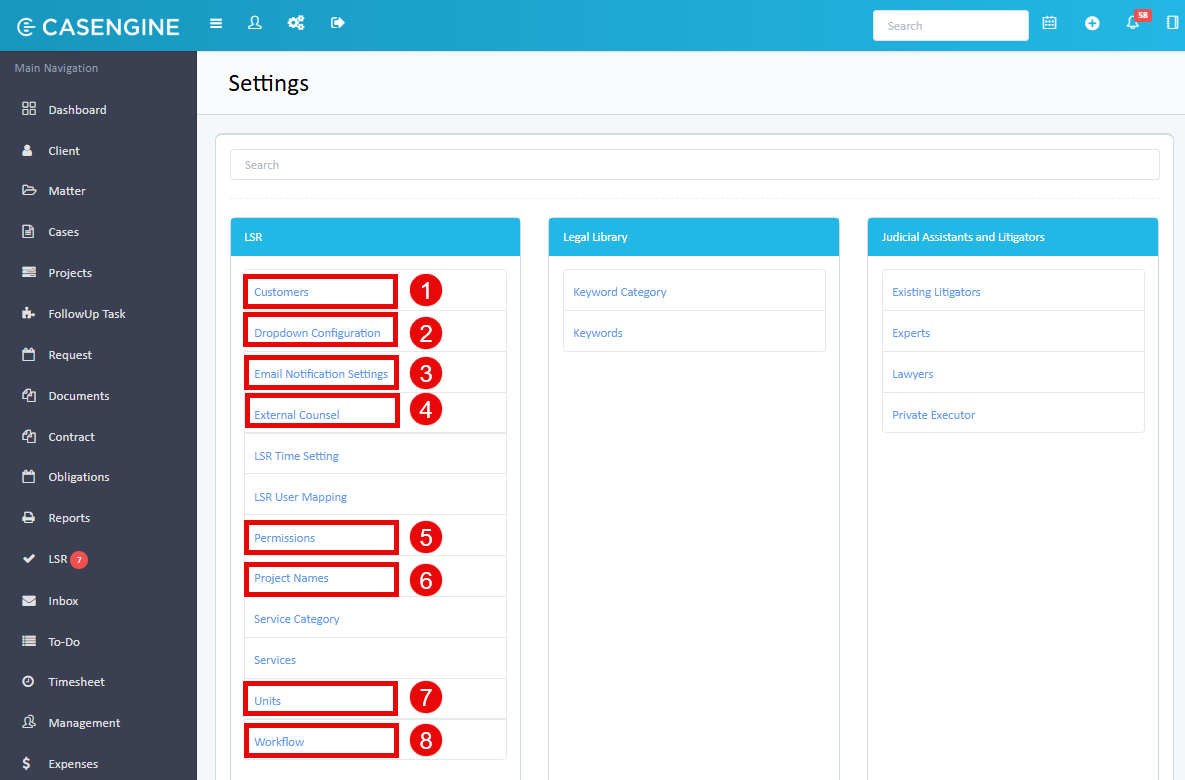
- Navigate to the Settings section by clicking the settings icon
- Under the LSR section, click on Customers
Managing Existing Customers
The Customers page displays all customers in a table with:
- Customer name
- Status (Active/Inactive)
- Action buttons
Available Actions:
- Add new customers by clicking the Add Your First Customer button (when no customers exist) or the Add button
- Search to find specific customers
- Edit a customer by clicking the edit button in the action column
- Change status by editing and updating the status dropdown
Adding a New Customer
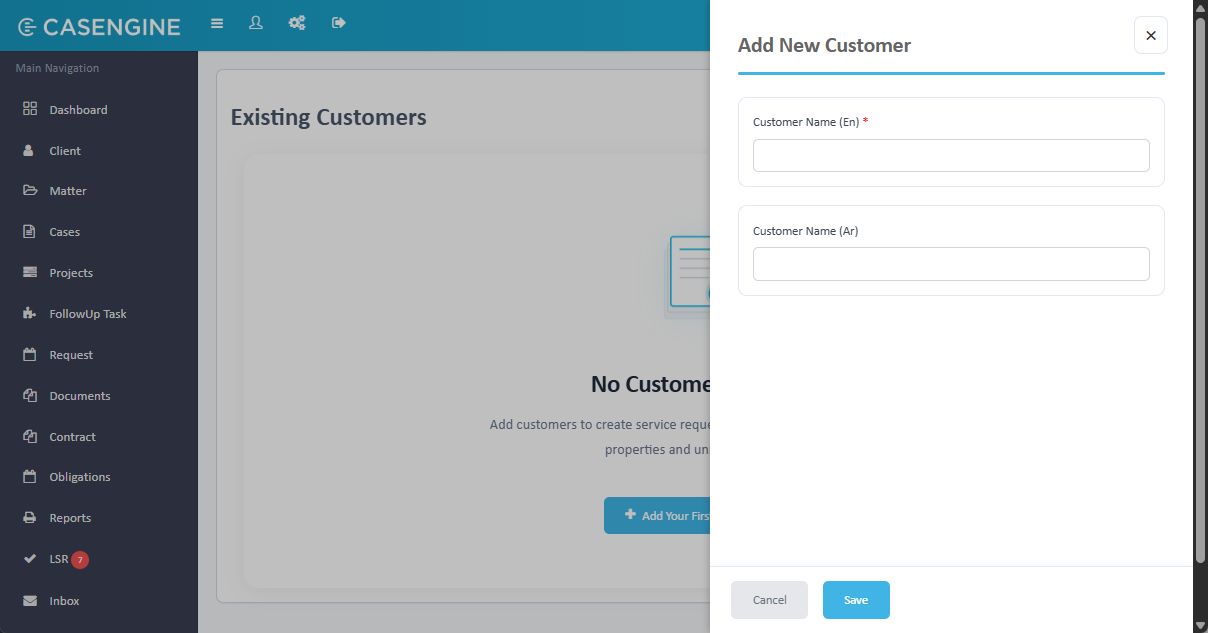
- Click the Add button or Add Your First Customer button
- In the side panel form, enter:
Required Fields:
- Customer Name (En): Enter the customer name in English (max 50 characters)
Optional Fields:
- Customer Name (Ar): Enter the customer name in Arabic (max 50 characters)
Status:
- Status: Select "Active" (default) or "Inactive"
- Click Save to create the new customer
Important Notes:
- System auto-creates customers from bulk upload Excel files
- Max length: 50 characters
3. Dropdown Configuration
Overview
Dropdown Configuration is used to manage configurable dropdown values throughout the system for various fields in request creation and management. These configurations help standardize data entry and ensure consistency across the platform.
Accessing Dropdown Configuration
- Navigate to the Settings section
- Under the LSR section, click on Dropdown Configuration
Managing Dropdown Values
The Dropdown Configuration page displays all configurable values in a table with:
- Type (category of the dropdown)
- Value (the actual dropdown option)
- Status (Active/Inactive)
- Action buttons
Available Dropdown Types:
- Type: Payment types (Installment, Contract, Down Payment, Final Payment, Retainer Fee, Success Fee)
- Priority: (Low, Medium, High, Urgent)
- Payment Type: Payment methods (Cheque, etc.)
- Collection Status: Status of payment collection
- Contract Status: Status of contracts
Available Actions:
- Add new values by clicking the Add Value button
Adding a New Dropdown Value
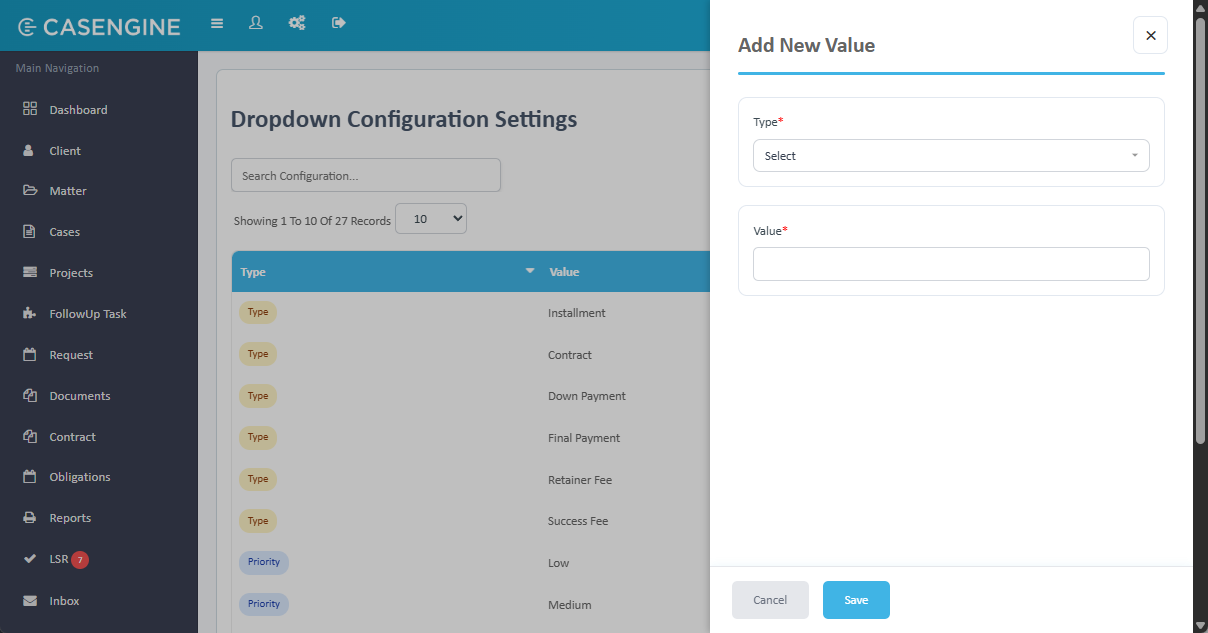
- Click the Add Value button in the top right corner
- In the side panel form, configure:
Required Fields:
- Type: Select the dropdown category from the dropdown (Contract Status, Payment Type, Type, Collection Status)
- Value: Enter the value name (max 50 characters)
Status:
- Status: Select "Active" or "Inactive"
- Click Save to add the value
Editing a Dropdown Value
- Click the edit icon in the Actions column for the value you want to modify
- Update the Value field or Status as needed
- Click Update to save changes
Important Notes:
- All other dropdown types can have custom values added
- Inactive values will not appear in dropdown selections during request creation
- Values are used across request creation, bulk upload, and request updates
4. Email Notification Settings
Overview
Email Notification Settings are used to manage automated email notification configurations throughout the system for various request-related events. This configuration allows administrators to control who receives email notifications when specific actions occur on requests, ensuring timely communication and proper workflow management across the platform.
Accessing Email Notification Settings
- Navigate to the Settings section
- Under the LSR section, click on Email Notification Settings
Configuring Email Notifications
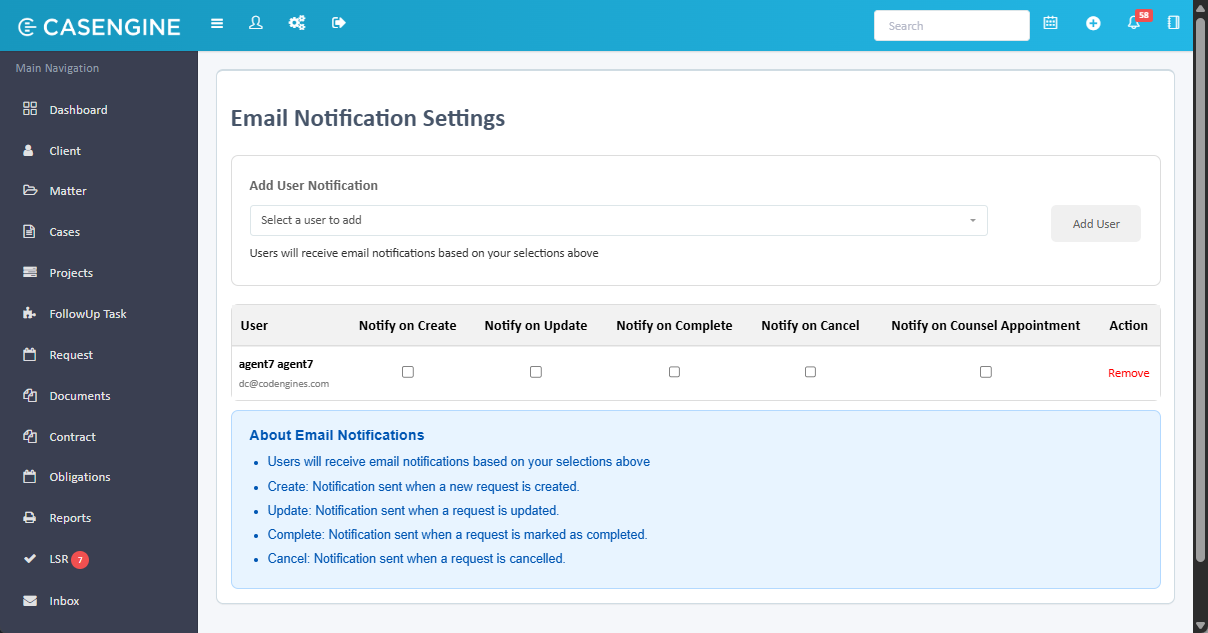
The Email Notification Settings page provides a comprehensive interface to manage email recipients for different request events.
Interface Components:
- Add User Notification: Dropdown to select users who should receive notifications
- Add User button: Adds the selected user to the notification list
- Notification Grid: Shows all users and their notification preferences
Notification Events
Users can be configured to receive notifications for the following events:
- Notify on Create: Email sent when a new request is created
- Notify on Update: Email sent when a request is updated
- Notify on Complete: Email sent when a request is marked as completed
- Notify on Cancel: Email sent when a request is cancelled
- Notify on Counsel Appointment: Email sent when an external counsel is appointed to a request
Adding User Notifications
In the Add User Notification section:
- Select a user from the dropdown "Select a user to add"
- Click the Add User button
The user will be added to the notification grid below
Configure notification preferences by checking the appropriate boxes for each event type
Click Remove to delete a user from the notification list
Notification Grid
The grid displays:
- User: User name and email address
- Notify on Create: Checkbox to enable/disable
- Notify on Update: Checkbox to enable/disable
- Notify on Complete: Checkbox to enable/disable
- Notify on Cancel: Checkbox to enable/disable
- Notify on Counsel Appointment: Checkbox to enable/disable
- Action: Remove button to delete user from notifications
Email Notification Rules
Important Rules:
- For all email notifications, the user performing the action will always be in the "TO" field
- Users configured in this settings page will be added to the "CC" field
- Multiple users can be configured for each event type
- Email notifications are sent automatically by the system when the corresponding event occurs
- No email is sent when using bulk comment upload feature
About Email Notifications
The information panel at the bottom explains:
- Create: Notification sent when a new request is created
- Update: Notification sent when a request is updated
- Complete: Notification sent when a request is marked as completed
- Cancel: Notification sent when a request is cancelled
Best Practices:
- Configure notifications based on departmental workflows
- Ensure at least one user is notified for each critical event
- Review and update notification settings when team members change
- Use selective notifications to avoid email overload
5. External Counsel
Overview
External Counsel management is used to maintain a registry of external legal professionals who can be appointed to handle payment defaulter requests. These counsels receive automated email notifications with request details and documentation when assigned to requests. The system helps standardize external legal resource management and facilitates seamless communication with external legal partners.
Accessing External Counsel
- Navigate to the Settings section
- Under the LSR section, click on External Counsel
Managing Existing External Counsels
The External Counsels page displays all registered external counsels in a table with:
- Name
- Phone
- Address
- Status (Active/Inactive)
- Action buttons
Available Actions:
- Add new external counsels by clicking the Add External Counsel button
- Search across all columns to find specific counsels
- Edit an external counsel record
- Change status to Active or Inactive
Adding a New External Counsel
- Click the Add External Counsel button (or Add Your First Counsel if no records exist)
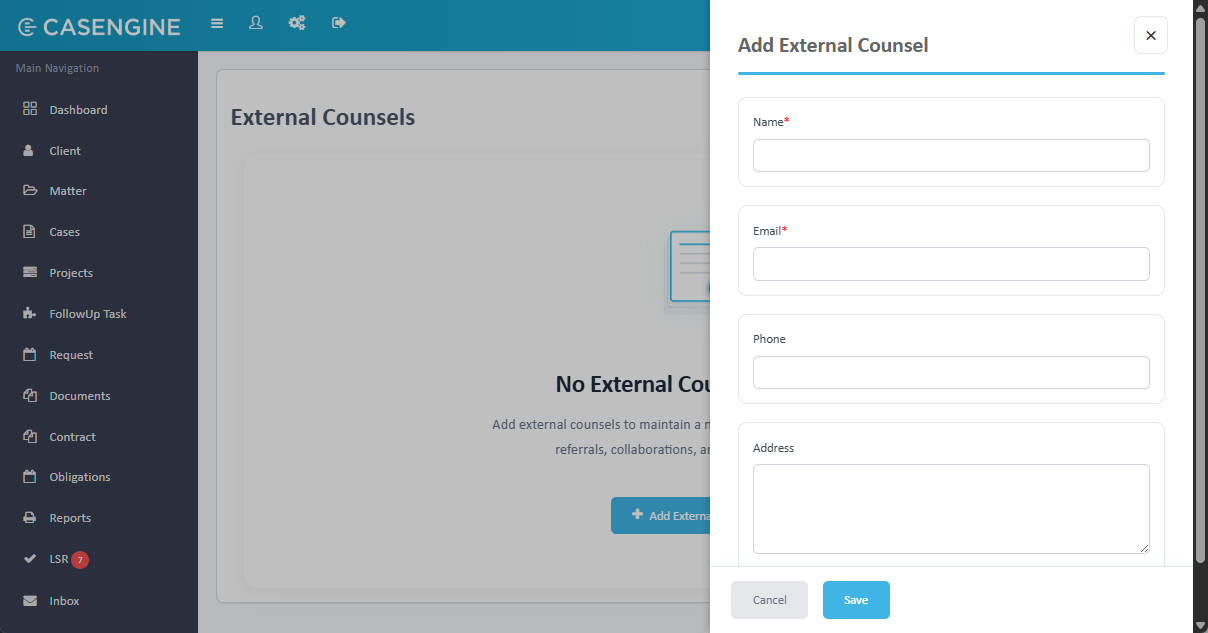
- In the side panel form, enter the following information:
Required Fields:
- Name: Enter the external counsel's full name or law firm name (max 50 characters) *
- Email: Enter the email address for receiving notifications (max 50 characters) *
Optional Fields:
- Phone: Enter the contact phone number (max 50 characters)
- Address: Enter the physical or mailing address (max 100 characters, text area)
Status:
- Status: Select "Active" or "Inactive" from dropdown
- Click Save to create the external counsel record
Editing External Counsel
- Click the edit icon in the Actions column for the counsel you want to modify
- Update any of the fields (Name, Email, Phone, Address, Status)
- Click Update to save changes
External Counsel Usage
In Request Management:
- External counsels appear in the "Assign External Counsel" dropdown during request processing
- Only Active external counsels can be assigned to requests
- Multiple requests can be assigned to the same external counsel
- External counsel assignments can be done individually or in bulk
Email Notifications: When an external counsel is assigned to a request, they receive an automated email containing:
- Request Number
- Customer Name
- Unit Number
- Payment plan details (Excel attachment)
- Associated documents (ZIP file download link)
Document Package Structure: The ZIP file contains:
- Folders named by request number
- All attachments added to the request
- Payment Details Excel file for each request
Empty State
When no external counsels exist in the system, the page displays:
- "No External Counsels" message
- Explanatory text: "Add external counsels to maintain a network of trusted legal professionals for case referrals, collaborations, and consultations"
- Add Your First Counsel button to begin adding records
Important Notes:
- Name and Email are mandatory fields
- Email addresses must be unique to prevent duplicate notifications
- External counsel data is used in single and bulk external counsel assignment features
- The system supports modification/withdrawal of external counsel assignments with automated email notifications
6. Permissions
Overview
The Permissions system is used to control user access and define what actions users can perform on payment defaulter requests. This granular permission structure ensures proper access control and workflow management by allowing administrators to configure specific capabilities for each user based on their role and department.
Accessing Permissions
- Navigate to the Settings section
- Under the LSR section, click on Permissions
Managing User Permissions
The User Permissions Settings page displays all users and their configured permissions in a searchable, filterable grid.
Page Features:
- Search Users: Search box to find specific users by name or email
- Department Filter: Dropdown to filter users by department
- Reset: Button to clear all filters
- Bulk Update: Button to apply permissions to all users in a department
User Permissions Grid
The grid displays:
- User: User name and email address
- Department: Department badge showing user's assigned department
- Permissions: Tags showing enabled permissions for each user
- Actions: "Edit Permissions" button for individual user configuration
Available Permissions
The system supports the following granular permissions:
- Create Request: Allows user to create new payment defaulter requests
- View All Request: Allows user to view all requests in the system regardless of creator
- Cancel Request: Allows user to cancel/reject requests
- Update Request: Allows user to update request status and add comments
- Complete Request: Allows user to mark requests as completed
- Appoint Legal Counsel: Allows user to assign external counsel to requests
- Edit Request: Allows user to modify request details after creation
Editing Individual User Permissions
Click the Edit Permissions button for the desired user
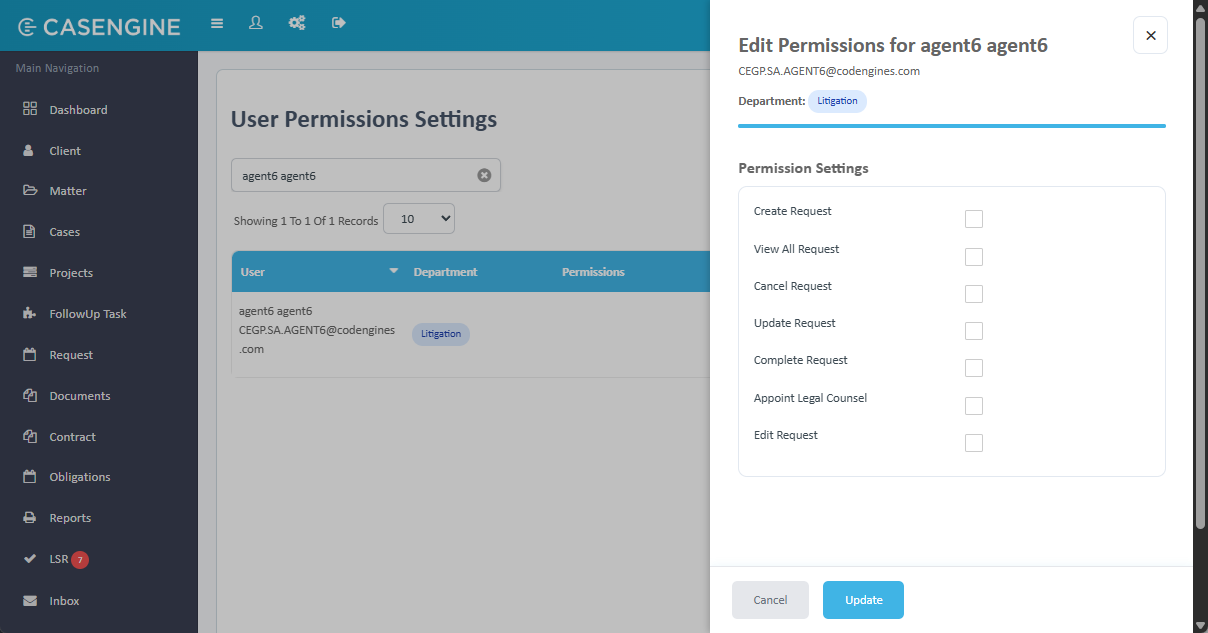
A side panel opens showing:
- User Email: Display of user's email address
- Department: Badge showing user's department
- Permission Settings: Checkbox list of all available permissions
Check or uncheck permissions as needed:
- ☐ Create Request
- ☐ View All Request
- ☐ Cancel Request
- ☐ Update Request
- ☐ Complete Request
- ☐ Appoint Legal Counsel
- ☐ Edit Request
Click Update to save the permission changes
Click Cancel to discard changes
Bulk Update Department Permissions
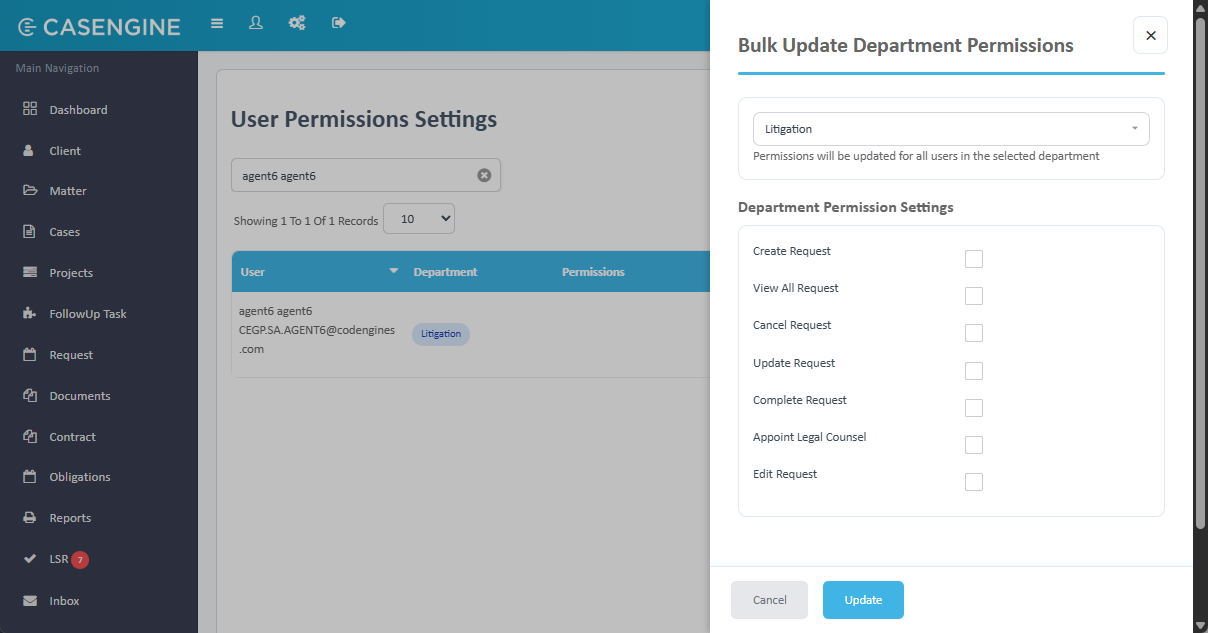
For efficient permission management across teams:
Click the Bulk Update button
A modal opens with:
- Department Selection: Dropdown to select a department
- Information: "Permissions will be updated for all users in the selected department"
Select the target department from the dropdown
Configure the Department Permission Settings:
- ☐ Create Request
- ☐ View All Request
- ☐ Cancel Request
- ☐ Update Request
- ☐ Complete Request
- ☐ Appoint Legal Counsel
- ☐ Edit Request
Click Update to apply permissions to all users in the selected department
Click Cancel to discard changes
Warning: Bulk updates will override individual user permissions for all users in the selected department.
Permission Impact
On Request Grid:
- Users without "View All Request" permission see only requests they created
- Action buttons in the grid are displayed/hidden based on user permissions
On Request Actions:
- "Edit Request" option appears only if user has Edit Request permission
- "Update Request" option requires Update Request permission
- "Cancel Request" action requires Cancel Request permission
- "Mark as Complete" requires Complete Request permission
- "Assign External Counsel" requires Appoint Legal Counsel permission
On Batch Actions:
- Batch operations respect individual user permissions
- Users can only perform batch actions they have permission for
- System validates permissions before executing batch operations
Default Permission Sets
Finance Team (Standard):
- ☑ Create Request
- ☐ View All Request
- ☐ Cancel Request
- ☐ Update Request
- ☐ Complete Request
- ☐ Appoint Legal Counsel
- ☐ Edit Request
Legal Team (Full Access):
- ☑ Create Request
- ☑ View All Request
- ☑ Cancel Request
- ☑ Update Request
- ☑ Complete Request
- ☑ Appoint Legal Counsel
- ☑ Edit Request
Important Notes:
- Permission changes take effect immediately
- Users must log out and log back in to see permission changes reflected in the UI
- At least one user should have full permissions to ensure system administration
- Permissions apply to both single request actions and batch operations
- View All Request permission is required to use advanced filtering and reporting features
7. Project Names
Overview
Project Names (also referred to as Projects Master) are used to manage property project data throughout the system. Projects represent real estate developments or properties and are linked to units. Users can add projects manually, and the system will automatically identify and create new projects when an Excel file for bulk requests is uploaded.
Accessing Project Names
- Navigate to the Settings section
- Under the LSR section, click on Project Names
Managing Existing Projects
The Project Names page displays all projects in a table with:
- Project Name (English)
- Project Name (Arabic - if provided)
- Status (Active/Inactive)
- Action buttons
Available Actions:
- Add new projects by clicking the Add button or Add Your First Project button
- Search to find specific projects by name
- Edit a project by clicking the edit button in the action column
- Change status by editing and updating the status dropdown
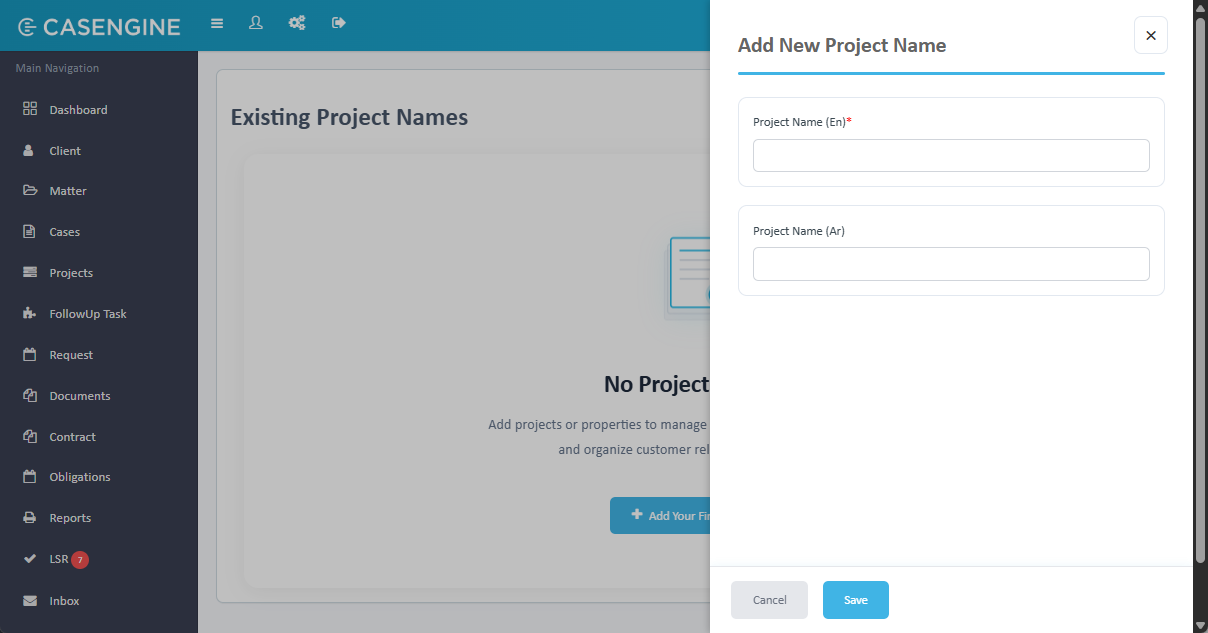
Adding a New Project
- Click the Add button (or Add Your First Project if no projects exist)
- In the side panel form, enter:
Required Fields:
- Project Name (En): Enter the project name in English (max 100 characters) *
Optional Fields:
- Project Name (Ar): Enter the project name in Arabic (max 100 characters)
Status:
- Status: Select "Active" or "Inactive" from dropdown
- Click Save to create the new project
Editing a Project
Click the edit icon in the Actions column for the project you want to modify
Update the following fields as needed:
- Project Name (En)
- Project Name (Ar)
- Status
Click Update to save changes
Empty State
When no projects exist in the system, the page displays:
- "No Projects" heading
- Explanatory text: "Add projects or properties to manage multiple units and organize customer relations"
- Add Your First Project button to begin adding records
Project Usage in the System
In Request Creation:
- Projects appear in the Project dropdown during single request creation
- Only Active projects are selectable
- Selecting a project filters the Unit dropdown to show only units under that project
In Bulk Request Upload:
- System automatically creates new projects from Excel data
- If a project name in Excel doesn't exist, it's auto-created as Active
- Auto-created projects can be edited later to add Arabic names or change status
Relationship with Units:
- Each project can have multiple units
- Units are linked to projects in the Units Master
- Deleting or deactivating a project doesn't delete associated units
- Units under inactive projects remain accessible but the project won't appear in dropdowns
Important Notes:
- Project Name (English) is mandatory, max 100 characters
- Project Name (Arabic) is optional for bilingual support
- System auto-creates projects during bulk upload
- Inactive projects don't appear in request creation dropdowns
- Projects organize and categorize property units for better management
- One project can have hundreds of units associated with it
8. Units Master
Overview
Units Master is used to manage individual property units throughout the system for payment defaulter requests. Units represent specific apartments, offices, or properties within a project. Each unit must be linked to a project. Unit names/numbers are monolingual (English only). Users can add units manually, and the system will automatically identify and create new units when an Excel file for bulk requests is uploaded.
Accessing Units Master
- Navigate to the Settings section
- Under the LSR section, click on Units
Managing Existing Units
The Units page displays all units in a table with:
- Unit Number/Name
- Project (linked project name)
- Status (Active/Inactive)
- Action buttons
Available Actions:
- Add new units by clicking the Add button or Add Your First Unit button
- Search to find specific units by unit number or project
- Filter by Project to view units under a specific project
- Edit a unit by clicking the edit button in the action column
- Change status by editing and updating the status dropdown
Adding a New Unit
- Click the Add button (or Add Your First Unit if no units exist)
- In the side panel form, enter:
Required Fields:
- Unit Number: Enter the unit identifier/number (max 50 characters) *
- Project Name: Select the parent project from the dropdown (single selection) *
Status:
- Status: Select "Active" or "Inactive" from dropdown
- Click Save to create the new unit

Editing a Unit
Click the edit icon in the Actions column for the unit you want to modify
Update the following fields as needed:
- Unit Number
- Project Name
- Status
Click Update to save changes
Empty State
When no units exist in the system, the page displays:
- "No Units Found" heading
- Explanatory text: "Add units under your projects or properties to create requests, track assignments, and streamline operations"
- Add Your First Unit button to begin adding records
Unit Usage in the System
In Request Creation:
- Units appear in the Unit dropdown during single request creation
- Unit dropdown is filtered based on the selected Project
- Only Active units from Active projects are selectable
- One request can have one unit with multiple customers
In Bulk Request Upload:
- System automatically creates new units from Excel data
- If a unit number in Excel doesn't exist under the specified project, it's auto-created as Active
- System logic for bulk upload:
- Multiple customers for same unit = Creates ONE request with all customers listed
- Multiple units for same customer = Creates SEPARATE requests for each unit
- System identifies unique units to determine number of requests to create
Relationship with Projects:
- Each unit must belong to one project
- Units cannot exist without a parent project
- Changing a unit's project reassigns it to a different property
- If a project is deactivated, its units remain but may not appear in filtered dropdowns
Relationship with Customers:
- One unit can have multiple customers (homeowners/tenants)
- Multiple customers on same unit are grouped in one request during bulk upload
- Single request creation allows selecting multiple customers per unit
Important Notes:
- Unit Number is mandatory, max 50 characters
- Project selection is mandatory
- System auto-creates units during bulk upload
- Inactive units don't appear in request creation dropdowns
- Units organize payment defaulter tracking at the property level
- Unit numbers should be unique within a project for clarity
- Common naming patterns: "Unit A-101", "Apt 205", "Office 3B", etc.
9. Workflow Configuration
Overview
Workflow Configuration is used to define and manage the sequential workflow stages that payment defaulter requests progress through. The workflow determines which department handles the request at each stage and controls the systematic flow of requests from creation to completion. The same workflow applies to all requests in the system, and it can only be modified when there are no pending requests.
Accessing Workflow Configuration
- Navigate to the Settings section
- Under the LSR section, click on Workflow
Workflow Overview
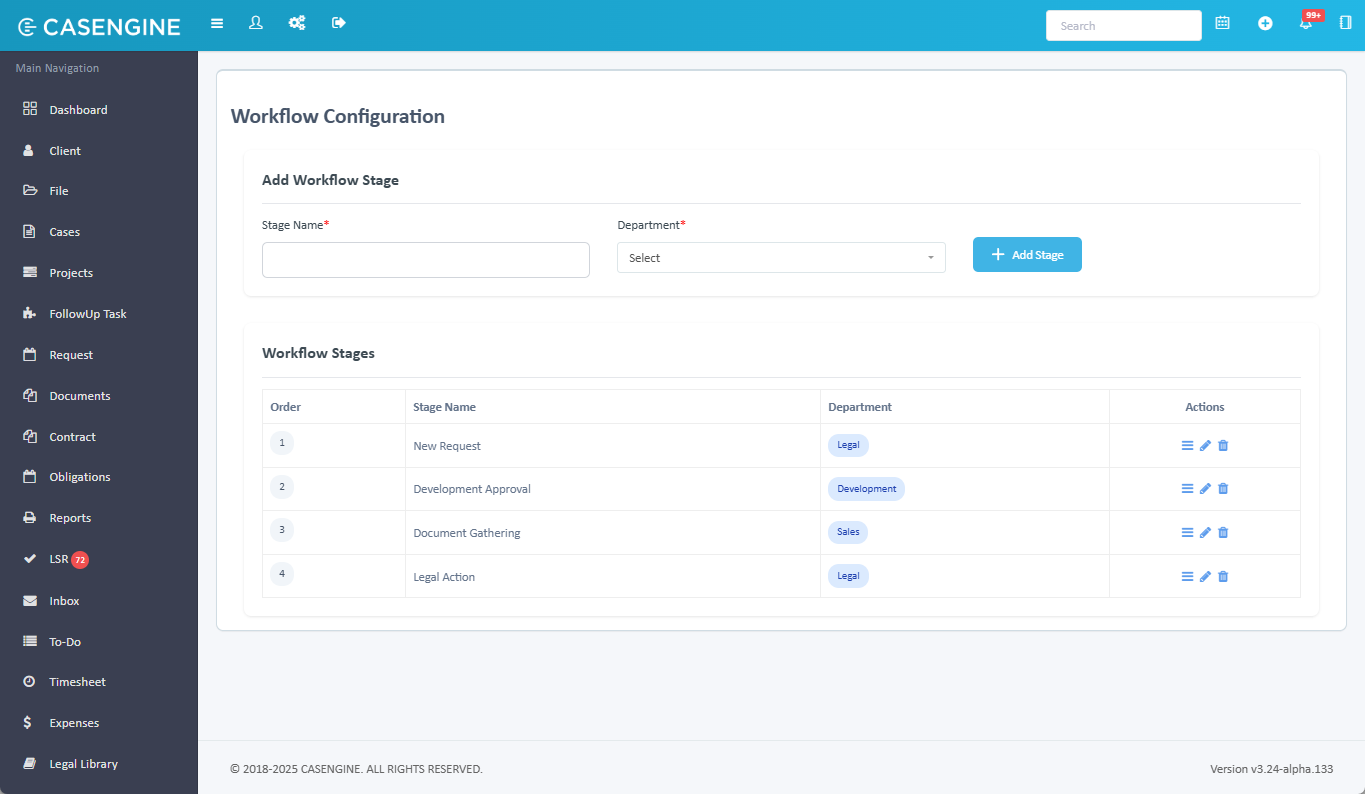
The Workflow Configuration page displays:
- Add Workflow Stage: Form to create new workflow stages
- Workflow Stages: Table showing all configured stages in order
Workflow Stages Grid
The table displays all workflow stages with the following columns:
- Order: Sequence number indicating stage position in workflow
- Stage Name: Name of the workflow stage
- Department: Department responsible for this stage
- Actions: Edit, Delete, Move Up/Down buttons
Adding a Workflow Stage
- In the Add Workflow Stage section, enter:
Required Fields:
- Stage Name: Enter a descriptive name for the workflow stage (max 100 characters) *
- Department: Select the responsible department from the dropdown *
- Click the Add Stage button to create the stage
Managing Workflow Stages
Reordering Stages:
- Click the ↑ (up arrow) to move a stage higher in the sequence
- Click the ↓ (down arrow) to move a stage lower in the sequence
- The Order column updates automatically to reflect the new sequence
Editing a Stage:
- Click the edit icon in the Actions column
- Modify the Stage Name or Department
- Click Update to save changes
Deleting a Stage:
- Click the delete icon in the Actions column
- Confirm the deletion
- The stage is removed from the workflow
Important Restrictions:
- Workflow can only be modified when there are NO pending requests in the system
- All requests must be in "Completed" or "Cancelled" status before workflow changes
- System will display a warning if you attempt to modify workflow with active requests
Workflow Process Flow
The workflow represents the sequential progression of requests:
Example Workflow:
- New Request (Legal Department) - Initial request creation
- Development Approval (Development Department) - Review and approval
- Document Gathering (Sales Department) - Collect required documents
- Legal Action (Legal Department) - Process legal notices
How Workflow Works:
- All newly created requests start at Stage 1 (first workflow stage)
- Requests progress sequentially through each stage
- Each stage is handled by its assigned department
- Users can update request status within a stage
- "Process to next department" option moves request to next stage
- Workflow is unidirectional - requests move forward, not backward
- Users with appropriate permissions can mark requests as Complete/Cancelled at any stage
Workflow and Permissions
Department-Based Access:
- Users in a department can work on requests at their department's workflow stage
- Permissions control what actions users can perform within their stage
- "View All Request" permission allows seeing requests across all stages
Stage Progression:
- "Update Request" with "Process to next department" moves request forward
- Legal team can complete/cancel requests at any stage (with proper permissions)
- Status changes (New → In Progress → Completed/Cancelled) are independent of workflow stage
Default Workflow Configuration
Per system specifications:
Finance Team:
- Can create requests (which start at Stage 1)
- Cannot update, complete, or move requests through workflow
- Request initiators only
Legal Team:
- Full permissions across all workflow stages
- Can create, edit, update, complete, cancel requests
- Can appoint external counsel
- Can process requests through all workflow stages
Workflow States
Request Status vs. Workflow Stage:
- Status: New, In Progress, Completed, Cancelled (request lifecycle)
- Workflow Stage: Department and stage name (processing position)
- These are independent but related concepts
Important Notes:
- Same workflow applies to ALL requests in the system
- Workflow cannot be updated if ANY request has status "New" or "In Progress"
- Complete or cancel all pending requests before modifying workflow
- Stage sequence determines request routing through departments
- First stage is where all new requests begin
- Last stage is typically the final approval/action stage
- Maximum recommended workflow stages: 5-7 for optimal efficiency
- Each stage should have clear responsibilities and outcomes
Was this article helpful?
That’s Great!
Thank you for your feedback
Sorry! We couldn't be helpful
Thank you for your feedback
Feedback sent
We appreciate your effort and will try to fix the article