The Request module is the operational heart of the Payment Defaulter system, accessible from the left navigation menu under "Request". This module manages the entire lifecycle of payment defaulter requests from creation through completion, enabling efficient tracking and management of payment collection activities across properties and units.
Table of Contents
- Accessing Request Module
- Existing Requests Page
- Creating Single Request
- Creating Bulk Requests
- Bulk Comment Upload
- Request Actions
- Batch Operations
1. Accessing Request Module
Navigation
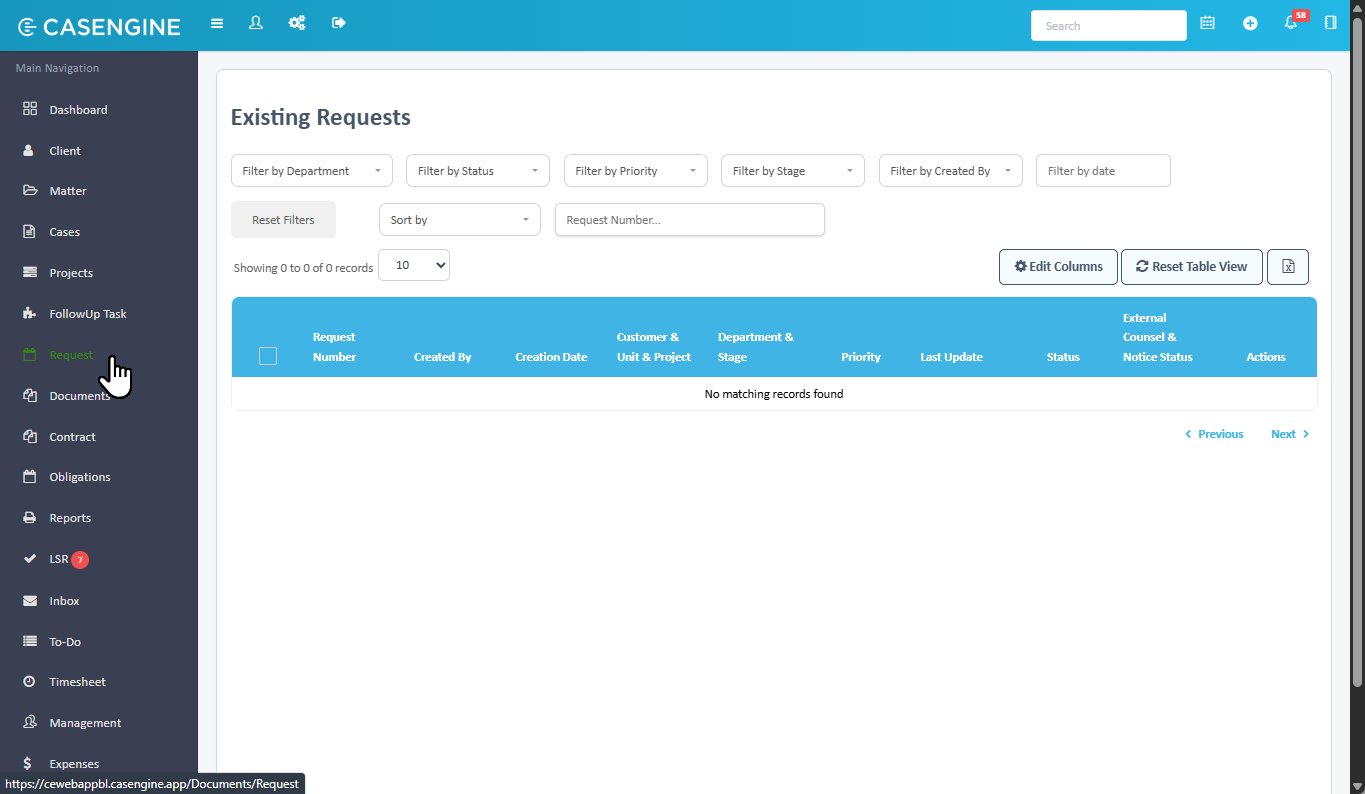
- Click on Request from the left side navigation menu (highlighted in green)
- The system displays the "Existing Requests" page
2. Existing Requests Page
Overview
The Existing Requests page is the main interface for viewing and managing all payment defaulter requests in the system. It provides comprehensive filtering, sorting, and bulk action capabilities.
Page Header
The page displays:
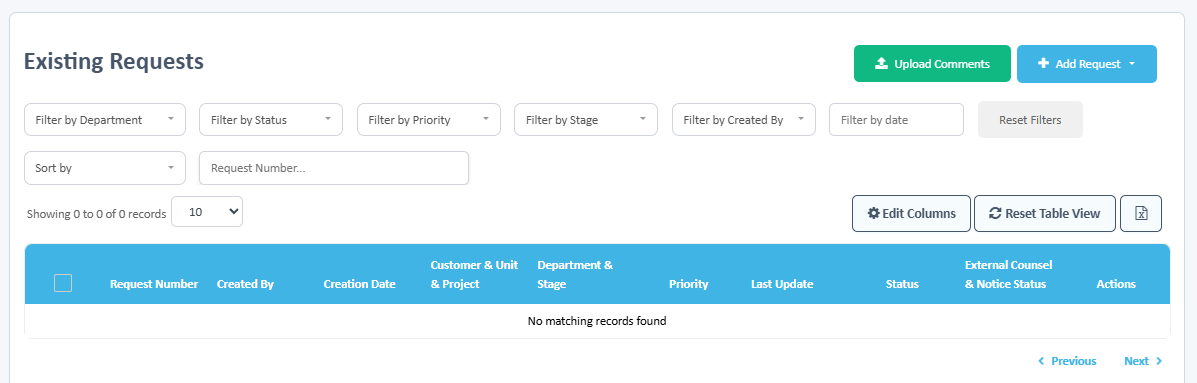
- Page Title: "Existing Requests"
- Action Buttons(top right):
- Search requests...: Global search box
- Filters: Filter panel
- Upload Comments: Bulk comment upload feature (green button)
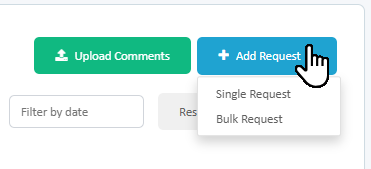
- Add Request: Dropdown with "Single Request" and "Bulk Request" options (blue button)

Filtering Options
Primary Filters (First Row):
- Filter by Department: Dropdown to filter by department
- Filter by Status: Dropdown to filter by New, In Progress, Completed, Cancelled
- Filter by Priority: Dropdown to filter by Low, Medium, High
- Filter by Stage: Dropdown to filter by workflow stage
- Filter by Created By: Dropdown to filter by user who created the request
- Filter by date: Date range filter
- Reset Filters: Button to clear all applied filters
Secondary Controls (Second Row):
- Sort by: Dropdown with sorting options:
- Request Number (ascending/descending)
- Priority (Low to Urgent / Urgent to Low)
- Creation Date (newest/oldest first)
- Last Update Date (newest/oldest first)
- Request Number...: Search by specific request number
Grid Controls (Right Side):
- Records Per Page: Dropdown (10, 25, 50, 100 records)
- Edit Columns: Customize visible columns
- Reset Table View: Return to default column configuration
- Export: Download filtered data to Excel
Request Grid
Grid Columns:
- ☐ Checkbox: Bulk selection for batch actions
- Request Number: System-generated unique identifier (e.g., REQ-2026-0123)
- Created By: Name of user who created the request (stacked display with duplicate name below)
- Creation Date: Date when request was created (DD/MM/YYYY format)
- Customer & Unit & Project: Multi-line display showing:
- Customer name(s) (comma-separated if multiple)
- Unit number
- Project name
- Department & Stage: Multi-line display showing:
- Current department name
- Current workflow stage
- Priority: Badge showing Low/Medium/High/Urgent
- Last Update: Multi-line display showing:
- Date
- "By: Username"
- Additional context (e.g., "External Counsel Assigned", "Update Action")
- Status: Badge showing New/In Progress/Completed/Cancelled
- External Counsel & Notice Status: Multi-line display showing:
- External counsel name (if assigned) or "Not Assigned"
- Legal notice status (e.g., "Served", "Legally Served", etc.)
- Actions: Three-dot menu with permission-based options
Status Badge Colors:
- New:
- In Progress:
- Completed:
- Cancelled:
Priority Badge Colors:
- Low:
- Medium:
- High:
Empty State
When no requests exist or no results match filters:
- Message: "No matching records found"
Pagination
- Located at bottom right
- Shows: "Previous" | Page numbers (1, 2, 3...) | "Next"
- Displays current page number in blue
- Click page numbers to navigate
3. Creating Single Request
Accessing Single Request Form
- Click the Add Request button (top right)
- Select Single Request from the dropdown
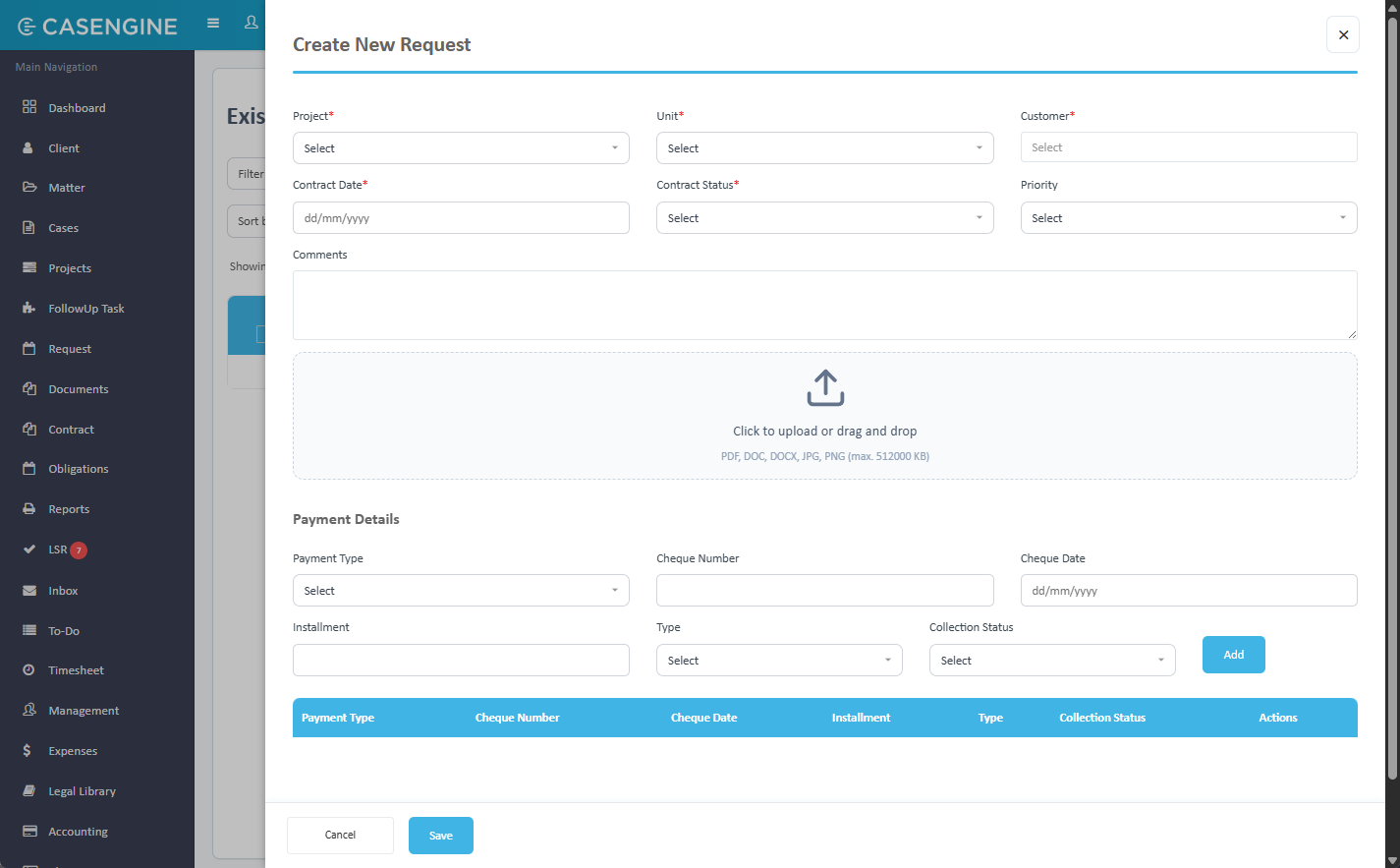
- A modal opens: "Create New Request"
Single Request Form Structure
The form is organized into sections:
Basic Information (Top Section)
Required Fields:
Project: Dropdown selection (single select) *
- Shows all active projects from Project Master
- Selection filters the Unit dropdown
Unit: Dropdown selection (single select) *
- Shows only units under selected project
- Only active units displayed
Customer: Dropdown selection (multi-select) *
- KEY FEATURE: Multiple customers can be selected
- Shows all active customers from Customer Master
- Searchable dropdown with type-ahead functionality
Contract Date: Date picker (dd/mm/yyyy format) *
- Calendar icon for date selection
- Manual entry also supported
Contract Status: Dropdown selection (single select) *
- Shows values from Dropdown Configuration
- Examples: Terminated, Active, Expired, etc.
Priority: Dropdown selection (single select)
- Options: Low, Medium, High, Urgent
- Default: Can be left unselected
Optional Fields:
- Comments: Text area (max 250 characters)
- For additional notes or context about the request
- Character counter displays remaining characters
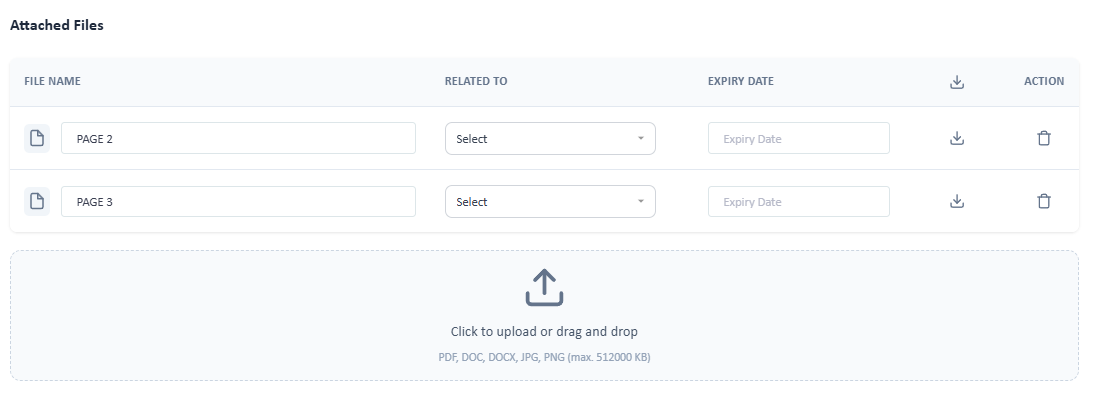
File Attachments Section
- Upload Area: Drag and drop zone with upload icon
- Text: "Click to upload or drag and drop"
- Supported formats: PDF, DOC, DOCX, JPG, PNG (max. 512000 KB)
- Multiple files can be uploaded
- Uploaded files display below with file name and size
Payment Details Section
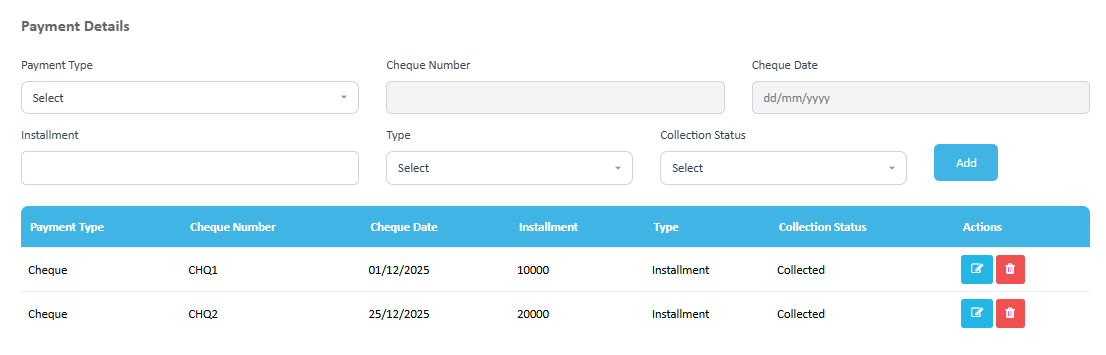
This collapsible section allows adding payment information:
Payment Fields:
- Payment Type: Dropdown (Cheque, Cash, Bank Transfer, etc.)
- Cheque Number: Text input (max 25 characters, alphanumeric)
- Cheque Date: Date picker (dd/mm/yyyy)
- Installment: Numeric input (max 10 characters, numbers only)
- Type: Dropdown (Installment, Contract, Down Payment, Final Payment, etc.)
- Collection Status: Dropdown (Collected, Pending, Bounced, etc.)
Adding Payment Details:
- Fill in the payment fields
- Click the Add button (blue button on right)
- Payment details are added to the grid below
Payment Details Grid:
Displays columns:
- Payment Type
- Cheque Number
- Cheque Date
- Installment
- Type
- Collection Status
- Actions (Edit/Delete icons)
Multiple payment entries can be added for a single request.
Form Validation
Validation Rules:
- All fields marked with * are mandatory
- Contract Date must be in valid format (dd/mm/yyyy)
- Cheque Number: Alphanumeric only, max 25 characters
- Installment: Numeric only, max 10 digits
- Comments: Max 250 characters
- At least one customer must be selected
- Project and Unit must be selected before customer
Error Handling:
- Required field errors appear in red below fields
- Invalid format errors display immediately
- Form cannot be submitted until all validation passes
Form Submission
Action Buttons:
- Cancel: Closes the form without saving (gray button, left side)
- Save: Creates the request (blue button, right side)
Submission Process:
- Click Save
- System validates all required fields
- System creates request with status "New"
- Request is assigned to first workflow stage
- System sends email notification to configured users
- History entry is created automatically
Post-Creation:
- New request appears in the grid with status "New"
- Request number is auto-generated (e.g., REQ-2026-0125)
- Email sent to users configured in Email Notification Settings
- Action performer receives email in "TO" field
- Configured users receive email in "CC" field
4. Creating Bulk Requests
Accessing Bulk Request Feature
- Click the Add Request button (top right)
- Select Bulk Request from the dropdown
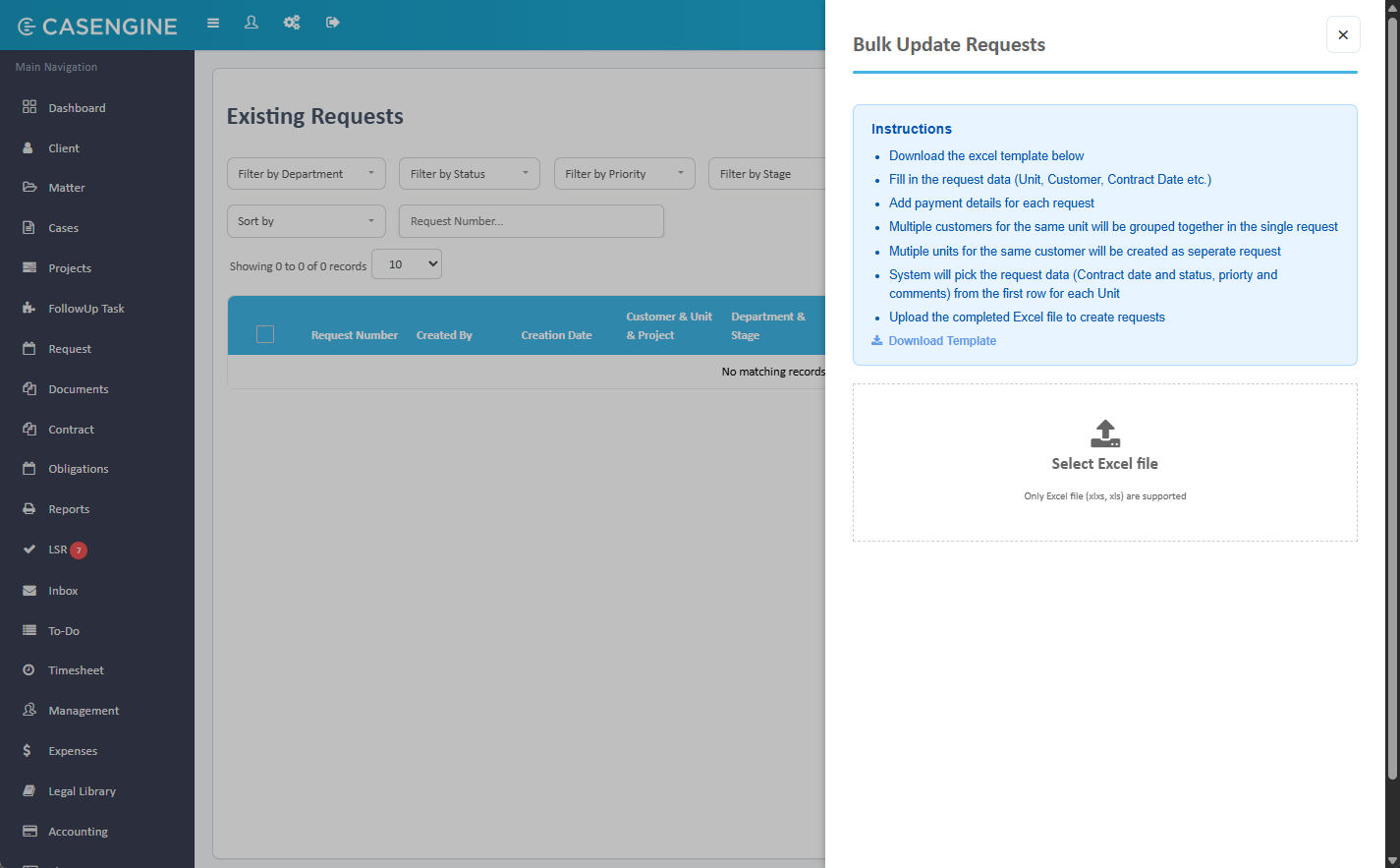
- A side panel opens: "Bulk Update Requests"
Bulk Request Instructions
The panel displays comprehensive instructions:
Instructions Panel:
- Download the excel template below
- Fill in the request data (Unit, Customer, Contract Date etc.)
- Add payment details for each request
- Multiple customers for the same unit will be grouped together in the single request
- Multiple units for the same customer will be created as separate request
- System will pick the request data (Contract date and status, priority and comments) from the first row for each Unit
- Upload the completed Excel file to create requests
Download Template Button:
- Blue link: "Download Template"
- Downloads Excel file with predefined columns
Excel Template Structure
Template Columns (in order):
| Column | Description | Required | Format/Validation |
|---|---|---|---|
| Project | Project name | Yes | Must match existing project or will be auto-created |
| Unit | Unit number | Yes | Must match existing unit or will be auto-created |
| Customer | Customer name | Yes | Must match existing customer or will be auto-created |
| Contract_Date | Contract date | Yes | YYYY-MM-DD format |
| Contract_Status | Contract status | Yes | Must match dropdown configuration values |
| Priority | Priority level | Yes | Low, Medium, High |
| Comments | Additional notes | No | Max 250 characters |
| Payment_Type | Type of payment | No | Must match dropdown configuration |
| Cheque_Number | Cheque number | No | Alphanumeric, max 25 chars |
| Cheque_Date | Date of cheque | No | YYYY-MM-DD format |
| Installment | Installment number | No | Numeric only, max 10 digits |
| Type | Payment type | No | Must match dropdown configuration |
| Collection_Status | Collection status | No | Must match dropdown configuration |

Excel Data Entry Guidelines
Request-Level Data:
- Enter Project, Unit, Customer, Contract_Date, Contract_Status, Priority, Comments
- These fields determine the request details
Payment-Level Data:
- Enter Payment_Type, Cheque_Number, Cheque_Date, Installment, Type, Collection_Status
- Optional fields for payment tracking
Important Rules:
Multiple Customers + Same Unit = Single Request
- Example:
- Row 1: Project A, Unit 101, Customer John, ...
- Row 2: Project A, Unit 101, Customer Sarah, ...
- Result: ONE request with Unit 101 listing John AND Sarah
- Example:
Multiple Units + Same Customer = Separate Requests
- Example:
- Row 1: Project A, Unit 101, Customer John, ...
- Row 2: Project A, Unit 102, Customer John, ...
- Result: TWO separate requests (one for Unit 101, one for Unit 102)
- Example:
Request Data Priority:
- System uses first row's data for Contract Date, Status, Priority, and Comments
- Subsequent rows with same unit only add customers or payments
Auto-Creation:
- New projects, units, and customers are automatically created
- All created entries default to "Active" status
- Can be edited later in respective master pages
Upload Process
File Upload:
- Click on the upload area: "Select Excel file"
- Browser file picker opens
- Select Excel file (.xlsx, .xls)
- System validates file format
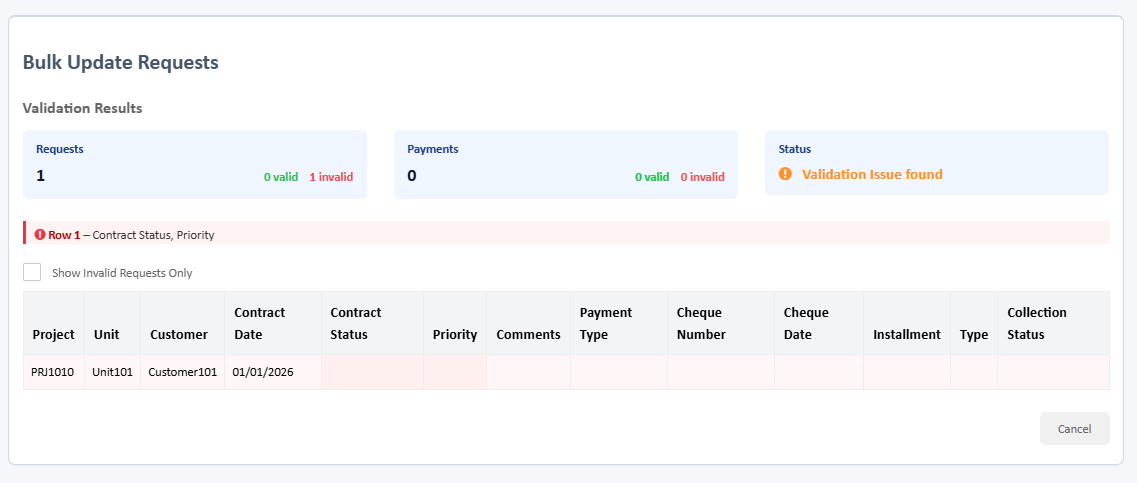
- Preview screen loads with validation results
Validation Messages:
- "Only Excel file (.xlsx, .xls) are supported"
- File size should be reasonable (system limit applies)
Validation and Preview
System Validation Checks:
Request-Level Validation:
- Project, Unit, Customer: Check if exist; flag for auto-creation if new
- Contract_Date: Must be in YYYY-MM-DD format
- Contract_Status: Must match existing dropdown values
- Priority: Must be Low, Medium, High, or Urgent
Payment-Level Validation:
- Payment_Type: Must match existing dropdown values
- Cheque_Date: Must be in YYYY-MM-DD format (if provided)
- Cheque_Number: Alphanumeric check (if provided)
- Installment: Numeric only (if provided)
- Type: Must match dropdown values (if provided)
- Collection_Status: Must match dropdown values (if provided)
Preview Screen:
The preview displays:
- Summary of valid vs. invalid rows
- List of errors with row numbers
- Option to proceed with valid data only
- Option to cancel and fix Excel file
Preview Actions:
- Proceed with Valid Data: Creates requests for valid rows only
- Cancel: Returns to upload screen to fix errors
Maximum Limits:
- Maximum 100 requests per upload
- If more than 100 unique units detected, system shows error
Bulk Creation Process
Processing:
- User clicks "Proceed" on preview screen
- System processes each unique unit
- Creates projects/units/customers as needed
- Groups customers by unit
- Creates requests with "New" status
- Assigns to first workflow stage
- Creates history entries for each request
- Sends email notifications
Email Notifications:
- One email per bulk upload (not per request)
- Lists all created request numbers
- Sent to configured users in Email Notification Settings
- Uploader receives email in "TO" field
5. Bulk Comment Upload
Overview
Bulk Comment Upload allows users to add comments and legal notice status updates to multiple requests simultaneously via Excel file upload. This feature does NOT send emails and is primarily used for external counsel feedback.
Accessing Bulk Comment Upload
- On the Existing Requests page, click Upload Comments (green button)
- A side panel opens: "Bulk Update Comments"
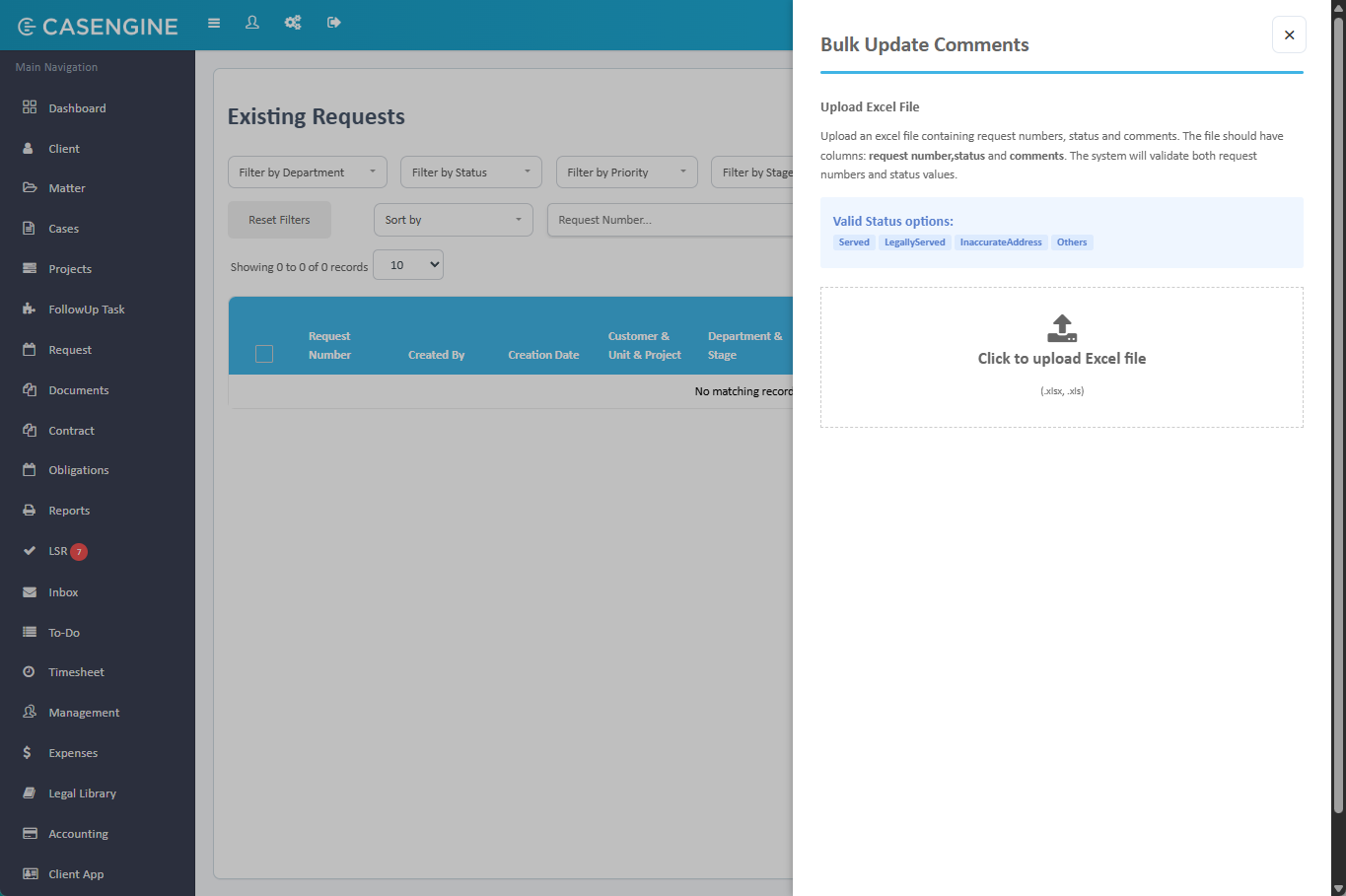
Bulk Comment Upload Interface
Instructions Panel:
Text displays:
- "Upload an excel file containing request numbers, status and comments. The file should have columns: request number, status and comments. The system will validate both request numbers and status values."
Valid Status Options:
- Served
- LegallyServed
- InaccurateAddress
- Others
Upload Area:
- Click to upload Excel file
- Text: "Click to upload Excel file"
- Supported formats: (.xlsx, .xls)
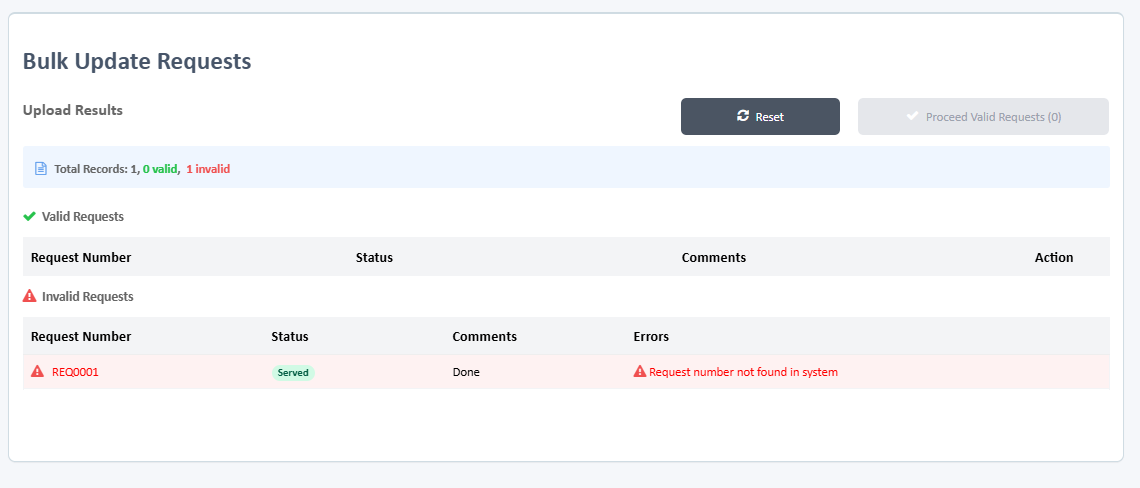
Excel File Format
Required Columns:
| Column | Description | Required | Format/Validation |
|---|---|---|---|
| requestNumber | Request number | Yes | Must match existing request (e.g., REQ-2026-0123) |
| status | Legal notice status | No | served, legallyServed, inaccurateAddress, others |
| comment | Comment text | Yes | Max 250 characters |
Example:
requestNumber | status | commentREQ-2026-0123 | served | Notice delivered successfullyREQ-2026-0125 | legallyServed | Legal service completed on 15/01/2026REQ-2026-0130 | | Follow-up required
Upload and Validation Process
Step 1: File Upload
- Click upload area or drag file
- System validates file format
- System reads Excel data
- Validation process begins
Step 2: Validation
System Checks:
- Request Number exists in system
- Status value matches valid options (if provided)
- Comment is not empty
- Comment does not exceed 250 characters
Validation Results:
- Valid entries highlighted in green
- Invalid entries highlighted in red with error messages
- Error messages specify the issue (e.g., "Request number not found", "Invalid status value")
Step 3: Preview and Edit
Preview Screen Features:
- Displays all rows from Excel
- Shows validation status for each row
- Allows in-line editing of comments before processing
- Shows count: "X valid entries, Y invalid entries"
Edit Functionality:
- Click on comment field to edit
- Modify text as needed
- Changes reflected immediately
- Re-validation occurs on edit
Preview Actions:
- Process Valid Entries: Adds comments for all valid requests
- Cancel: Closes panel without processing
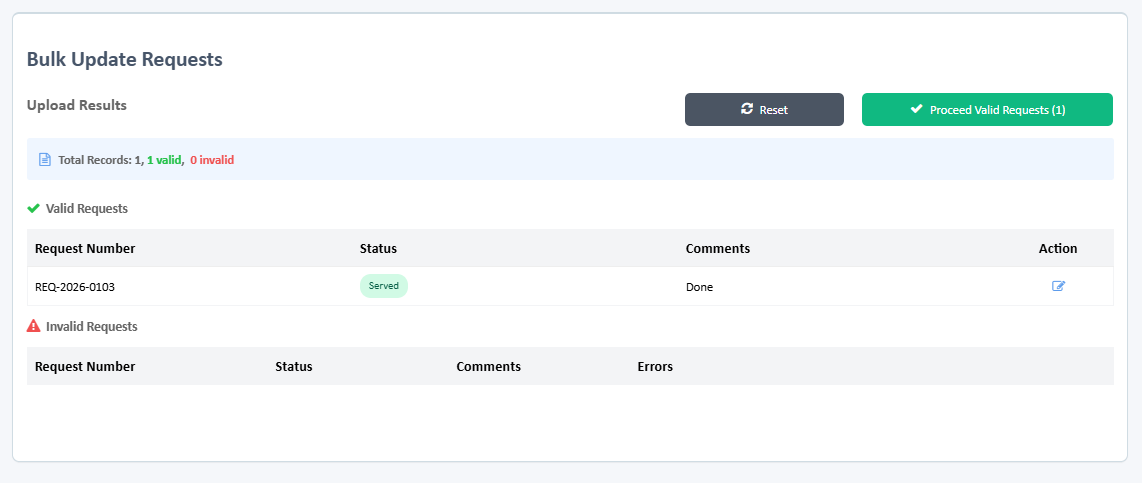
Processing
When User Clicks "Process Valid Entries":
- System adds comment to each valid request
- Updates legal notice status (if provided)
- Creates history entry for each request
- NO email notification is sent
- Success message displays: "Comments added to X requests"
What Gets Updated:
- Comment is added to request history
- Legal notice status is updated in request record
- Last update date/time is updated
- No status change occurs (New/In Progress/Completed remains same)
History Entry Created:
- Timestamp
- User who uploaded
- Comment text
- Legal notice status (if provided)
- Note: "Added via bulk comment upload"
Important Notes
- No Email Sent: This feature does not trigger email notifications
- No Status Change: Request status (New/In Progress/Completed) is not affected
- Legal Notice Status Only: Only updates the legal notice status field, not request status
- Multiple Comments: Can be run multiple times for same request
- Max 250 Characters: Comments exceeding limit are flagged as invalid
- Case Sensitive: Status values are case-insensitive (served = Served = SERVED)
6. Request Actions
Overview
Request Actions are permission-based operations that can be performed on individual requests. Available actions depend on user permissions and request status.
Accessing Request Actions
Method 1: Three-Dot Menu
- Locate request in grid
- Click three-dot icon (⋮) in Actions column
- Menu appears with available actions
Method 2: Row Click Some actions may be accessible by clicking directly on the row
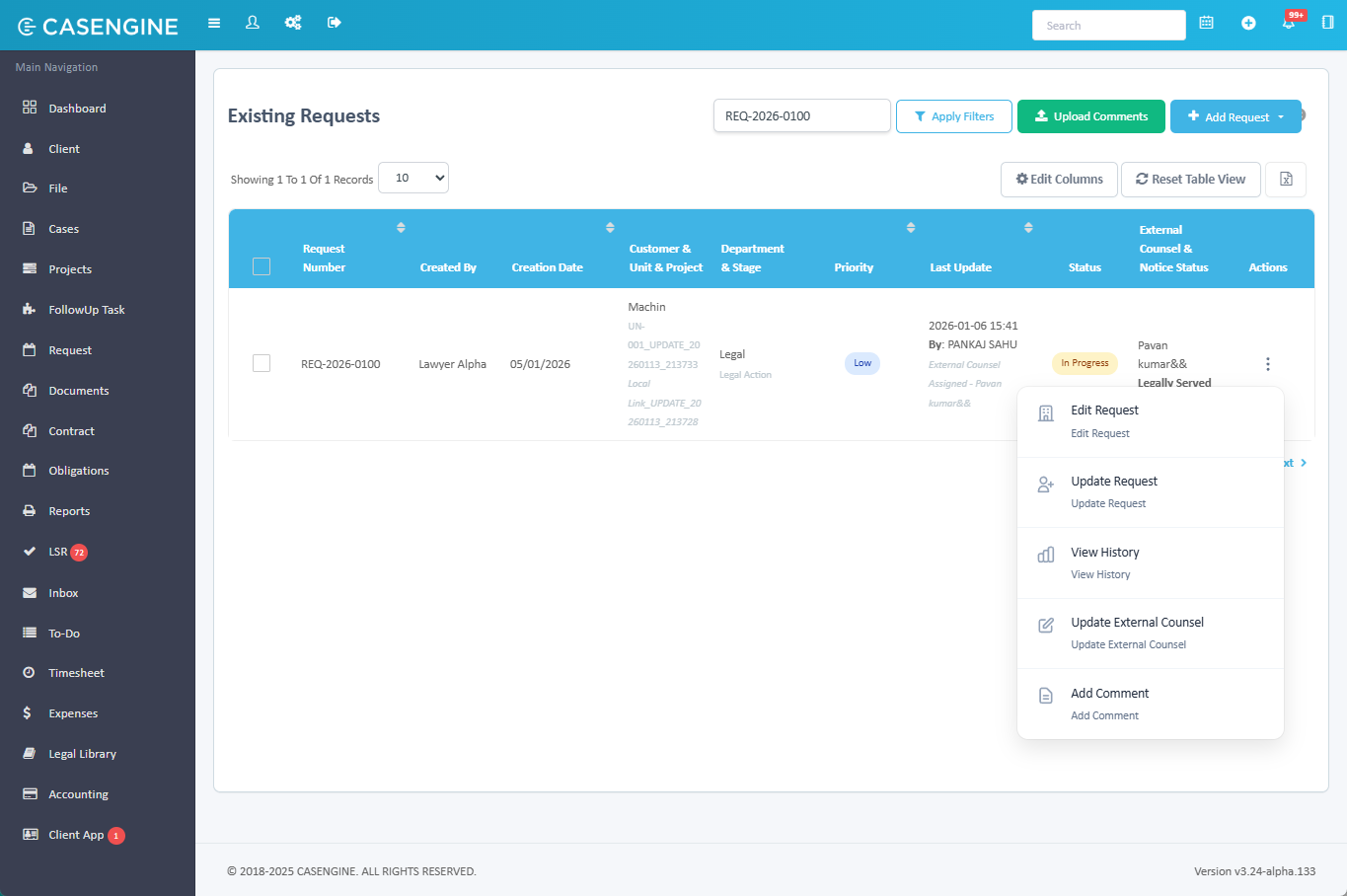
Available Actions
6.1 Edit Request
Purpose: Modify request details after creation
Permission Required: Edit Request
When Available:
- Request is in any status (New, In Progress, Completed, Cancelled)
- User has Edit Request permission
Process:
- Click Edit Request from actions menu
- Subtitle displays: "Edit Request"
- Same form as Create Request opens
- All fields are editable:
- Project, Unit, Customer(s)
- Contract Date, Contract Status, Priority
- Comments
- Attachments
- Payment Details
Key Behaviors:
- All creation fields can be modified
- Multiple customers can be selected/deselected
- Payment details can be added/edited/deleted
- NO email is sent when editing
- NO history entry is created for edits
- Changes take effect immediately on save
Form Buttons:
- Cancel: Discards changes
- Update: Saves modifications
Important Notes:
- Editing does not change request status
- Workflow stage is not affected
- Last update time is not modified
- Use this for correcting data errors
6.2 Update Request
Purpose: Update request status, add comments, move through workflow, add attachments
Permission Required: Update Request
When Available:
- Request is in status: New or In Progress
- User has Update Request permission
- Not available for Completed or Cancelled requests
Process:
- Click Update Request from actions menu
- Modal opens: "Update Request"
- Form displays request details and update options
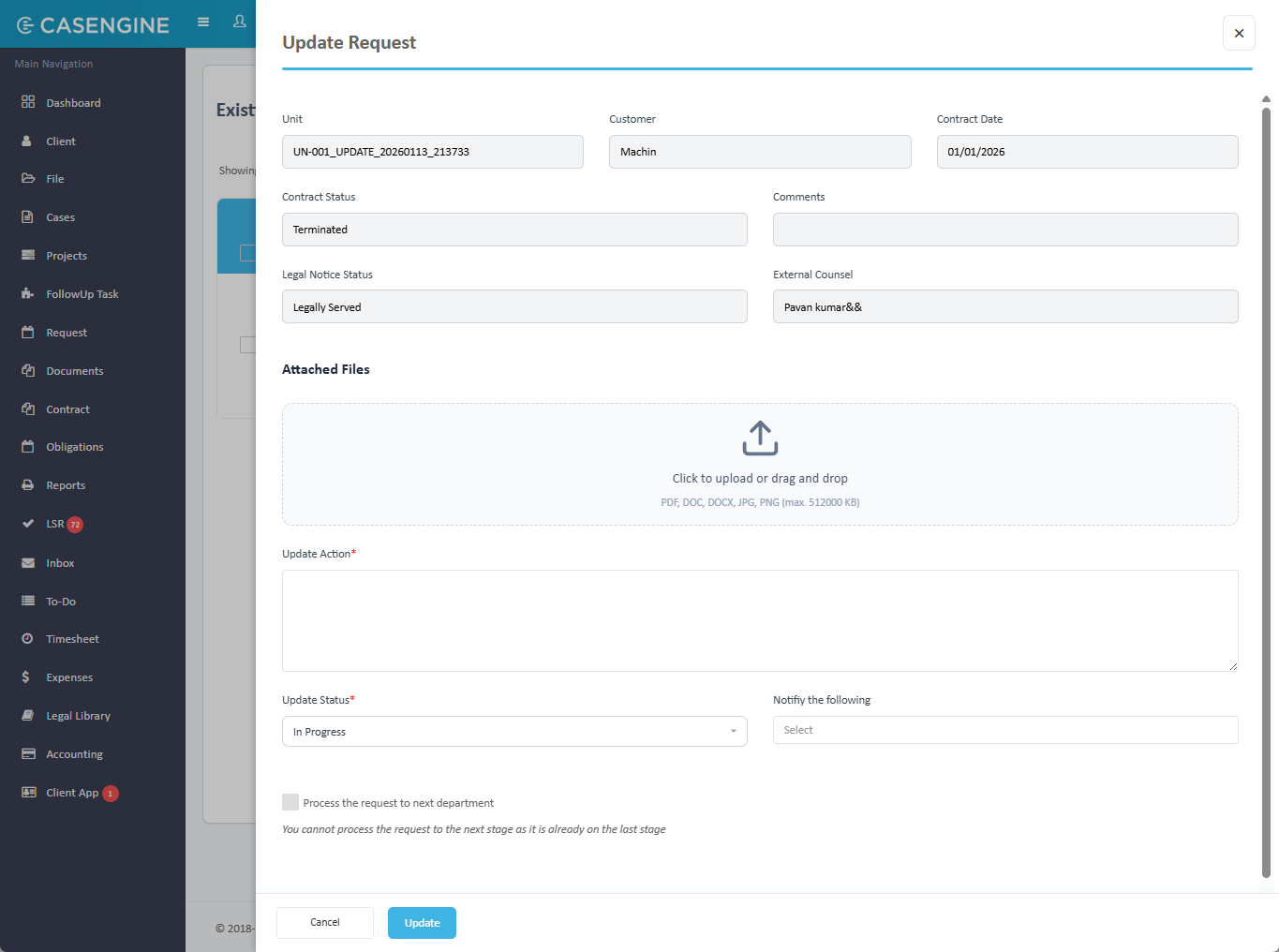
Update Request Form Structure:
Read-Only Information (Top):
- Unit: Displays unit number
- Customer: Displays all customer names (comma-separated if multiple)
- Contract Date: Displays contract date
- Contract Status: Displays current contract status
Comments: As entered while request creation
Legal Notice Status: As selected from add comments popup
External Counsel: Display field (read-only)
- Shows assigned external counsel name
- Empty if not yet assigned
Attachments: File upload area
- "Click to upload or drag and drop"
- Supported formats: PDF, DOC, DOCX, JPG, PNG (max. 512000 KB)
- Multiple files can be uploaded
Update Action: Text area (required) *
- Describe the action taken or update being provided
- Max 500 characters
- This field is mandatory
Update Status: Dropdown (required) *
- Options available based on permissions:
- In Progress: Marks request as actively being worked on
- Completed: Marks request as finished (requires Complete Request permission)
- Cancelled: Marks request as cancelled (requires Cancel Request permission)
- First update: Cannot remain "New", must select a status
- Subsequent updates: Can keep current status or change
- Options available based on permissions:
Notify the following: Multi-select dropdown
- Select additional users to notify via email
- Selected users added to CC in email notification
- Optional field
Process the request to next department: Checkbox
- Check to move request to next workflow stage
- Only appears if request is not at final stage and is not completed or rejected
- Moves request to next department's workflow stage
Status Change Rules:
First Update (Status = "New"):
- User MUST select In Progress, Completed, or Cancelled
- Cannot remain in "New" status after first update
Subsequent Updates (Status = "In Progress"):
- Can remain "In Progress"
- Can change to "Completed" (if has permission)
- Can change to "Cancelled" (if has permission)
Completed or Cancelled Requests:
- Update Request action not available
- Can only use "View History" or "Update Request" (which opens same form but only shows read-only view)
Workflow Progression:
If "Process the request to next department" is checked:
- Request moves to next stage in workflow
- Department changes to next department
- Stage changes to next stage name
- All updates are recorded in history
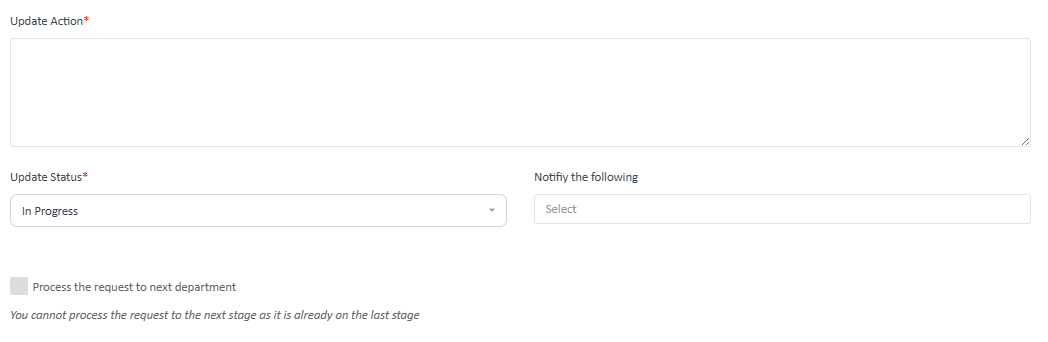
Form Validation:
- Update Action is required
- Update Status is required
- Comments max 250 characters
- Update Action max 500 characters
Form Buttons:
- Cancel: Closes form without saving
- Update: Saves all changes and processes update
Update Process:
- User fills form and clicks Update
- Status is changed (if selected)
- Attachments are saved
- History entry is created
- Email notification is sent
Email Notification:
- Sent to user who performed update (TO field)
- Sent to users configured in Email Notification Settings (CC field)
- Sent to users selected in "Notify the following" (CC field)
- Email includes:
- Request number
- Updated status
- Comments
6.3 View History
Purpose: Display complete audit trail of request
Permission Required: View All Request (or request creator)
When Available: Always available for all requests
Process:
- Click View History from actions menu
- Side panel opens: "View History"
- Timeline displays all historical entries
History Panel Structure:
Timeline Display:
- Chronological order (newest first by default)
- Numbered entries (1, 2, 3...)
- Each entry shows:
- Date and Time (e.g., Jan 11, 2026, 08:04 PM)
- User name and department (e.g., "Lawyer Alpha (Legal)")
- Priority badge (Low, Medium, High, Urgent)
- Status badge (New, In Progress, Completed, Cancelled)
Entry Details:
Department & Stage Section:
- Current department name
- Current stage name
- If workflow moved: Shows transition
- Example: "Legal → Development"
- Example: "New Request → Development Approval"
Comments Icon and Text:
- Speech bubble icon
- "Comments" label
- Comment text displayed below
Status and Priority:
- Color-coded status badge
- Color-coded priority badge
Attachments (if any):
- Paperclip icon
- File name with download link
- File size
- Expiry date (if applicable)
- Tags: Unit/Customer tags showing which attachments belong to which entity
External Counsel Information (if assigned):
- "External Counsel Assigned:" label
- Counsel name
- If modified: "External Counsel Withdrawn" message
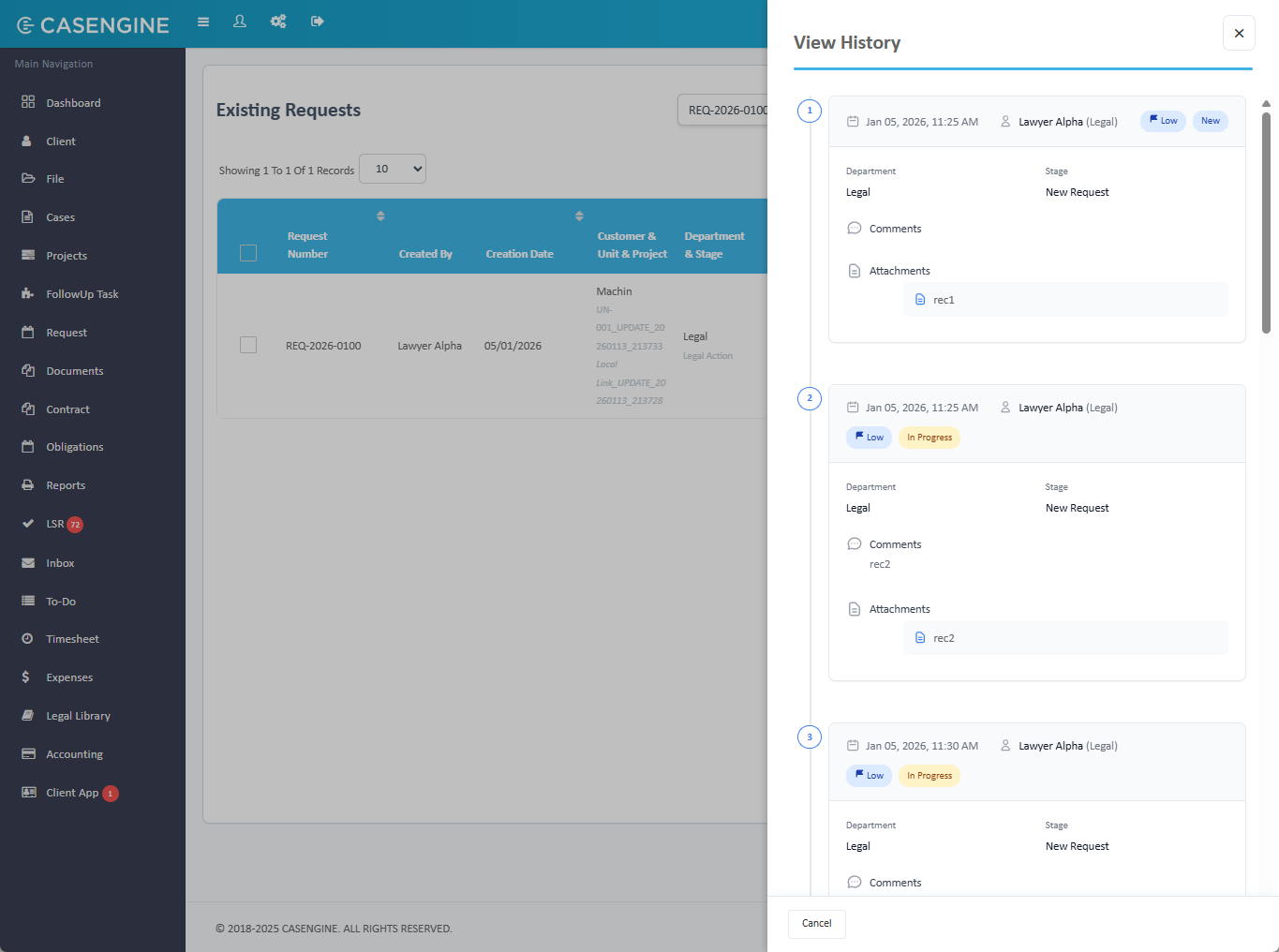
History Entry Types:
Request Creation:
- Shows: "Request created"
- Department: First workflow stage
- Stage: Initial stage name
- Status: New
- Includes initial comments if provided
Status Update:
- Shows status change (e.g., "New → In Progress")
- Update action text
- Comments
- Workflow transition (if moved to next stage)
External Counsel Assignment:
- Shows: "External Counsel Assigned"
- Counsel name
- Date/time of assignment
6.4 Add External Counsel
Purpose: Assign external legal counsel to handle the request
Permission Required: Appoint Legal Counsel
When Available:
- Request can be in any status
- User has Appoint Legal Counsel permission
- Action text changes based on current assignment:
- "Add External Counsel" - if no counsel assigned
- "Update External Counsel" - if counsel already assigned
Process:
- Click Add External Counsel from actions menu
- Modal opens: "Add External Counsel"
- Form displays request information and counsel selection
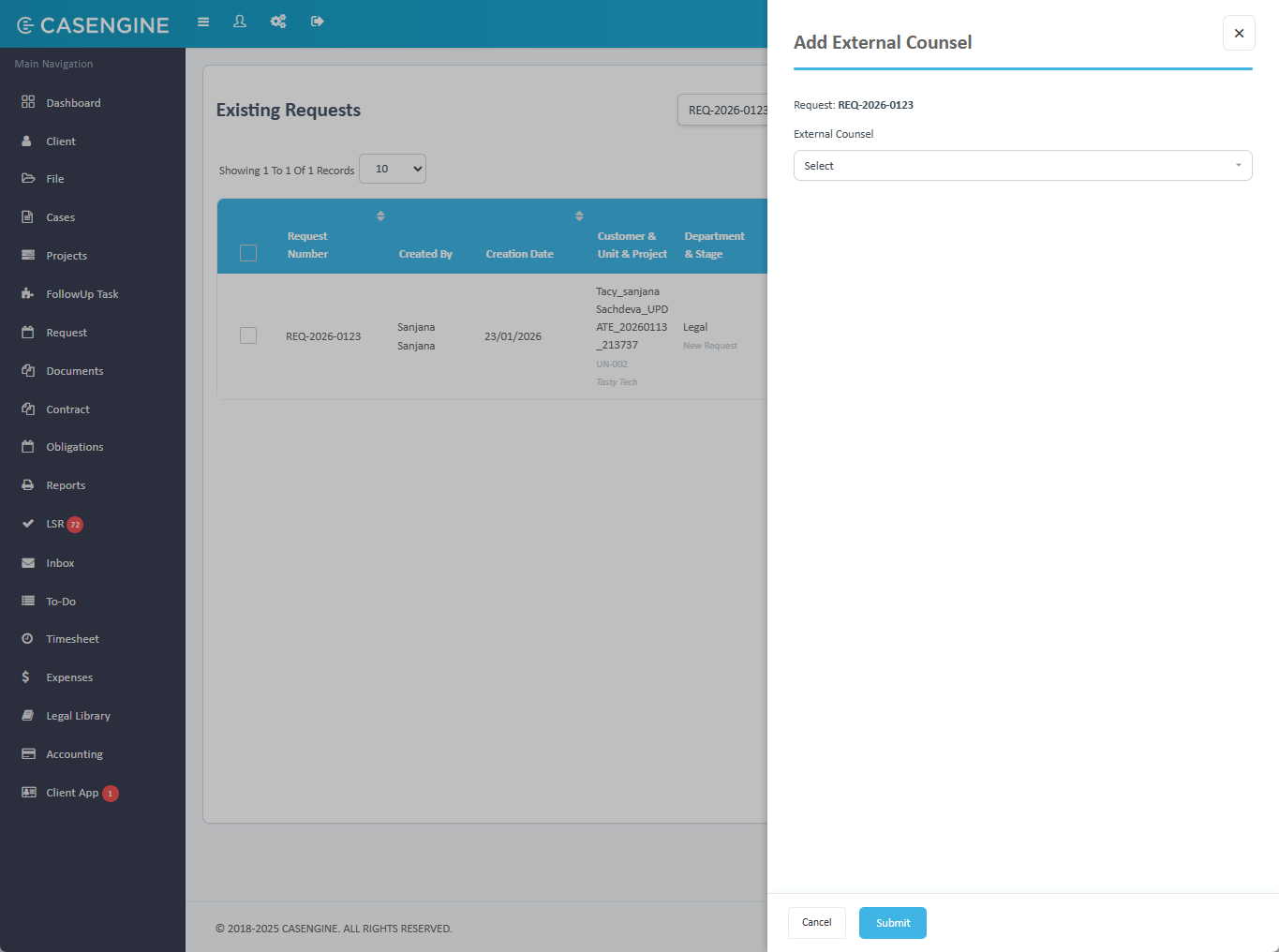
Add External Counsel Form:
Display Information:
- Request: Shows request number (e.g., REQ-2026-0123)
Selection Field:
- External Counsel: Searchable dropdown *
- Shows all active external counsels from External Counsel Master
- Single selection
- Type-ahead search functionality
- Required field
Assignment Process:
For New Assignment:
- User selects counsel and clicks Submit
- System assigns counsel to request
- System updates "External Counsel & Notice Status" column in grid
- System creates history entry
- System sends automated email to external counsel
- Success message displays
For Update/Modification:
- User changes counsel selection
- Click Submit
- System sends withdrawal email to previous counsel
- System assigns new counsel
- System sends assignment email to new counsel
Email to External Counsel:
Important Notes:
- Assignment can be changed multiple times
- Each change sends new emails
- Previous counsel receives withdrawal notification
- New counsel receives full assignment details
- All attachments at time of assignment are included in ZIP
- Attachments added later are not automatically sent (requires manual communication or re-assignment)
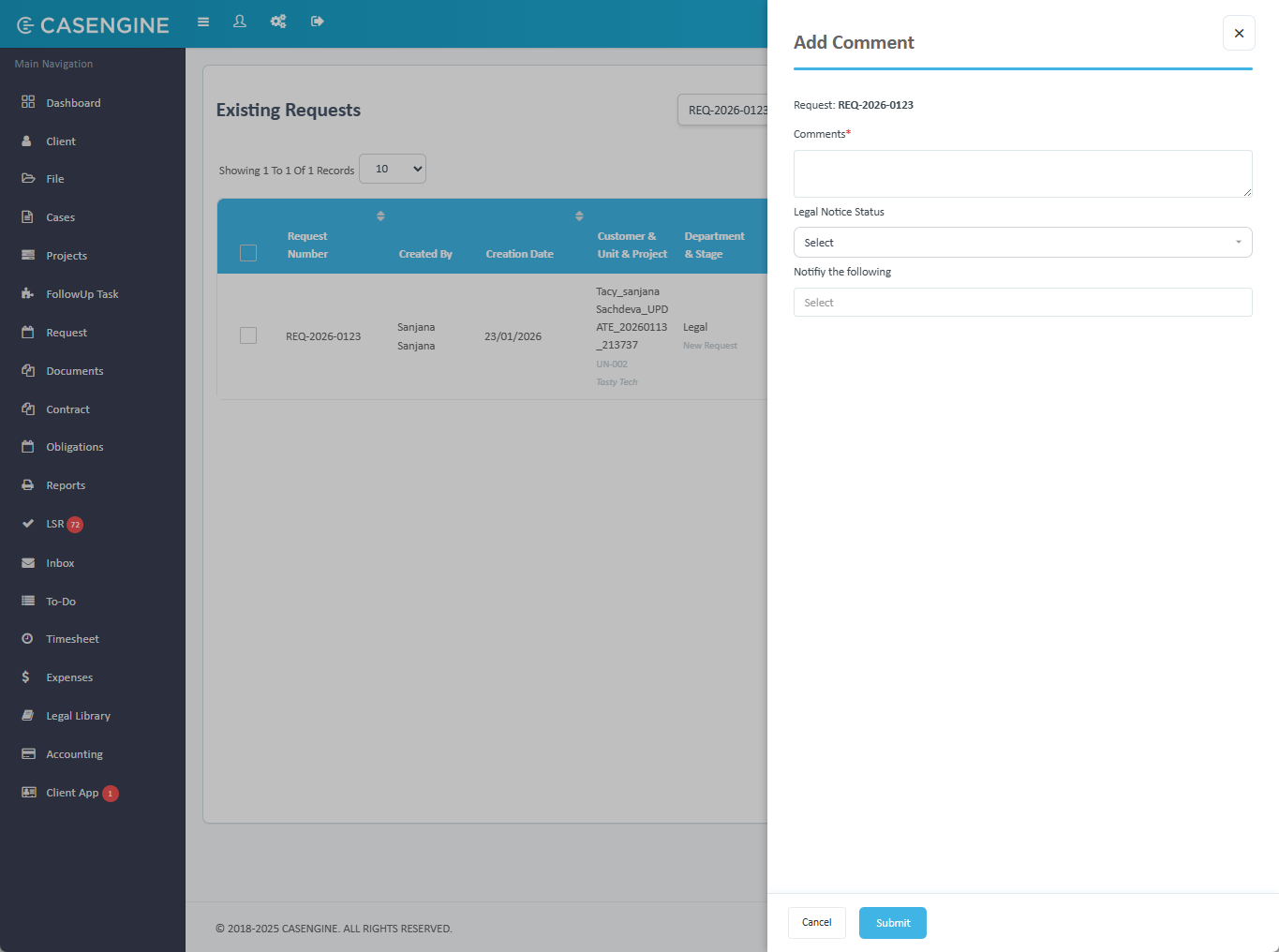
6.5 Add Comment
Purpose: Add internal comment without changing request status or sending emails
Permission Required: View All Request (typically available to all users with request access)
When Available: Always available for all requests
Process:
- Click Add Comment from actions menu
- Modal opens: "Add Comment"
- Form displays comment entry fields
Add Comment Form:
Display Information:
- Request: Shows request number (e.g., REQ-2026-0123)
Entry Fields:
Comments: Text area (required) *
- Max 250 characters
- Character counter displays remaining count
- Required field
Legal Notice Status: Dropdown (optional)
- Options: Select, Served, Legally Served, Inaccurate Address, Others
- Updates legal notice tracking
- Optional field
Notify the following: Multi-select dropdown
- Select users to notify about this comment
- Selected users receive notification
- Optional field
Form Buttons:
- Cancel: Closes form without saving
- Submit: Adds comment to request
7. Batch Operations
Overview
Batch operations allow users to perform actions on multiple requests simultaneously. These operations improve efficiency when managing large volumes of requests.
Accessing Batch Operations
Selection Process:
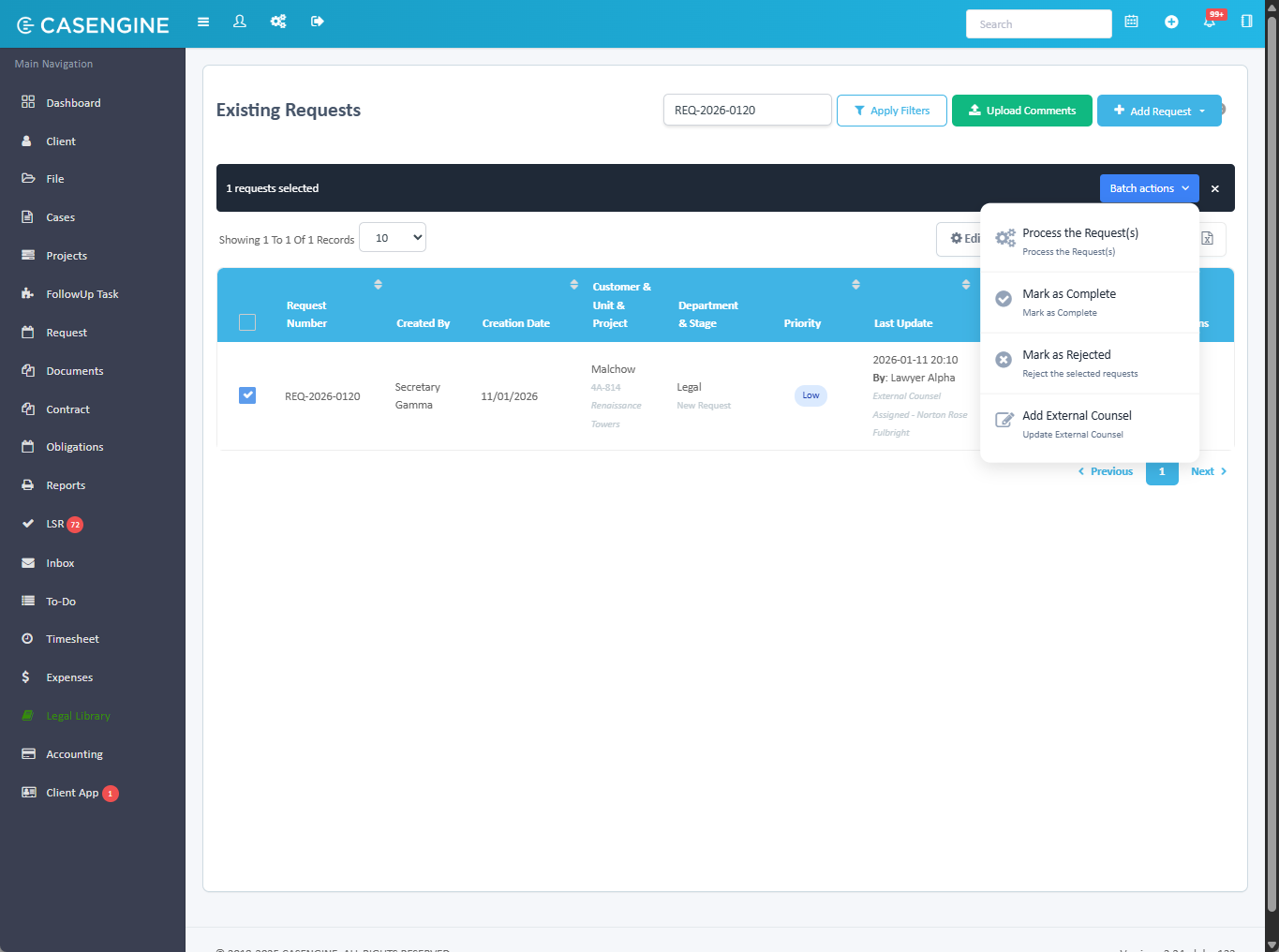
- Check checkbox next to each request in the grid
- Or check header checkbox to select all visible requests
- Batch action buttons appear above the grid
Selection Limits:
- Maximum 100 requests per batch operation
- All selected requests must be at the SAME workflow stage
- System validates selections before allowing actions
Available Batch Actions
When requests are selected, the following buttons appear:
- Process the Request(s) - Moves selected requests to next workflow stage
- Mark as Complete - Changes status of selected requests to Completed
- Mark as Rejected - Changes status of selected requests to Cancelled
- Add External Counsel - Assigns counsel to multiple requests at once
Batch Action Requirements
Common Requirements:
- User must have appropriate permission for the action
- All selected requests must be at the same workflow stage
- Maximum 100 requests can be selected
- Requests in "Completed" or "Cancelled" status cannot be included
Permission Requirements:
- Process Requests: Update Request permission
- Mark as Complete: Complete Request permission
- Mark as Rejected: Cancel Request permission
- Add External Counsel: Appoint Legal Counsel permission (only for requests without counsel)
7.1 Process the Request(s)
Purpose: Move multiple requests to the next workflow stage simultaneously
Requirements:
- All selected requests at same current stage
- Next stage exists in workflow
- User has Update Request permission
Process:
- Select requests (must all be at same stage)
- Click Process the Request(s) button
- Confirmation dialog appears
- Confirm action
- System processes each request
What Happens:
- Each request moves to next workflow stage
- Department changes to next department
- Stage changes to next stage name
- Status remains unchanged (unless specified otherwise)
- History entry created for each request
- Email notifications sent
Validation:
- System checks all requests are at same stage
- If any request is at different stage, error message appears
- If any request is at final stage, error message appears
Email Notifications:
- One email per request (not one for all)
- Sent to Email Notification Settings users
- User who processed receives emails in TO field
7.2 Mark as Complete
Purpose: Change status of multiple requests to Completed simultaneously
Requirements:
- User has Complete Request permission
- Selected requests not already completed
Process:
- Select requests
- Click Mark as Complete button
- Confirmation dialog appears
- Confirm action
- System updates all requests
What Happens:
- Status changes to "Completed"
- Workflow stage remains same
- Department remains same
- History entry created for each request
- Email notifications sent
Post-Completion:
- Requests can only be viewed (no further updates)
- View History and Edit Request remain available
- Update Request shows read-only view
7.3 Mark as Rejected
Purpose: Change status of multiple requests to Cancelled simultaneously
Requirements:
- User has Cancel Request permission
- Selected requests not already cancelled
Process:
- Select requests
- Click Mark as Rejected button
- Confirmation dialog appears
- Confirm action
- System cancels all requests
What Happens:
- Status changes to "Cancelled"
- Workflow stage remains same
- Department remains same
- History entry created for each request
- Email notifications sent
Post-Cancellation:
- Same restrictions as Completed requests
- Cannot be updated further
- Remain visible in system for historical reference
7.4 Add External Counsel (Batch)
Purpose: Assign same external counsel to multiple requests simultaneously
Requirements:
- User has Appoint Legal Counsel permission
- Selected requests must NOT have counsel already assigned
- System filters out requests that already have counsel
Process:
- Select requests (only those without counsel)
- Click Add External Counsel button
- Modal opens with counsel selection
- Select counsel from dropdown
- Click Submit
Add External Counsel Batch Form:
- Shows count of selected requests
- External Counsel dropdown (single selection)
- Submit and Cancel buttons
What Happens:
- Same counsel assigned to all selected requests
- History entry created for each request
- Single bulk email sent to external counsel (not individual emails)
Bulk Email to External Counsel:
Contains:
- List of all assigned request numbers in table format
- For each request: Request Number, Customer(s), Unit, Project
- Single ZIP file download link containing:
- Subfolders for each request number
- All documents for each request in its folder
- Payment details Excel for each request
Was this article helpful?
That’s Great!
Thank you for your feedback
Sorry! We couldn't be helpful
Thank you for your feedback
Feedback sent
We appreciate your effort and will try to fix the article