The Document Expiry feature allows you to set an expiry date on uploaded documents to receive timely reminders before they expire. While this is not a mandatory setting, it can be very useful for documents like ID cards, contracts, agreements, and other time-sensitive records.
Note: Documents are not deleted after expiry. They remain in the system for your reference or future action.
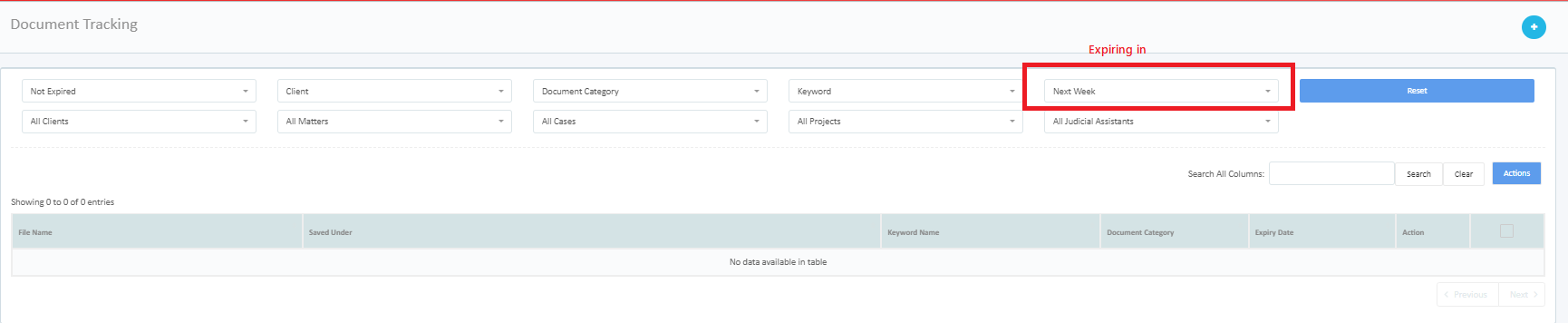
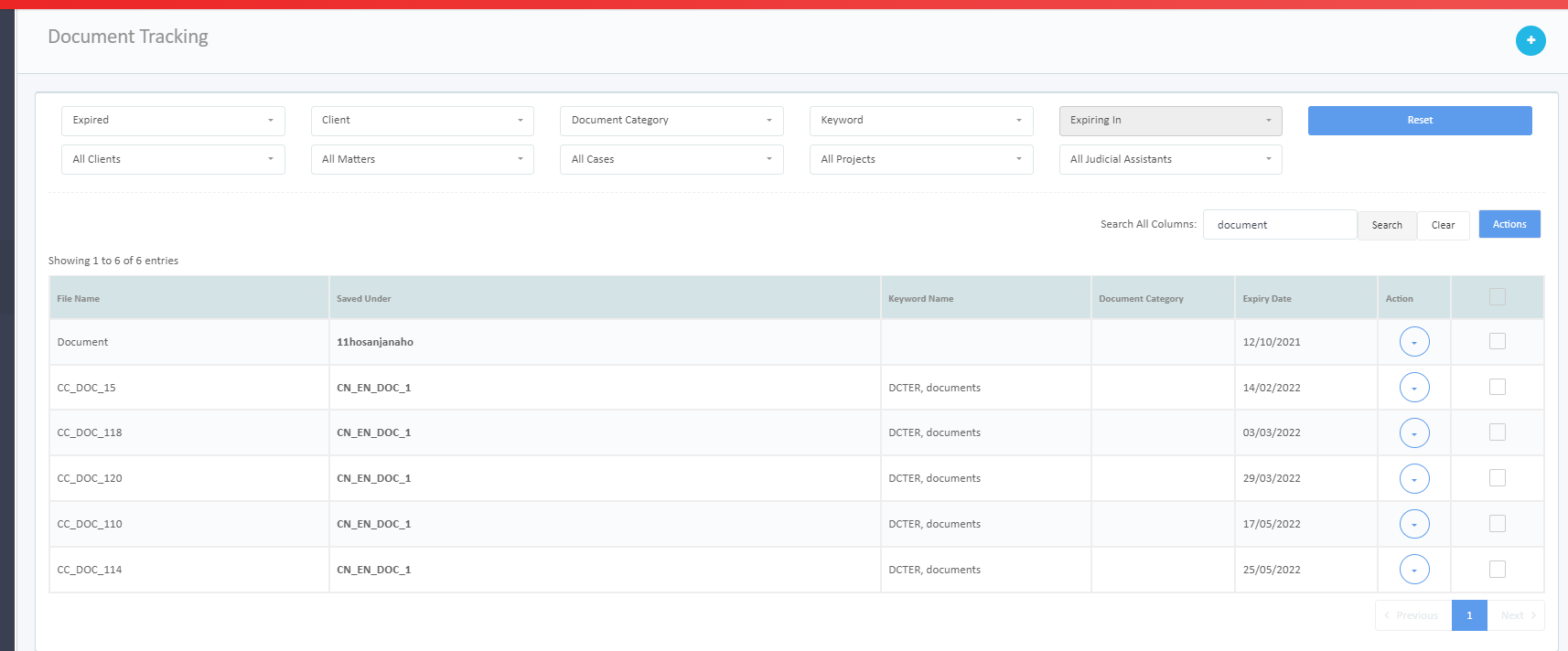
Viewing Expired Documents
To view expired documents:
Go to Documents > Document Tracking.
Document Expiry Reminder Logic
Once an expiry date is set, reminders will be sent based on the following schedule:
1 month before the expiry date
2 weeks before the expiry date
Daily reminders starting 1 week before the expiry date until the document expires
Reminders are sent to:
Users assigned as Responsible in the related case
Users assigned as Supervisor, Secretary in the related case
This ensures that the relevant team members are notified in advance to take the necessary action.
Enabling Reminders for Other Users
To enable document expiry reminders for users who are not assigned to the case, the Document Expiry Reminder checkbox must be enabled in the User Registration settings.
When this option is enabled, those users will also receive document expiry notifications.
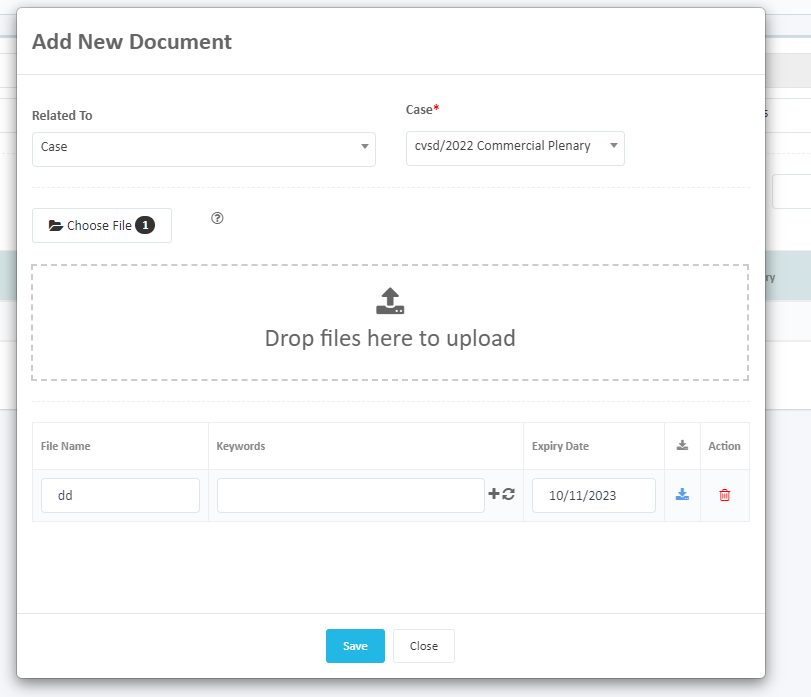
Uploading a Document with an Expiry Date
When uploading a document, you’ll have the option to enter an expiry date. This ensures that the system sends timely notifications, helping you stay ahead of any critical renewals or updates.
To see expired documents, Navigate to Documents > Document Tracking.
Was this article helpful?
That’s Great!
Thank you for your feedback
Sorry! We couldn't be helpful
Thank you for your feedback
Feedback sent
We appreciate your effort and will try to fix the article