Overview
CasEngine sends and reads email through Microsoft 365 (Microsoft Graph), signed in with an app registration in your Microsoft Entra ID. Basic SMTP sign-in with a username and password no longer works, because Microsoft now requires multi-factor authentication.
This article shows your IT administrator how to:
- Create the app registration and give it the permissions CasEngine needs.
- Create a client secret and send the app details to your CasEngine contact.
- Connect Microsoft 365 in CasEngine and turn on Email Send and Email Read.
You need the Global Administrator or Privileged Role Administrator role in Entra ID to grant admin consent.
What changed from the previous version of this article: the app now also needs Organization.Read.All (CasEngine uses it to confirm the connection), a redirect URI, and the connection is made from Settings → App Settings → Integrations instead of Email configuration.
Step 1: Create the app registration
- Sign in to the Microsoft Entra admin center and go to Identity → Applications → App registrations → New registration.
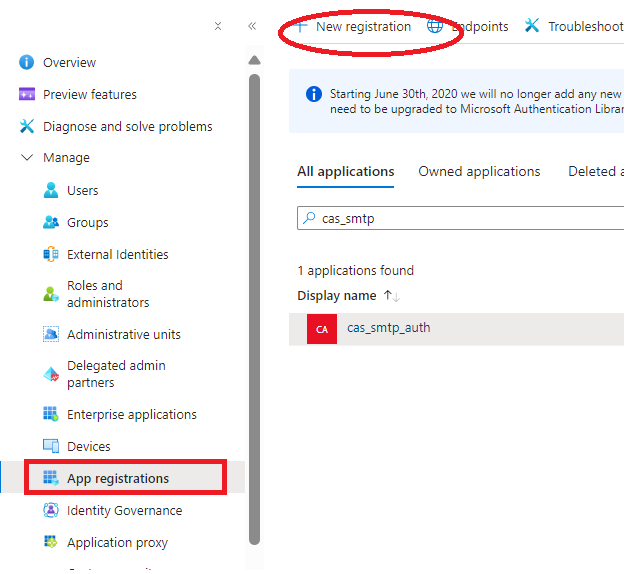
- Name:
CasEngine-Email(or a name your team will recognise). - Supported account types: Accounts in any organizational directory (Any Microsoft Entra ID tenant – Multitenant). CasEngine signs in through Microsoft's shared sign-in address, which does not accept single-tenant apps (error AADSTS50194). Only users and mailboxes in your own organization are used.
- Redirect URI: platform Web, value
https://<your CasEngine address>/api/integration/microsoft/callback, for examplehttps://casengine.yourfirm.com/api/integration/microsoft/callback. - Click Register.
If you also use Sign in with Microsoft for CasEngine, see Single sign-on below for the second redirect URI and how to restrict the app to your own organization.
Step 2: Add the permissions
Go to API permissions → Add a permission → Microsoft Graph → Application permissions (not Delegated) and add:
Permission | Type | Needed for |
|---|---|---|
Organization.Read.All | Application | Required. CasEngine reads your organization's name to confirm the connection |
Mail.Send | Application | Email Send: sending email from a mailbox |
Mail.ReadWrite | Application | Email Read: reading a mailbox and marking messages as read |
Calendars.ReadWrite | Application | Only if you use Calendar or Teams meetings |
Sites.ReadWrite.All | Application | Only if you use SharePoint document storage |
Mail.Read is not needed when Mail.ReadWrite is added.
Click Grant admin consent for <your organization>. Every row must show Granted for <your organization> in the Status column.
Step 3: Create a client secret
- Go to Certificates & secrets → Client secrets → New client secret.
- Description:
CasEngine; Expires: 24 months (the longest your policy allows). - Copy the secret Value straight away. It is shown only once. (The Secret ID is not the secret.)
- Add a reminder to renew it before the expiry date. When it expires, CasEngine email stops.
Step 4: Send the details to CasEngine
From the app's Overview page, collect:
Item | Where |
|---|---|
Application (client) ID | Overview |
Directory (tenant) ID | Overview |
Client secret value | Step 3 |
Send them to your CasEngine contact through a secure channel (a password manager share or encrypted message, never plain email).
On-premises installations: these values are not entered in CasEngine Settings. They are stored as environment variables on the CasEngine API app pools in IIS (CE_api_onprem, and CE_api_staging_onprem if you have staging), where the secret is kept out of the database and configuration files:
App pool setting | Value |
|---|---|
| Application (client) ID |
| Directory (tenant) ID |
| Client secret value |
|
|
The CasEngine team sets these during installation, or your administrator sets them with the installation runbook. The app pools are recycled afterwards so the new values take effect. When the client secret is renewed, only CloudProviders__Microsoft__ClientSecret needs updating.
Step 5: Connect Microsoft 365 in CasEngine
Once CasEngine confirms the app details are in place:
- Sign in to CasEngine as an administrator and go to Settings → App Settings → Integrations → Microsoft Outlook.
- Click Connect. Microsoft opens a consent page: check that the app name is your app (for example
CasEngine-Email), sign in as a Global Administrator, and click Accept. - You return to CasEngine and Microsoft Outlook shows Connected.
- Turn on each service you need. Enter the mailbox, then click Approve in Microsoft & enable:
Service | Mailbox to enter | Result |
|---|---|---|
Email Send | The address CasEngine sends from, e.g. | CasEngine emails are sent from this mailbox |
Email Read | The mailbox CasEngine reads, e.g. | New messages are imported every 5 minutes and marked as read |
Use a shared or dedicated mailbox for Email Read, not a person's working inbox.
Single sign-on (Sign in with Microsoft)
CasEngine's Sign in with Microsoft uses the same app registration: no second app and no extra secret. It needs a second redirect URI and the app restricted to your own organization.
1. Add the sign-in redirect URI. In the app: Authentication → Web → Redirect URIs → Add URI:
https://<your CasEngine address>/api/v1.0/Auth/SSOCallbackIt must match exactly: https://, your CasEngine address (with the port if it is not 443), and /api/v1.0/Auth/SSOCallback. Click Save.
2. Keep the app multitenant, but allow only your organization. CasEngine signs users in through Microsoft's shared sign-in address, so the app must be multitenant (Step 1.3). Restrict it to your own tenant so no other organization's accounts can use it:
- Authentication → Supported account types: Accounts in any organizational directory (Multitenant).
- Under the multitenant option, choose Allow only certain tenants and add your Directory (tenant) ID. Click Save.
If that option is not shown in your portal yet (it is a newer Entra feature), set it with Microsoft Graph Explorer, signed in as an administrator:
PATCH https://graph.microsoft.com/beta/applications/<app Object ID>
Content-Type: application/json

{
  "signInAudience": "AzureADMultipleOrgs",
  "signInAudienceRestrictions": {
    "@odata.type": "#microsoft.graph.allowedTenantsAudience",
    "allowedTenantIds": [ "<your Directory (tenant) ID>" ]
  }
}
Use the app's Object ID from its Overview page, not the Application (client) ID.
3. Choose who may sign in (recommended). Go to Enterprise applications → your app → Properties → Assignment required? = Yes, then under Users and groups add the group of CasEngine users.
4. Turn on single sign-on in CasEngine. Ask your CasEngine contact to enable Microsoft sign-in for your firm. Each user signs in with the Microsoft account whose email matches their CasEngine user email exactly; accounts without a matching active CasEngine user are refused.
Test: open CasEngine, click Sign in with Microsoft, and sign in. If Microsoft shows an error, the code (for example AADSTS50011) is listed under Troubleshooting below.
Limit access to specific mailboxes (recommended)
Application permissions allow access to every mailbox in your organization. To limit CasEngine to the mailboxes above, follow How to restrict CasEngine's access to specific mailboxes in Microsoft 365. It uses Exchange Online RBAC for Applications.
Troubleshooting
Message | Cause | Fix |
|---|---|---|
Admin consent was granted, but the connection could not be verified |
| Add it as an Application permission and grant admin consent (Step 2); wait 5 minutes and try again |
| The redirect URI in the app does not match your CasEngine address exactly | Correct it under Authentication (Step 1.4); it must start with |
| App was created as single-tenant | Change Supported account types to multitenant (Step 1.3) |
| Wrong value (Secret ID used) or expired secret | Create a new secret and send the Value to CasEngine (Steps 3–4) |
Email Read or Send cannot be enabled |
| Grant admin consent again (Step 2) |
Email stops after some months | Client secret expired | Create a new secret before the expiry date |
For Microsoft's background on why basic SMTP sign-in stopped working, see Authenticated client SMTP submission.
Was this article helpful?
That’s Great!
Thank you for your feedback
Sorry! We couldn't be helpful
Thank you for your feedback
Feedback sent
We appreciate your effort and will try to fix the article