This guide explains how to enable Timesheet for a user and set their hourly rate in Casengine.
Knowledge Base Article
How to Set Hourly Rate for Timesheet Users
This guide explains how to enable Timesheet for a user and set their hourly rate in Casengine.
Step 1: Go to Settings
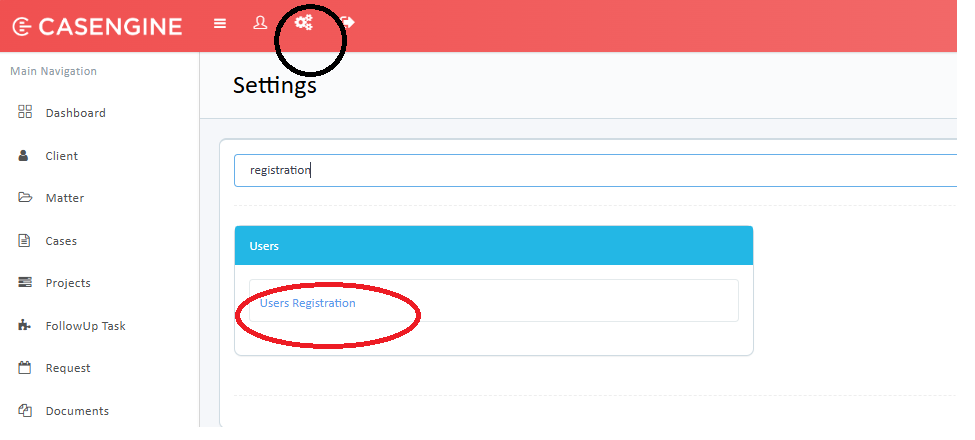
Click on the ⚙ Settings icon from the top menu.
In the search box, type Registration.
Click on Users Registration under the Users section.
Step 2: Open User Edit Page
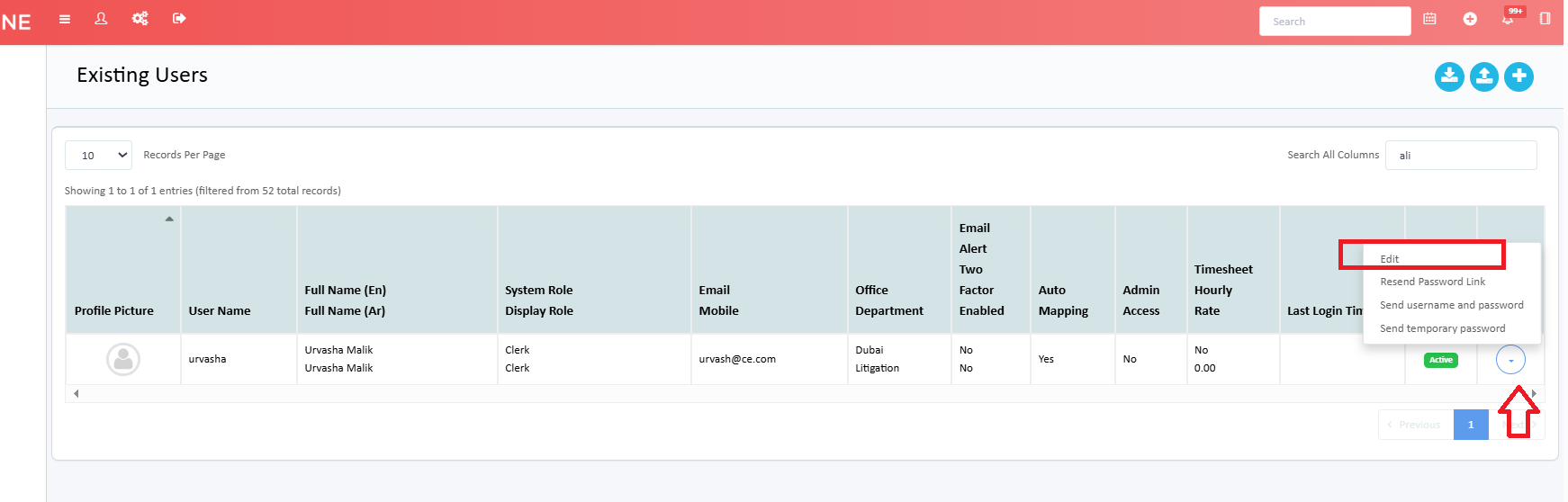
The Existing Users page will open.
Locate the required user.
Click the Action (⋮) menu on the right side.
Select Edit.
Step 3: Enable Timesheet and Set Hourly Rate
In the User Edit page:
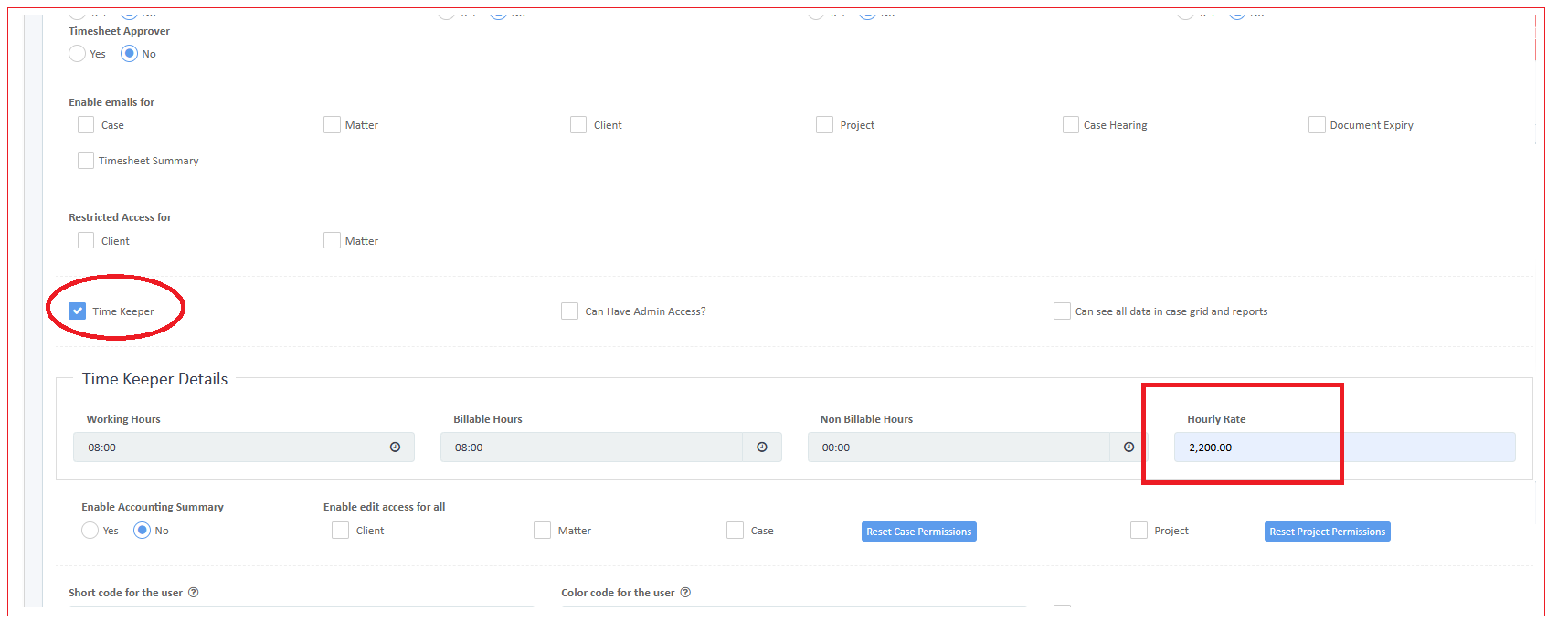
Enable Time Keeper.
Scroll down to the Time Keeper Details section.
Enter the Hourly Rate.
Click Submit to save the changes.
Important Notes
The hourly rate entered here will be used for timesheet billing calculations.
Make sure Time Keeper is enabled; otherwise, the hourly rate will not apply.
Only users with proper permissions can edit user details.
Was this article helpful?
That’s Great!
Thank you for your feedback
Sorry! We couldn't be helpful
Thank you for your feedback
Feedback sent
We appreciate your effort and will try to fix the article