Applies to version: v3.28.0
Email Notifications and User Customization
Email notifications in Case Engine can be configured individually for each user by an administrator.
To manage a user's email notification settings:
- Log in as an Administrator.
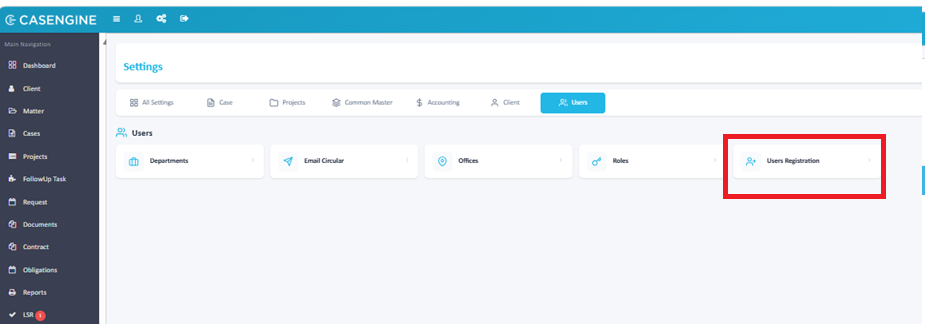
- Navigate to Settings (gear icon) → Users → User Registration.
- Locate the required user and click the Action menu on the far right.
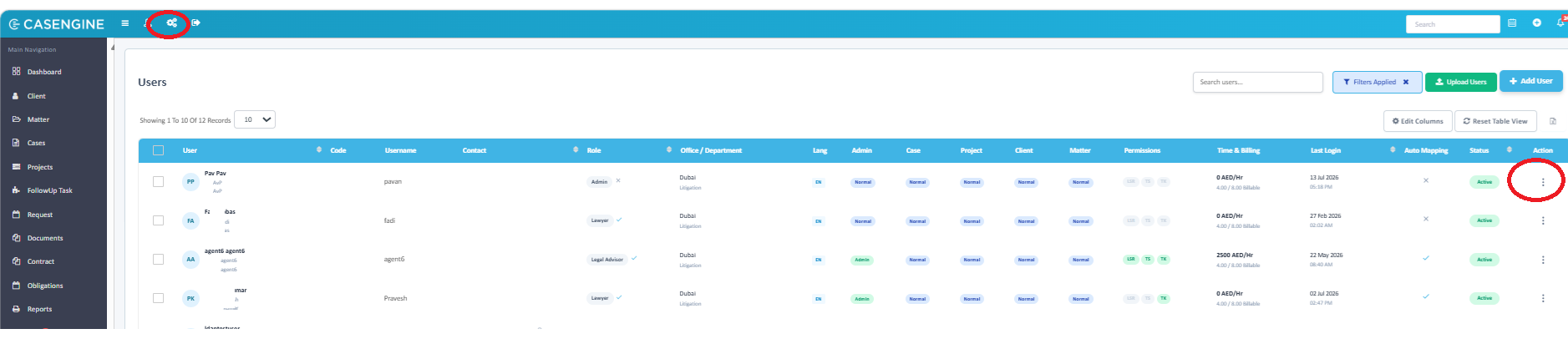
- Select Edit.
- Open the Email Notifications tab from the left menu.
- Ensure that the Email Notifications master toggle is enabled for the user.
By default, the CC Notification Preferences should remain disabled for normal users.
Under the default configuration, users will receive email notifications only for matters or cases in which they are assigned as either the Responsible User or the Supervisor. This helps minimize unnecessary email traffic and ensures that users receive notifications only for files they are directly involved in.
If a user requires broader visibility—such as a Secretary, Manager, or another staff member who needs to receive notifications regardless of whether they are assigned to the matter—the relevant CC Notification Preferences can be enabled. These options allow administrators to subscribe the user to additional notification categories, such as:
- All Case Notifications
- Matter Notifications
- Project Notifications
- Client Notifications
- Judgement Reminder / Appeal Reminder
- Document Expiry Alerts
- Payment Due Alerts
- Payment Received Alerts
- Timesheet Entry Updates
These settings apply only to the selected user and do not affect notification preferences for other users.
Role-Based Notifications
In addition to the above settings, certain role types receive notifications automatically based on their configured mappings:
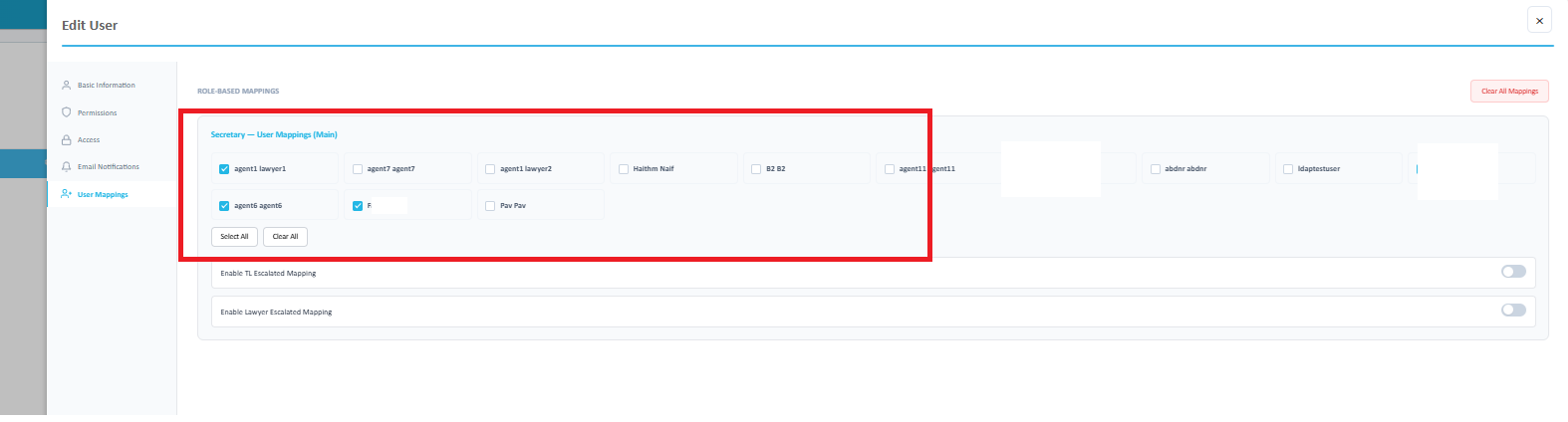
- Secretary – Receives notifications similar to the Responsible or Supervisor lawyer to whom they are mapped. This mapping can be configured under Settings → User Registration → User Mappings.
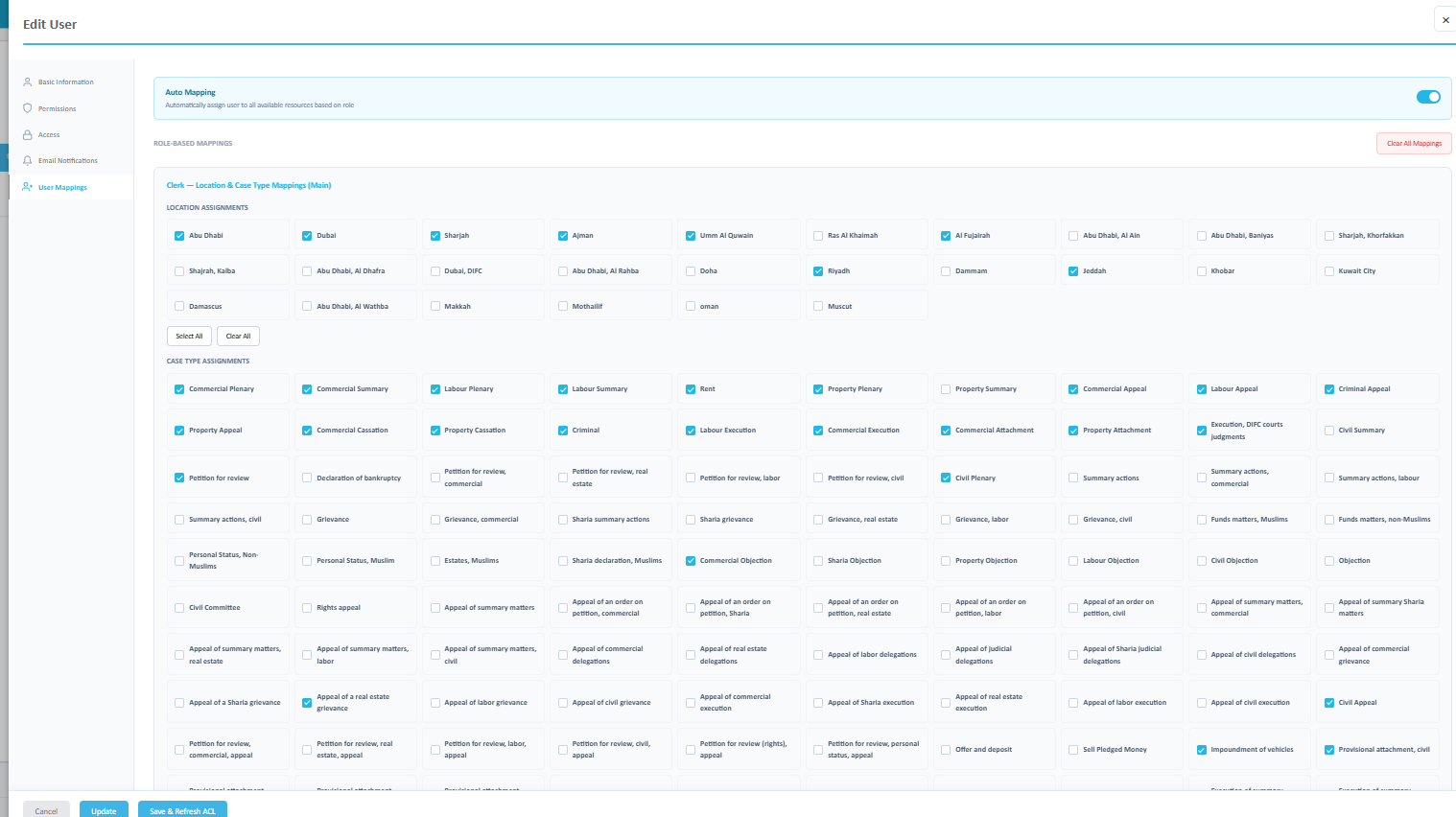
- Clerk – Receives notifications for cases belonging to the Case Types assigned to them through User Mappings.
- Head of Department (HOD) – Receives notifications for cases belonging to the Department(s) assigned to them through User Mappings.
This combination of assignment-based notifications, optional CC notification preferences, and role-based mappings provides flexible control over which email notifications each user receives while helping reduce unnecessary emails.
Was this article helpful?
That’s Great!
Thank you for your feedback
Sorry! We couldn't be helpful
Thank you for your feedback
Feedback sent
We appreciate your effort and will try to fix the article